Get paid daily as tickets sell, or after the show

Get paid daily as tickets sell through your own payment processing account, or after the show with nothing to set up. You choose who pays the booking fee.

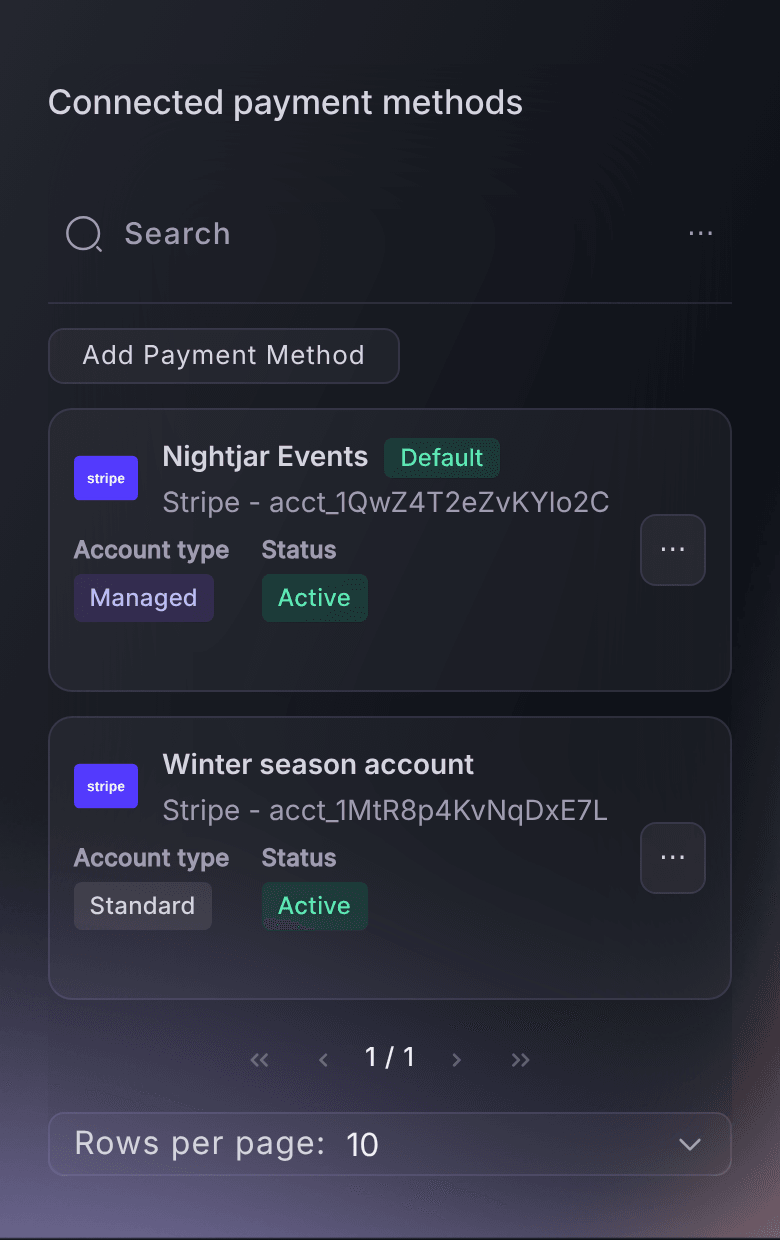
Ticket Fairy Connected payment methods table on a brand, with a managed account marked Default and a second account from an earlier season
  • Paid daily as tickets sell
  • Ticket prices that match your poster
  • A known payout date for each event

Get paid daily as tickets sell, or after the show

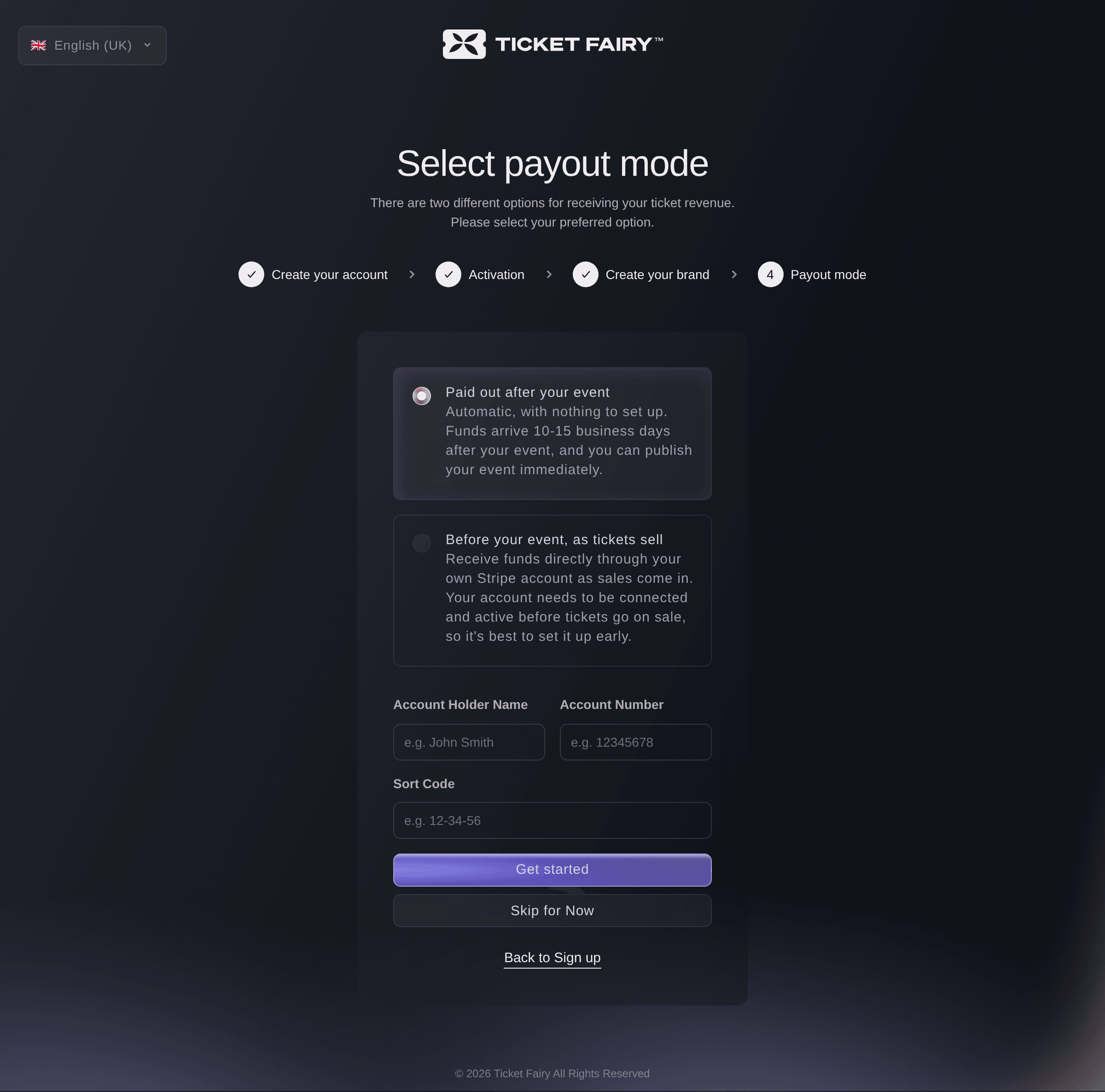
Some promoters need ticket money before the show to pay venue deposits, production and artist advances. Others want to publish today and settle up afterwards. When you set up your brand, choose Before your event, as tickets sell. Buyers pay into your own payment processing account, and you get paid daily. Choose Paid out after your event, and Ticket Fairy collects the card payments and pays you once the event is over. You have nothing to set up before you publish.

Paid out after your event is the fastest way to go live: you create the event, publish it and start selling the same day. Ticket Fairy sends the money to the bank account you enter under Payout Details on your brand. If one event needs to pay a different bank account, such as a co-promoted show, use Use alternative payout details for this event.

Getting paid daily suits a promoter with costs to cover before doors open. The money from an on-sale is in your bank well before the event. Get your account to Active before your tickets go on sale. An event keeps the account it had when it took its first paid order.

  • Before your event, as tickets sell: paid daily into your own account as buyers pay
  • Paid out after your event: nothing to set up, so you can publish straight away
  • Payout Details: your brand's bank account, or a different one for one event
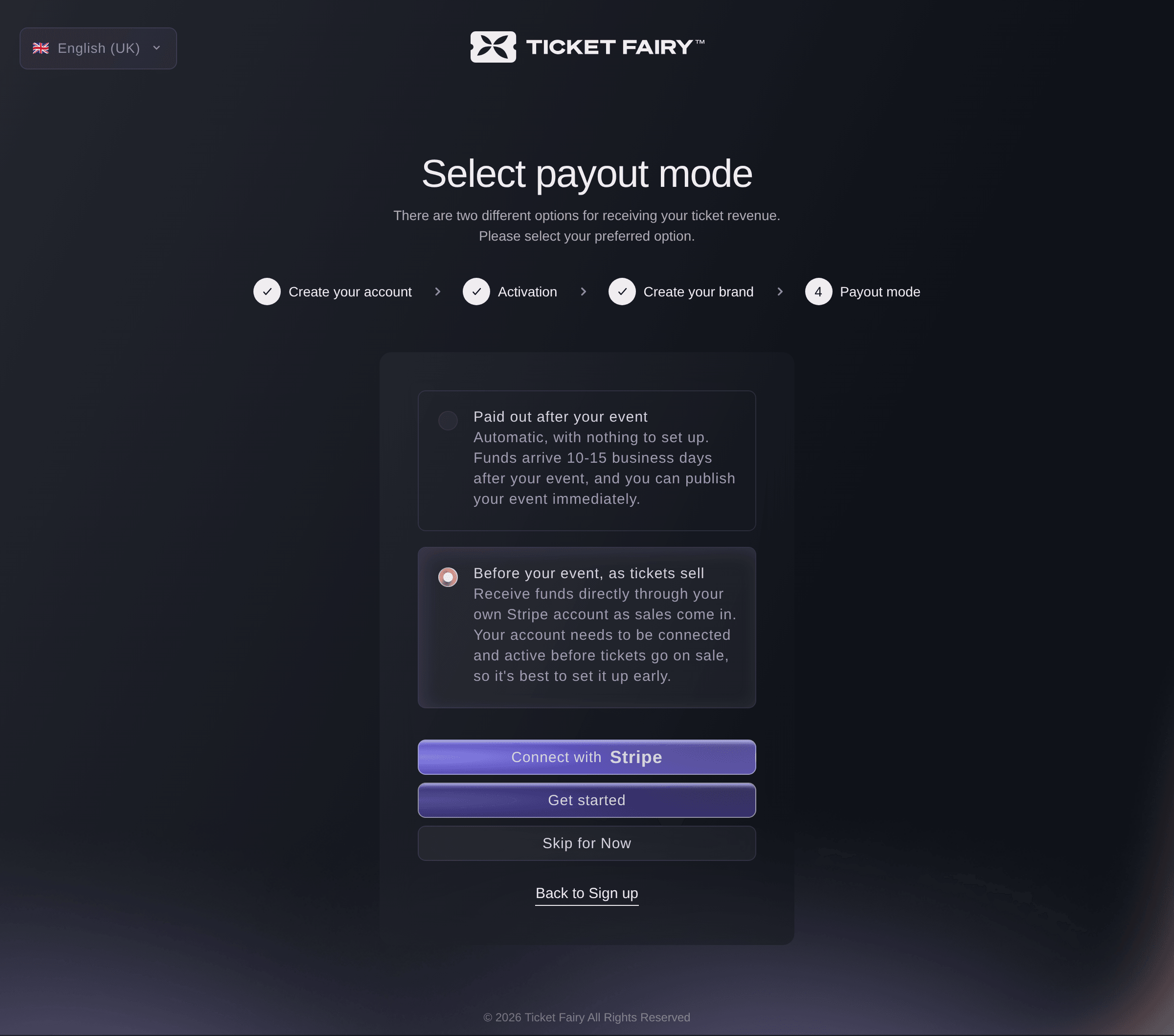
Ticket Fairy payout choice during sign-up, with Before your event, as tickets sell chosen and the button that links a card payment account

Take card payments into an account you choose

A payment processing account is where your buyers' card payments go. Link one to your brand and each new event on the brand uses it. With a Managed Account, you answer the identity, business and bank questions inside Ticket Fairy. Afterwards you see its payouts, balance and individual payments in your dashboard, and your team has no second sign-in to keep. Stripe (classic) pays into the Stripe account you already run, and Xendit takes payments for brands in Indonesia and the Philippines.

If you stop part way through the setup, the account waits on the Connected payment methods table. Continue setup on its row takes you back to where you stopped. Status turns Active once the payment company has everything it needs, and only an Active account can go on an event.

Each row also shows your team where to look after the account. Managed means you see and change it in your Ticket Fairy dashboard. Standard means it has its own sign-in with the payment company, and Manage on its row opens that company's own dashboard. For a Xendit account, Ticket Fairy sends an invitation to the account owner, who finishes the setup from that email.

  • Managed Account: set up and checked inside your Ticket Fairy dashboard
  • Stripe (classic): paid into the Stripe account you already run
  • Xendit: an invitation to the account owner
  • Active: the account is ready to take money
Ticket Fairy Add Payment Method dialog with the Payment method provider choice, before a provider is picked

Pay each event into the right account

Agencies and promoters with partners often run more than one payment processing account on a brand. Mark one as the Default, and each new event on the brand starts with it. Give a co-promoted show or a partner's event a different active account on that event's own Payments page. Rename each account so your team knows which is which. Archive an account you have finished with, and new events no longer offer it.

A new default account changes only what new events start with. Earlier events keep the account you created them with. You can change one of those on its own Payments page while it has no paid orders. Buyers never see the names you give your accounts.

  • Default: the account each new event starts with
  • One event, another account: chosen on the event's Payments page
  • Rename: a name your team recognises at a glance
  • Archive: off the list for new events, untouched on old ones

Choose who pays the booking fee

Buyers judge your price from the poster, and you plan the event around what you receive. With Added, buyers pay the booking fee and see one all-inclusive price on your event page. You receive the full ticket price you entered. With Absorbed, buyers pay exactly the price on your poster, and the fee comes out of what you receive. With Added Later, buyers see the ticket price on your event page and the booking fee in their basket at checkout.

Most promoters choose Added, and each new event starts with it. Choose Absorbed when you advertise a round price and the price at checkout has to match it. Either way, you see the effect in the Ticket Types table before anything goes on sale. Beside each Face Value, the next column shows the price including fees under Added, which is what the buyer pays. Under Absorbed, it shows the price excluding fees, which is what you receive.

You can also choose while you create the event, because the sales and settings step offers the same three cards under Booking fees. Your choice covers each ticket type and add-on on the event. Each order records what you received when the buyer placed it, and your reports and payout use that figure.

  • Added: the buyer pays the fee and you keep the full ticket price
  • Absorbed: the price on your poster is the price at checkout
  • Added Later: the ticket price on the page and the fee at checkout
  • Prices under your choice: the buyer price or your amount beside each face value
Ticket Fairy Tickets page with the Booking Fees choice set to Absorbed and the Ticket Types table showing the price excluding fees

Know what each event has earned from the first sale

Net revenue on your event's Performance page shows what the event has earned after referral rebates. It includes add-ons and table revenue, and box office cash has a card of its own. You know what the event has made at any point in the on-sale, long before the payout. A promoter on your team sees the same figures at the top of the page.

When Ticket Fairy collects the payments for an event, a tick and Released to bank appear on the Net revenue card. They appear once we have sent your money. If you took an advance before the event, the mark names that amount and says Released. Your team can answer "have we been paid?" without contacting support.

If your brand takes its own card payments through a Managed Account, Payouts & balance shows the account's balance and each payout from it. Payments lists each card payment. Your finance lead reconciles without a second sign-in.

  • Net revenue: live from the first sale, add-ons and tables included
  • Box office cash: shown in a card of its own
  • Released to bank: the mark that shows we have sent your money
Ticket Fairy sales summary cards showing tickets sold, revenue and orders for an event

Know your payout date before you publish

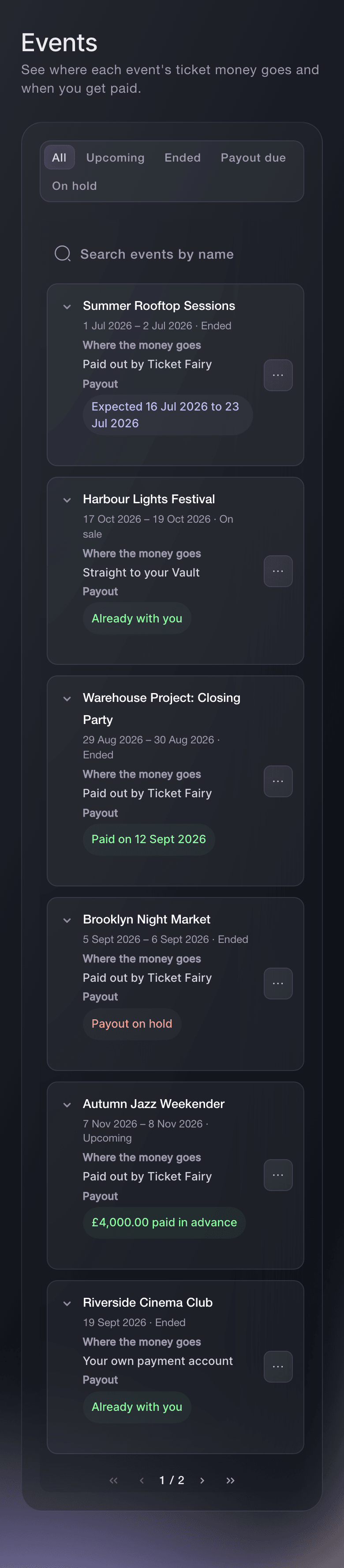
Before you publish, the Payment and Support step shows how the event takes payment, when its payout is due and what can delay it. You publish knowing when to expect your money, and you can plan supplier payments around that date. After the show, the Events page under Vault lists each event on your brand. You see where its ticket money goes, when its payout is due and any Capital to repay.

The Payout due filter lists the ended events you are still waiting to be paid for. On hold lists the ones waiting for something to be settled, such as refunds for a cancelled show. Each event's statement shows what buyers paid, what came off for refunds, fees, partner shares and Capital, and the estimated amount you receive. Beside it, a timeline runs from the end of the event to Payout expected. Once we send the money, it shows Paid with the date.

  • Payment details at publish: when the payout for this event is due
  • Payout due: the ended events you are still waiting to be paid for
  • When you get paid: the payout window, then Paid with the date
Ticket Fairy Vault Events page listing six events with where each one's ticket money goes, its payout and any Capital to repay

Ask Fai about your accounts, fees and payouts

Ask Fai, the assistant inside your dashboard, which payment processing accounts are on your brand. She tells you which one new events use and which still need their setup finished. Fai renames an account, makes one the default, archives one, and changes the account an event uses while it has no paid orders. She sets who pays the booking fee and explains what each choice does to your price and your payout. She also shows you the payouts from your own account, with a breakdown of charges, refunds and fees.

Fai shows you each change and asks you to approve it before she makes it. She can also start a Stripe (classic) account or a Xendit invitation for you. You then open the link and finish the setup with the payment company.

  • Ask in a sentence: your accounts, fees and payouts explained
  • Payout breakdown: charges, refunds and fees behind a payout
  • You approve each change: nothing changes until you say so

How organisers set up their payments

  • A club night going live today

    A promoter announcing a Friday club night chooses Paid out after your event and leaves the booking fee on Added. The event goes live the same afternoon with nothing to link. Released to bank on the Performance page tells the team when the money is on its way.

  • A festival paying deposits before the gates open

    A festival links a Managed Account to its brand and waits for Active before the early-bird on-sale. The festival gets paid daily as tickets sell, so it pays production deposits from this year's sales rather than last year's reserves.

  • A co-promoted show

    Two promoters split a headline show. Before the first sale, the lead promoter sets the partner's active account on that one event's Payments page. The other events on the brand keep using the Default.

  • A theatre run with round prices

    A theatre advertises its seats at round prices on posters and in the season brochure. It chooses Absorbed, checks the price excluding fees beside each Face Value, and sets its budgets on what each seat earns.

  • An agency with several clients

    An agency renames each payment processing account after the client it belongs to and archives last season's accounts. Nobody on the team puts a client's event on the wrong account, and the Events page under Vault shows which payouts are still due.

Get this page as a PDF Read it later or share it with your team. We email you a link to the PDF.
What to put in your PDF

We will email you this deck. We may also email you now and then about Ticket Fairy features that can help your events. You can unsubscribe at any time with one click.

Questions About Payment Accounts, Fees and Payouts

Accounts, fees & payouts

With your own payment processing account, you get paid daily as tickets sell. Daily payouts need a Stripe payment processing account in a supported Stripe country, or a Xendit payment processing account in Indonesia. Your account has to be Active before your tickets go on sale. You can also choose to be paid after your event. When Ticket Fairy collects the payments for an event, we process payouts 10 to 15 business days after the event finishes. The publish review shows which applies to the event in front of you.

We pay a postponed event after it takes place, and we hold a cancelled one while we refund the buyers for you. Pending refund requests, chargebacks and an event we have classified as high risk each extend the wait. Our team contacts you if they need anything from you.

Net revenue is what the event earned, not what we send. Refunds made afterwards, the card fees on the payments and anything already advanced to you come off between the two. When we pay a brand for several events at once, they arrive in one payment. Ask us for the breakdown of a payout you cannot reconcile.

Only the brand owner. A team member with admin rights can open the Payments page and see the accounts on it. If they try a change, a message names the brand owner. You need an owner or an admin login on the brand to open Payouts & balance and the Events page under Vault.

No. The payment processing account takes the money from the buyer. Payout Details, under your brand's Details, is the bank account Ticket Fairy sends your money to after the event. Change it before the event ends, because we have to recall a payout already sent to an old account.

Your brand's country is Indonesia or the Philippines, where Xendit takes the payments. A brand there holds one Xendit account, and the person you invite finishes its setup from their invitation email. Elsewhere you can keep several Managed Account or Stripe (classic) accounts on one brand.

The payment company has not finished checking it. On a Stripe account, select Continue setup on its row to see what is still needed. It is usually an identity document, a bank account or a business detail. An account that is not Active cannot go on an event, so finish it before your tickets go on sale.

No. You can change an event's account until it takes its first paid order. You cannot archive the default account from the Payments page, so make another account the default first. You also cannot archive an account while a live event with ticket sales still uses it.

The fee depends on the ticket price and the event's country. As a percentage it falls as prices rise, with a small minimum on low prices, and free tickets carry none. Once an event has ticket types, you cannot switch between Added and Absorbed: delete the ticket types, change the choice and create them again. You cannot delete a ticket type that has sold. You can still move between Added and Added Later. Added Later is not offered for events in Australia, the United Kingdom or the United States.

Not from the Orders page. You cannot refund an order there once we have released the event's money, paid it in advance or withheld it. Ask us and we refund the buyer for you.

Sell more tickets. Build the crowd that comes back.

Start Selling Tickets Online

Sign up without a credit card and build a test event before you commit. Go on sale in minutes when you are ready.

No monthly subscription required for ticketing
Start selling tickets immediately
Ticketing tools included in the service fee
Get Started Talk to Fai Now

Ask Fai, our AI assistant, about Ticket Fairy’s features, pricing and how it could work for your event.

No credit card required

Book a demo call

See the referral model that drives 20% more ticket sales on average, learn which campaigns sell tickets, answer buyers faster and keep queues moving.

45-Minute Video Call
Pick a Time That Works for You