Get your first event on sale without any training

Sign up with email or Google and set up your brand and daily payouts in one go. Then run your events from a browser, the desktop app or your phone.

Ticket Fairy dashboard Home with the Your first steps welcome for a new organiser
  • Ready to sell and get paid daily
  • First steps picked for the events you run
  • Your sales on your desktop and phone

Go from sign-up to a dashboard ready to sell

One sign-up takes you from your email address to a dashboard ready for your first event. Enter your brand name, the business name behind it and your business address, and choose how you want to be paid. Your dashboard opens the moment you finish.

Sign up with your email address and a code we send you, or with your Google account and nothing to type. Skip the brand or payout step if you are not ready, and finish it from your dashboard later. You keep everything you entered.

Your brand is the name buyers know your events by, such as your club night, festival or venue. Later you can run several brands from one account, each with its own events, team and payout details.

  • Email or Google: sign up the way you sign in everywhere else
  • Your brand: the name your events go on sale under
  • Skip for now: finish the brand or payout details later
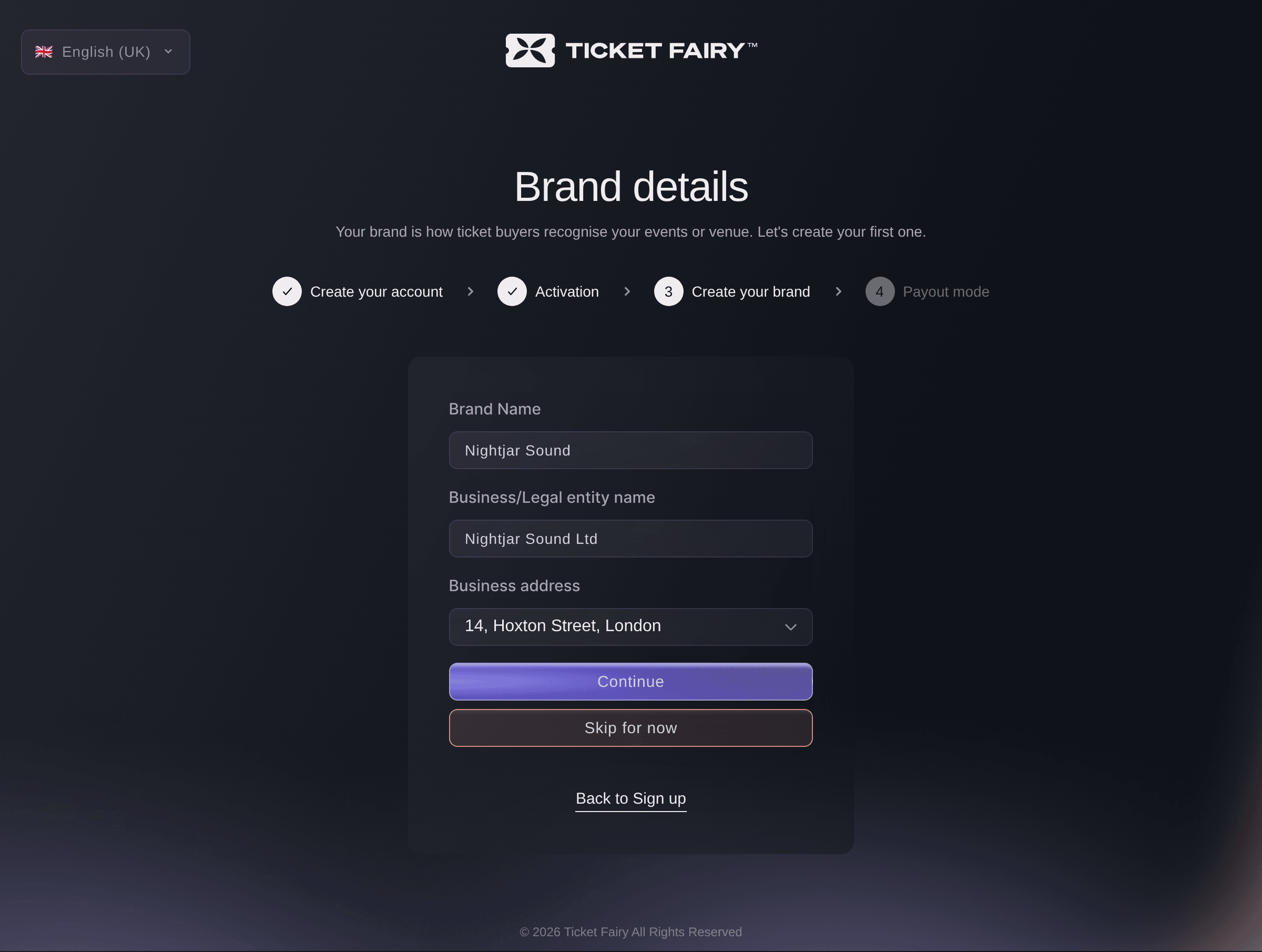
Ticket Fairy Brand details page with the brand name, the business name and a business address chosen from the list

Get paid daily as tickets sell, or after your event

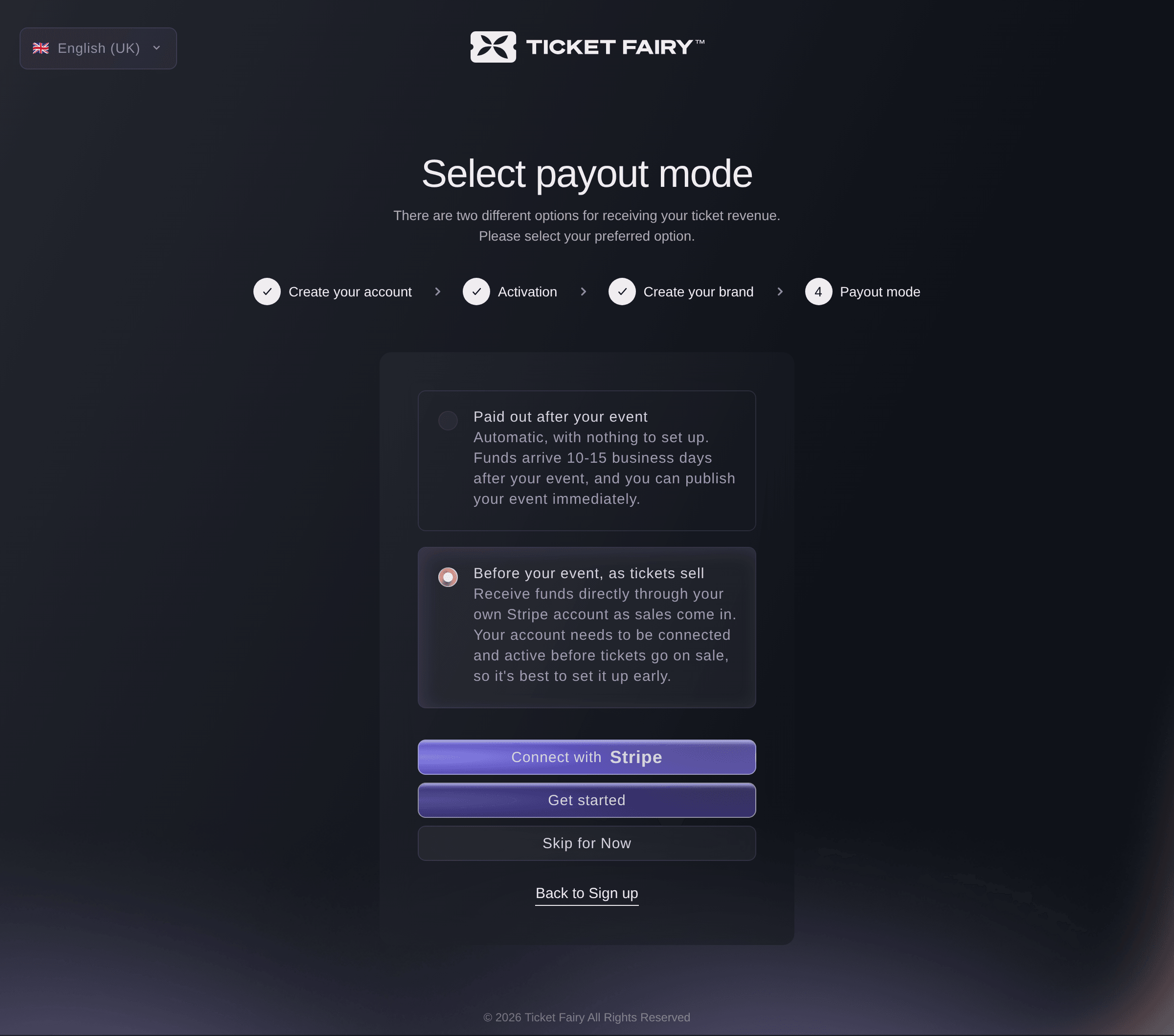
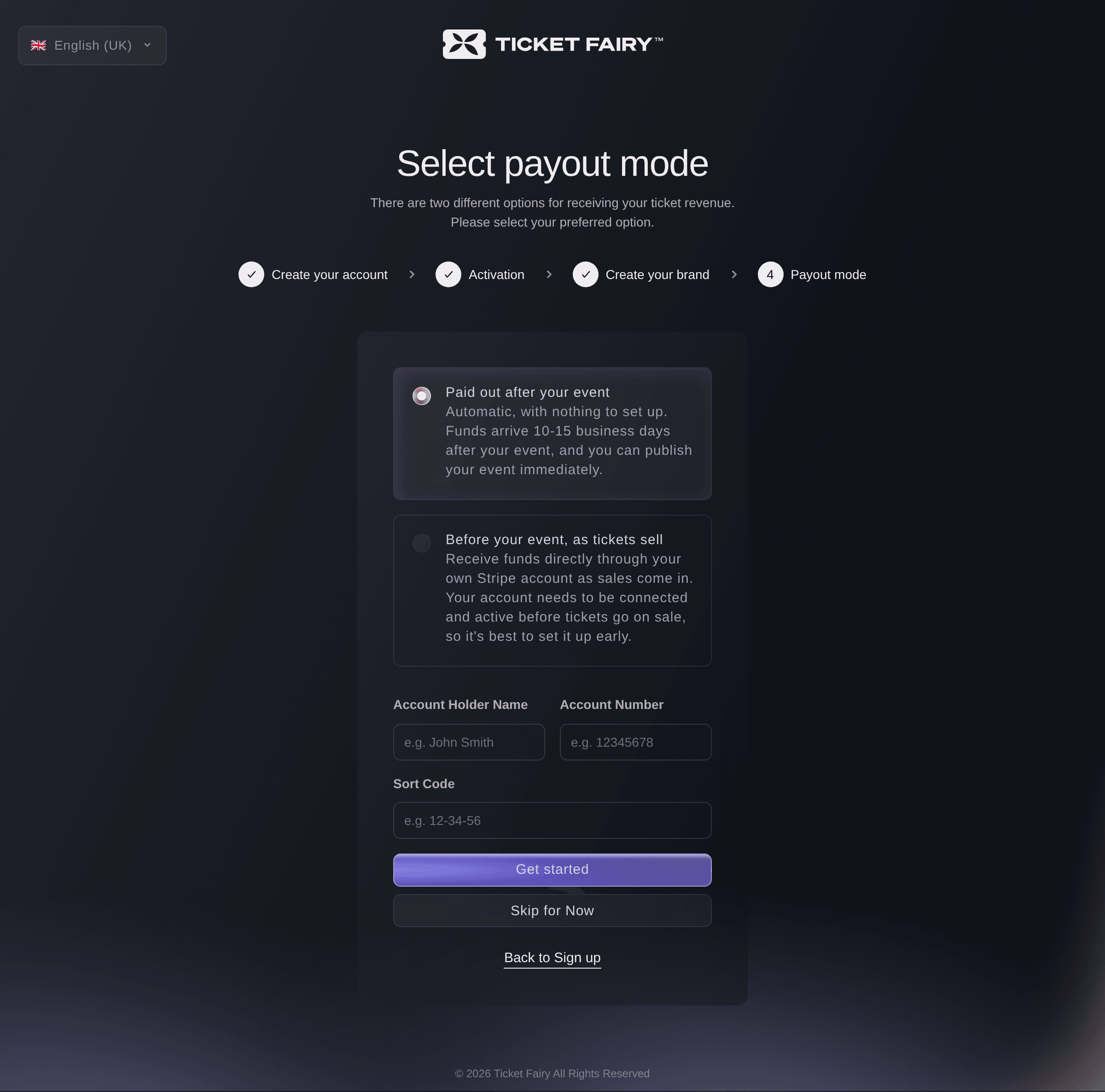
Get your ticket money while the on-sale is still running. With Before your event, as tickets sell, you get paid daily: each payment goes into your own Stripe account as the buyer pays, so the money is there for your deposits and suppliers. Prefer to wait? With Paid out after your event, we take the card payments and pay your ticket money into your bank after each event.

Pick Before your event when you want money coming in daily during the on-sale, and connect your Stripe account during sign-up so you are ready before tickets go on sale. Pick Paid out after your event for the simplest start, with no payment processing account of your own to set up.

  • Paid out after your event: your ticket money paid into your bank
  • Before your event, as tickets sell: each payment in your own Stripe account
Ticket Fairy Select payout mode page with Before your event, as tickets sell chosen and the button to connect a Stripe account

Start with the steps that fit the events you run

Home opens on Your first steps, chosen from what you told us at sign-up and what your organisation publishes online. A club night that runs every Friday gets a recurring series, quick-buy links and its team. Other organisers see cards such as Sell multi-event passes, Save an event template or Sell on your own website. Each card opens the page for that job, so your first hour goes on your event.

If we got you wrong, Not quite right? lets you pick the closest match, and the steps change with it. Some organisers also get Ask Fai to set it up with you, which opens Fai with the question already entered, or Book an onboarding call for a walk-through with our team.

Coming back for a new season? Your dashboard welcomes you back with what is new since your last event, highlights first. Create your next event, or ask Fai to show you around the changes.

  • Your first steps: cards that open the right page
  • Not quite right?: correct the kind of organisation you run
  • Onboarding call: book a walk-through with our team from Home
Ticket Fairy Your first steps welcome for a club night, with the What best describes you? choice and the suggested steps

Do your everyday jobs straight from Home

Quick Actions put the jobs you do most on Home, such as issuing a guest ticket, viewing orders or importing a tracking pixel. Pick the job and the event, and the right dialog or page opens already set to that event. Each person sees the jobs their role allows, so a promoter sees Copy Promoter Link and View My Sales.

Tour the Dashboard walks you through Home again whenever you want. Each person on your team chooses the language of their own dashboard, so a mixed-language crew works in the words they know.

  • Quick Actions: the jobs you do most, on Home
  • Pick the event: the job opens already set to it
  • Tour the Dashboard: replay the tour of Home whenever you like
Ticket Fairy Quick Actions list for a brand owner, from Issue Guest Ticket to Import Network Pixel

Brief Fai once and get help that fits your brand

Tell Fai, the assistant in your dashboard, about your world by voice or by typing, the way you would brief a new colleague. Cover your organisation, events, audience, team, partners and how you work. A card lights up as she understands each part, and a picture of your events takes shape beside them. Fai remembers it all, so her help from then on fits your brand.

Then ask her to create your first event with you. Fai suggests the event template that fits and asks the questions she needs answered. She shows you the complete setup and asks you to approve it before she creates anything.

  • Talk with Fai: speak, or type if you prefer
  • What Fai understands: a card for each part of your world
  • You approve each change: nothing is created until you say so

Keep all your events open at once on your desktop

Ticket Fairy Promoter for your computer opens the same dashboard you use in a browser, with the same events, brands and Quick Actions, in a window of its own. Keep each event in its own tab during an on-sale, put a second window on another display, and have the app open when your computer starts. Press a shortcut and Fai opens beside your page, ready to look at the page and use its controls with you.

The desktop app suits the person who runs ticketing all day: a promoter watching an on-sale, a box office manager working through orders, a festival producer switching between dates. The rest of your team uses the same dashboard in any current web browser, with the same pages, roles and Fai, so nobody has to install anything to help.

  • Tabs and windows: several events open side by side
  • Fai from the keyboard: open her beside any page
  • Updates that install themselves: restart now or the next time you quit

Keep your events running from your phone

The Promoter app for iPhone, iPad and Android puts each event's sales in your pocket: tickets sold, ticket sales, sales each day and what is left of each ticket type. Create an event, change a ticket type, send guest tickets, invite your team and check guests in from the app. Your last figures are there even without a signal.

The Inbox tab brings together your notifications and your brand's support conversations. Reply to a buyer or add a note for your team from the queue at the bar. In the Fai tab, ask about any event and approve the changes she suggests.

With app lock on, the app opens locked, then locks again after the time you choose in the background. Unlock it with Face ID, Touch ID or your fingerprint. The app is hidden in your phone's app switcher, so your buyers' details stay private when you hand your phone to someone.

  • Sales at a glance: tickets sold, ticket sales and sales each day
  • Inbox: buyer conversations and notifications
  • App lock: Face ID, Touch ID or your fingerprint

How organisers get their first events on sale

  • A club night on sale the same afternoon

    A promoter signs up with Google, creates their brand and chooses Paid out after your event. Your first steps suggests a recurring Friday series and quick-buy links, and the first night is on sale before the evening.

  • A festival that needs cash before the gates open

    A festival organiser connects their own Stripe account during sign-up, so each payment comes in as tickets sell. They pay the deposits for the stage and fencing from early bird sales.

  • An on-sale watched from three tabs

    A promoter group runs a big on-sale from Ticket Fairy Promoter on a Mac, with the event's sales, orders and waiting list each open in its own tab. Fai sits beside the page and opens the next release when they ask.

  • A tour manager on the road

    A tour manager checks each night's sales in the Promoter app between venues. They answer a buyer's question about access from the Inbox tab and send two guest tickets for a support act from the van.

  • A venue returning for a new season

    A venue team comes back after the summer break and sees what is new since its last event on Home. They create their next event from the welcome and ask Fai to show them around the changes.

Get this page as a PDF Read it later or share it with your team. We email you a link to the PDF.
What to put in your PDF

We will email you this deck. We may also email you now and then about Ticket Fairy features that can help your events. You can unsubscribe at any time with one click.

Questions About Getting Started and the Ticket Fairy Apps

Getting started & apps

Yes. Sign up with Google and pick your account. You have no code or password to enter, and you go straight to your brand details.

If you have bought tickets or joined a team with that address, signing up signs you in to that account instead of creating a second one.

With Before your event, as tickets sell, you get paid daily. You need a Stripe payment processing account in a supported Stripe country, or a Xendit payment processing account in Indonesia, set up before tickets go on sale. With Paid out after your event, we pay your ticket money into your bank 10 to 15 business days after each event. In some countries, including Sweden and Indonesia, only daily payouts are offered.

Yes. Skip it for now and finish it later from Brands or your brand's details. You need a brand before you publish your first event, and payout details before tickets go on sale.

No. Once hidden it stays hidden on all your devices. Tour the Dashboard in the sidebar and Fai are there whenever you want help.

Ticket Fairy Promoter for your computer runs on Macs with Apple or Intel processors and on Linux. The Promoter mobile app runs on iPhone, iPad and Android. Your dashboard also opens in any current web browser.

The Mac app and the Linux AppImage check for updates when they open and every 4 hours, and ask you to restart when one is ready. The Debian package does not update itself, so install the new package over the old one.

With the same Ticket Fairy account you use in a browser. In the mobile app, sign in with your email and password, Google, or Sign in with Apple on an iPhone. The app asks for your sign-in code if you turned one on.

It keeps your events, their sales and ticket stock on your phone for seven days, encrypted, and clears them when you sign out.

No. Turn it on in More in the mobile app, and choose whether it locks straight away or after 1, 5 or 15 minutes in the background. Signing out turns it off.

Sell more tickets. Build the crowd that comes back.

Start Selling Tickets Online

Sign up without a credit card and build a test event before you commit. Go on sale in minutes when you are ready.

No monthly subscription required for ticketing
Start selling tickets immediately
Ticketing tools included in the service fee
Get Started Talk to Fai Now

Ask Fai, our AI assistant, about Ticket Fairy’s features, pricing and how it could work for your event.

No credit card required

Book a demo call

See the referral model that drives 20% more ticket sales on average, learn which campaigns sell tickets, answer buyers faster and keep queues moving.

45-Minute Video Call
Pick a Time That Works for You