
Vault et Capital
Pay your event's artists, suppliers and crew at once from Vault
Festival and club promoters settle a whole line-up and crew after each show, and sending one transfer at a time takes an afternoon. A Vault payment batch lists everyone you are paying, lets a teammate check it, and sends every payment together, so settling up takes minutes and nobody is paid twice.
Prepare one batch of up to 100 payments to the performers, suppliers, venues and staff behind an event, typed in or uploaded from a spreadsheet, check what each payment costs, then send it from Vault now or on a date, paying from any balance you hold and with an optional rule that a second person sends it.
- Pour
- Paying the performers, suppliers and crew behind your events in one go
- Durée
- 12 minutes
- Open Pay several people
- Start a new batch
- Name the batch
- Link the event
- Choose when the bank pays
- Choose the first recipient
- Enter the amount and currency
- Pay from another balance
- Choose what the payment is for
- Enter the reference they will see
- Add the other payments
- Upload a spreadsheet of payments
- Choose who a row means
- Add the rows to the batch
- Review the payments
- Prepare the batch
- Batches that need two people
- Check the date and the cost
- Send the payments
- Check where the batch stands
Avant de commencer
- You're an owner or an admin on the brand. Only owners and admins can prepare, send or cancel a batch.
- Your brand has an active Vault account, with enough available in each balance you pay from.
- Everyone you are paying is saved as a recipient. Add a new one first, as Pay your event suppliers from Vault shows.
- You have your second factor to hand. Vault asks you to confirm it's you before a batch is sent.
-
Open Pay several people
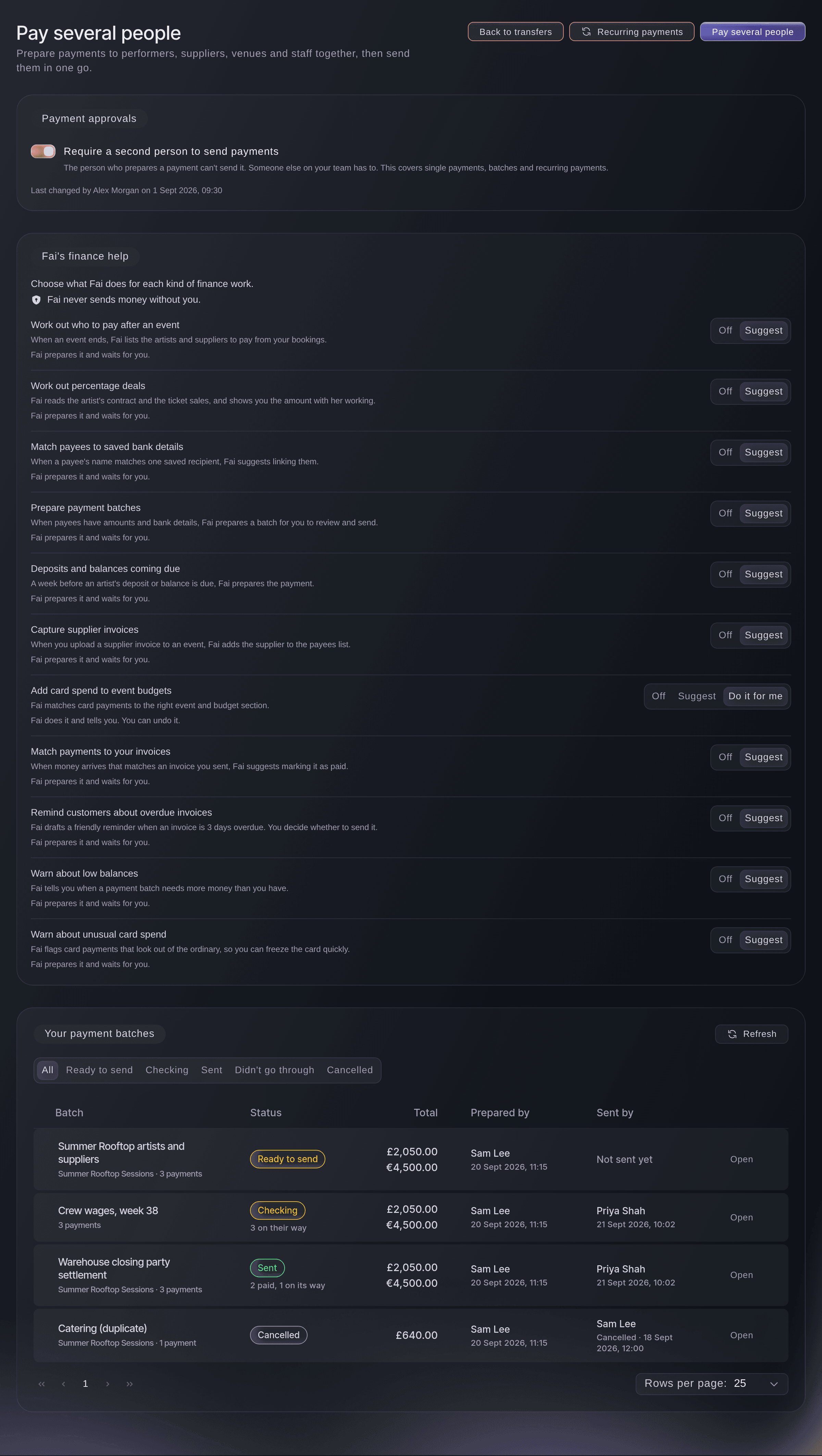
Open Vault, select Transfers, then select Pay several people. The page lists your team's batches with where each one stands, its total and who prepared and sent it.
Remarque: Above the list, Payment approvals says whether a second person must send each batch. Turn on payment approvals explains the rule.
Vault, Transfers, Pay several people. -
Start a new batch
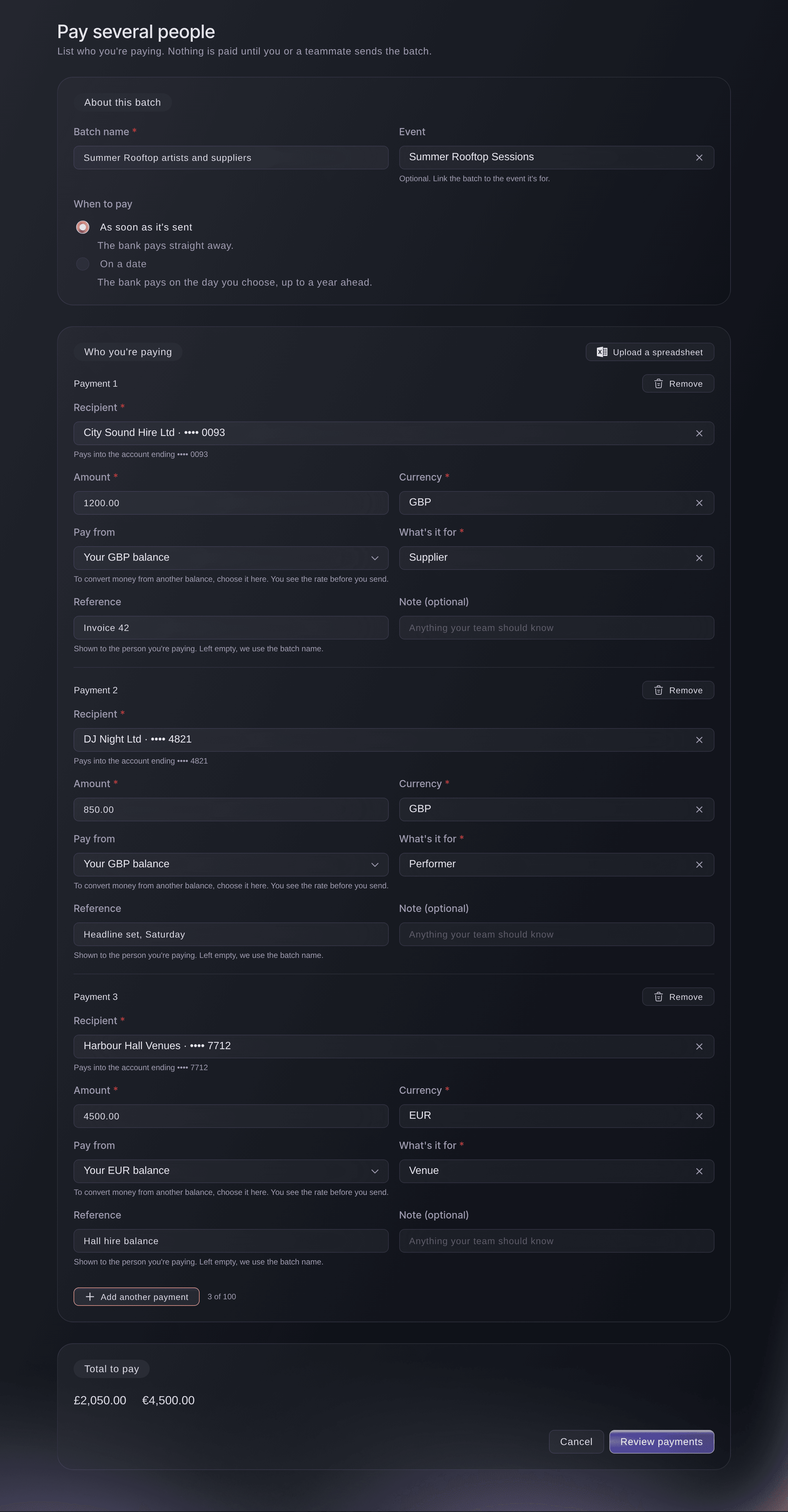
Select Pay several people at the top of the page. A new batch opens, and nothing is paid until someone sends it.
Conseil: To pay the people an event owes, select them on the event's money and choose Pay selected instead, as Pay everyone you owe for an event shows. The batch opens with them already in it.
Vault, Pay several people, a new batch. -
Name the batch
Under About this batch, enter a name your team will recognise in Batch name, such as Summer Rooftop artists.
-
Link the event
Optional: Search for the event the payments are for in Event and choose it.
-
Choose when the bank pays
Under When to pay, choose when the payments go out.

Pay several people, paying on a date and from another balance. -
Choose the first recipient
Under Who you're paying, choose a saved recipient in Recipient. The row shows the last four digits of the account the money goes to.
-
Enter the amount and currency
Enter the amount in Amount, then choose the Currency of the recipient's bank account.
-
Pay from another balance
Optional: To pay from a balance in another currency, choose it in Pay from. By default the money comes out of the balance in the payment's own currency.
Remarque: We convert the money when the batch is sent, and you see the rate and the fee before anyone sends it.
-
Choose what the payment is for
In What's it for, choose Performer, Supplier, Venue, Staff, Refund or Other.
-
Enter the reference they will see
Optional: Enter their invoice number or a short description in Reference. Left empty, the batch name is the reference on their statement.
Conseil: Enter anything your team should know in Note (optional).
-
Add the other payments
Select Add another payment for each person you are paying, up to 100 in one batch. Total to pay adds up each currency as you enter the amounts.
-
Upload a spreadsheet of payments
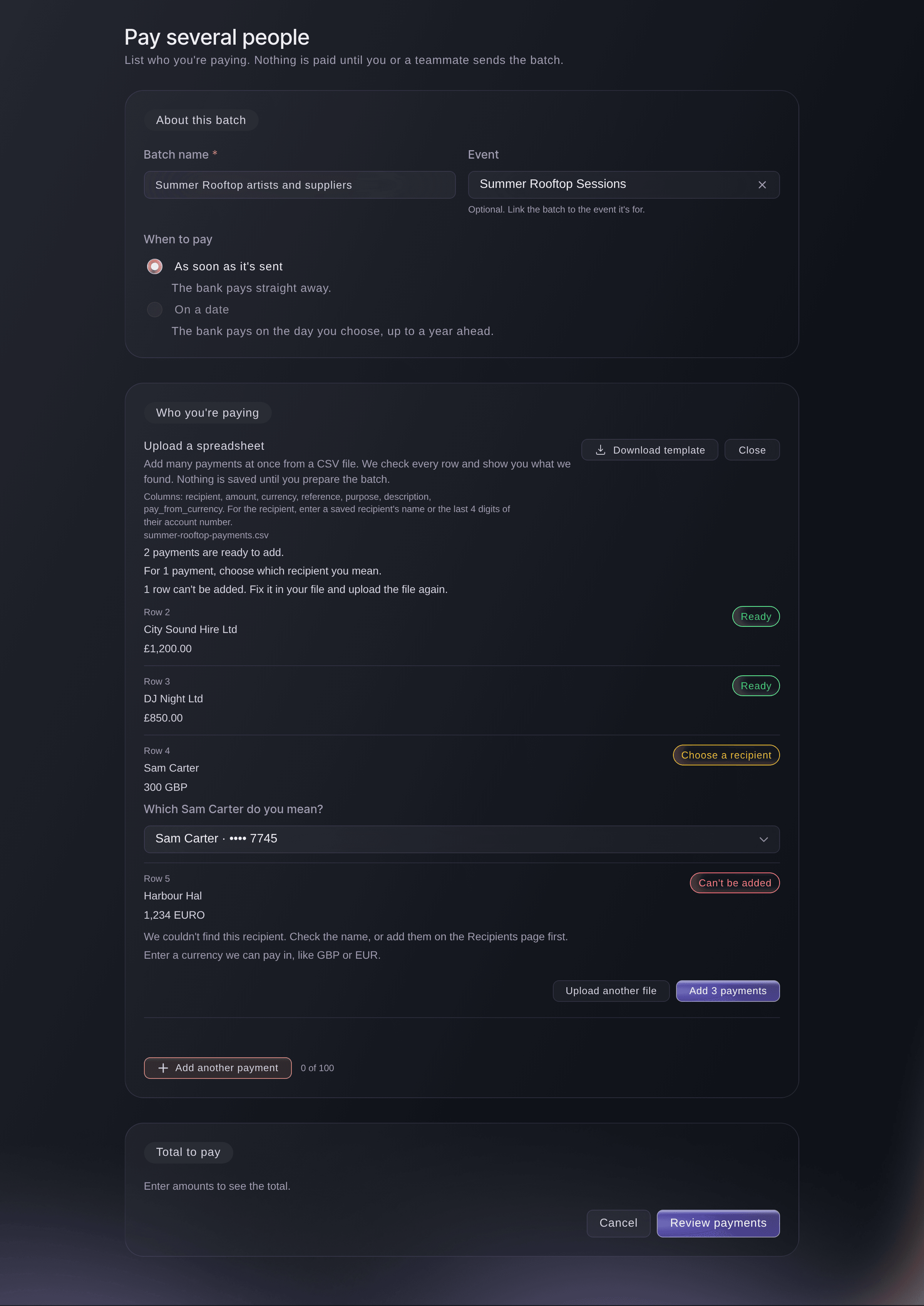
Optional: For a long list, select Upload a spreadsheet above the payments, then drop your CSV file on the box or browse for it. Each row of your file shows as Ready, Choose a recipient or Can't be added.
Remarque: Select Download template for a file with the right columns. Enter each recipient by their saved name or the last 4 digits of their account number, and keep to 100 payments in one file.
Pay several people, Upload a spreadsheet. -
Choose who a row means
If a row says Choose a recipient, two saved recipients match it, so choose the one you mean in the list under the row.
Remarque: A row marked Can't be added says what to fix. Fix it in your file and select Upload another file, or add that payment by hand.
-
Add the rows to the batch
Select the button under the rows that adds them, which says how many payments it adds.
Remarque: Nothing is saved or paid by the upload. The rows become payments in this batch, the same as payments you enter by hand, so check each one before you review the batch.
-
Review the payments
Select Review payments. Check before you prepare lists every payment and the total in each currency.
Remarque: Select Back to edit to change anything. If a field needs attention, the page says
Some details need your attention. Check the highlighted fields.
and marks it.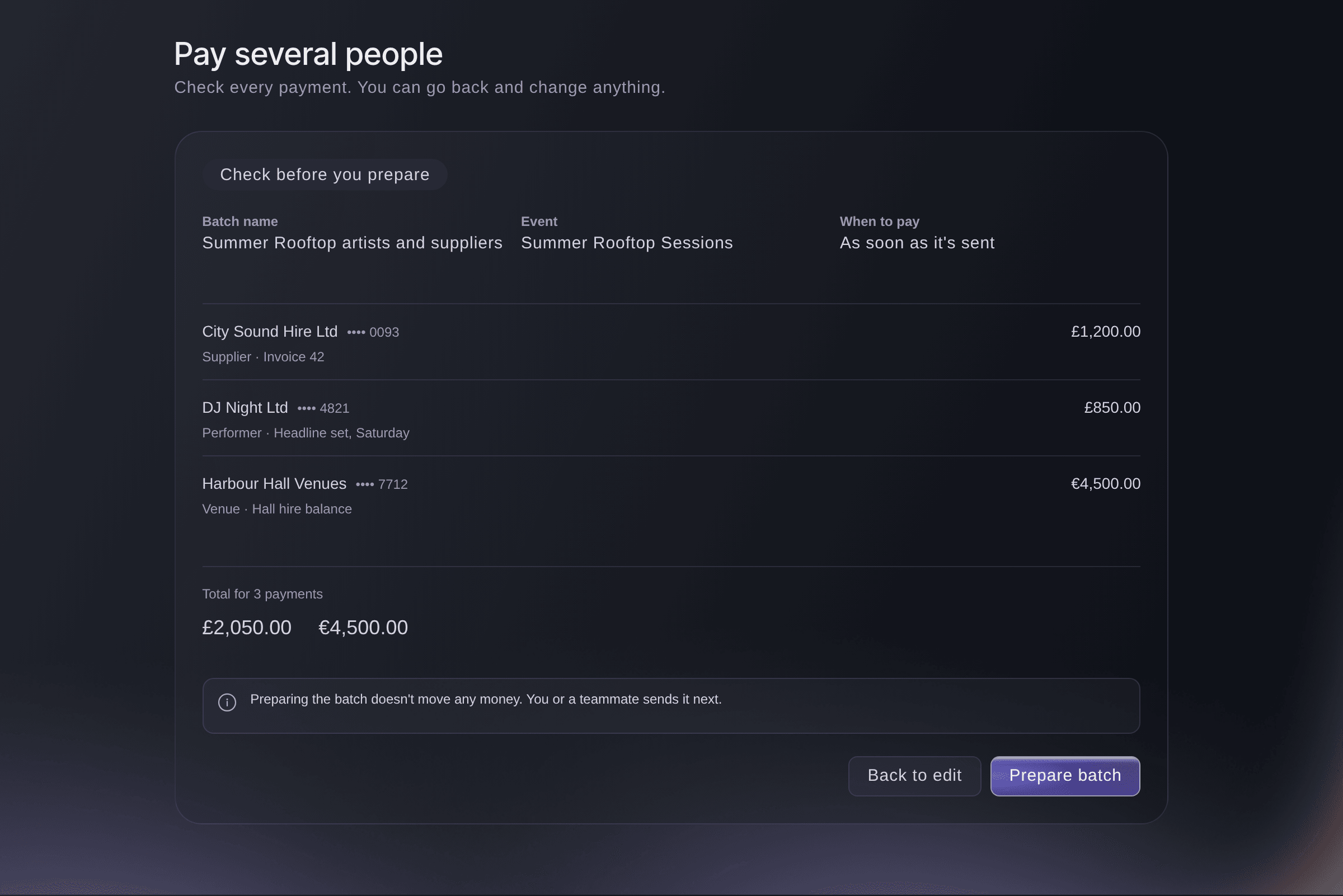
Pay several people, the review before preparing. -
Prepare the batch
Select Prepare batch.
Batch prepared. Nothing has been paid yet.
confirms it, and the batch opens with the status Ready to send.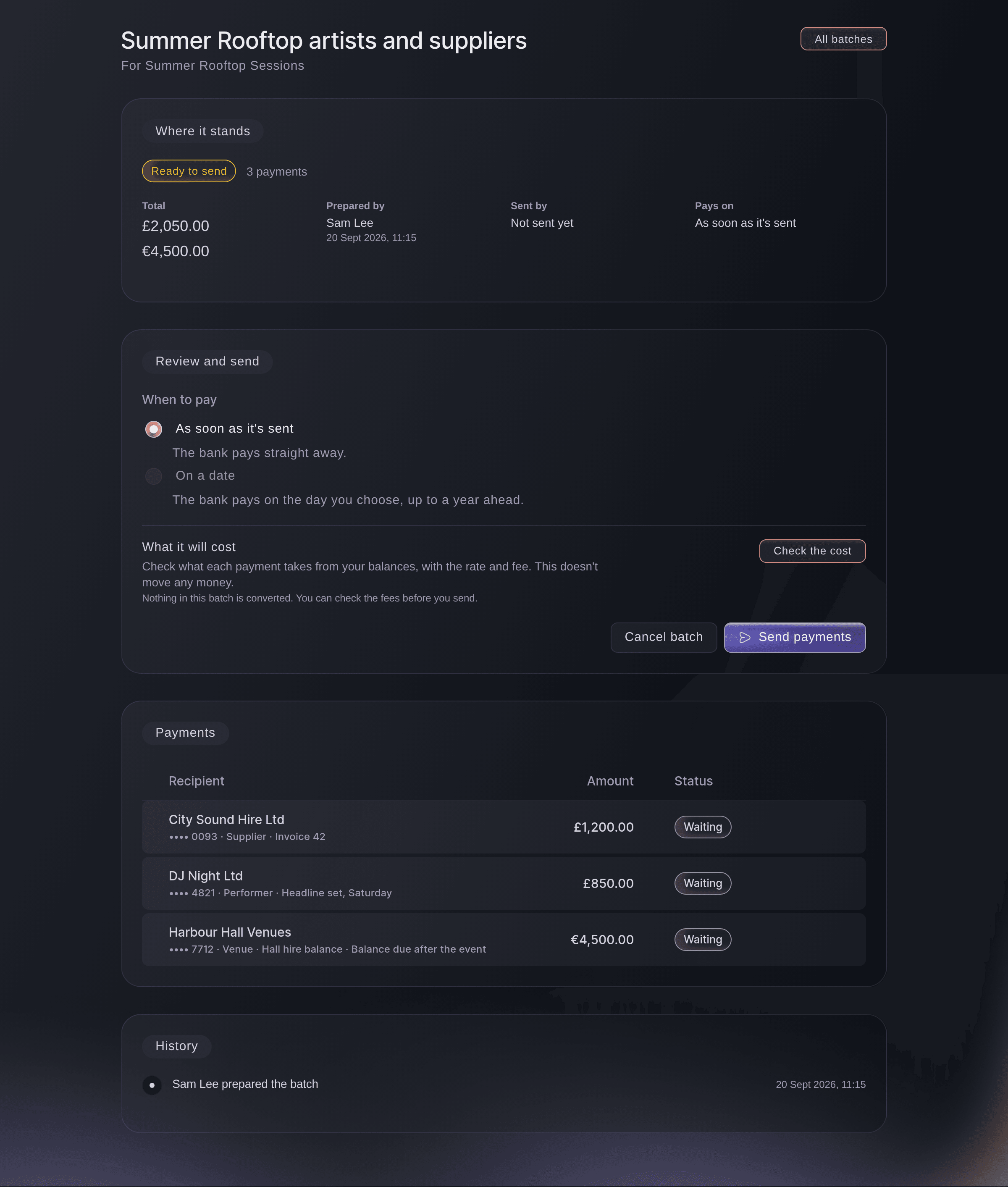
Vault, a prepared payment batch.
Batches that need two people
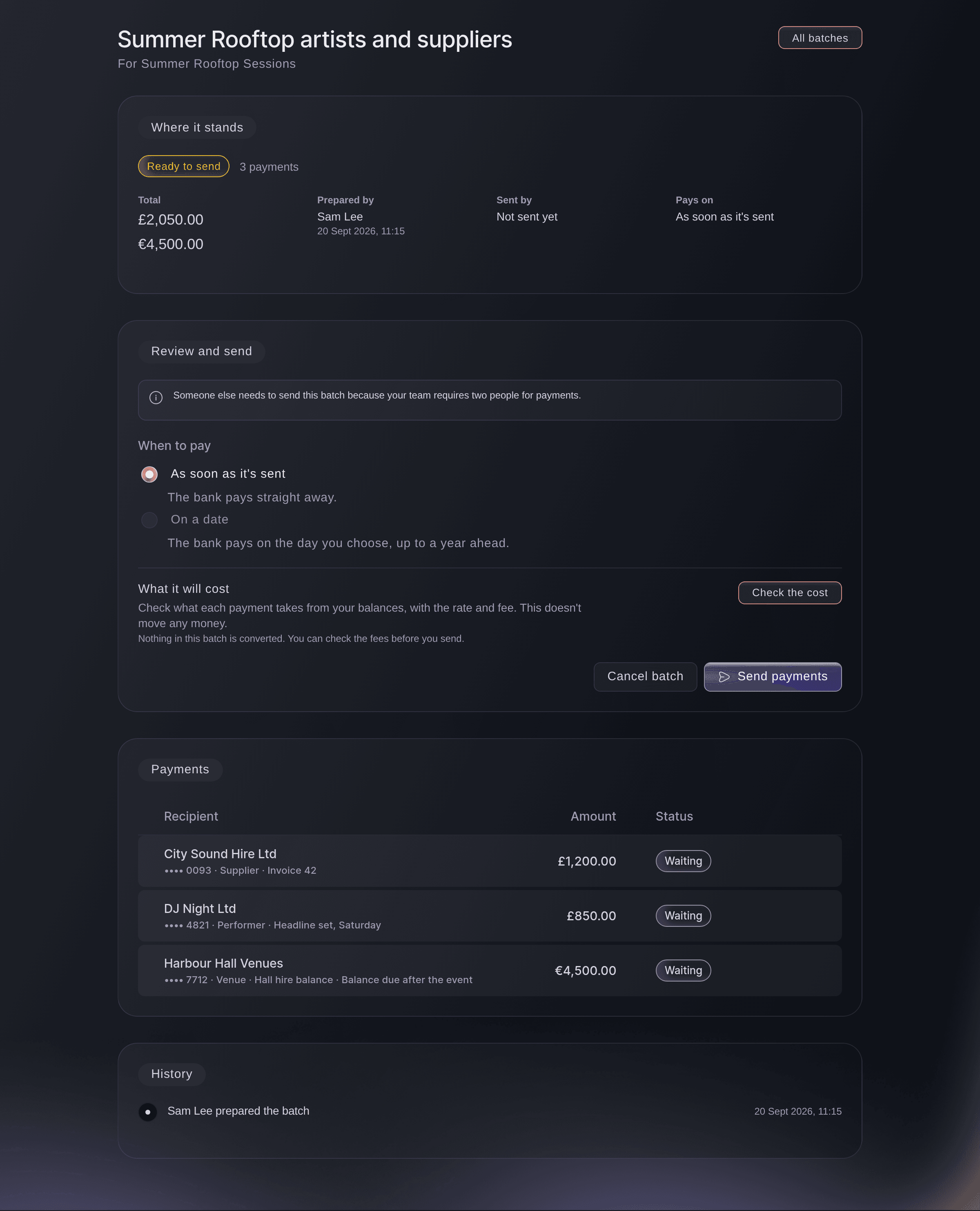
If your team has turned on Require a second person to send payments, the person who prepared the batch can't send it. They see Someone else needs to send this batch because your team requires two people for payments.
in place of the send button, and another owner or admin opens the batch from the list and sends it.
-
Check the date and the cost
Under Review and send, keep or change When to pay, then select Check the cost. What it will cost lists what each payment takes from which balance, with the rate and the fee.
Remarque: When a payment converts money from another balance, you check the cost before Send payments can be selected. The cost is an estimate that holds for a short time, and the bank sets the final amounts when it sends the payments.
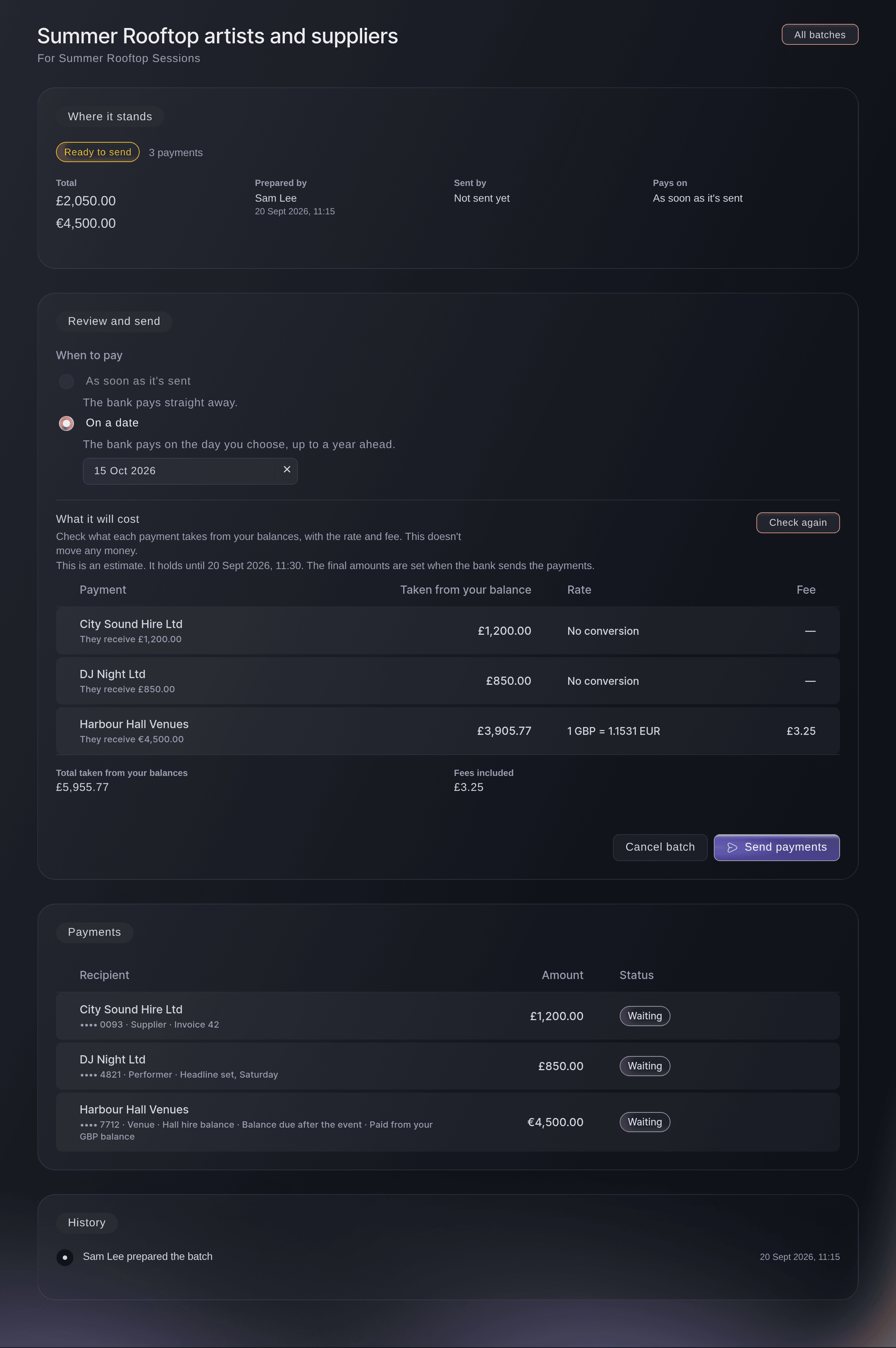
A prepared batch, Review and send. -
Send the payments
Select Send payments, then select Send payments again in
Send these payments?
.Remarque: If Authenticate to continue opens, confirm with your second factor and the batch goes.
Avertissement: Sending pays every recipient in the batch, and a sent payment can't be taken back from here. A batch that pays on a date can't be cancelled once it is sent.
-
Check where the batch stands
Read Where it stands at the top of the batch, and each payment's status under Payments.
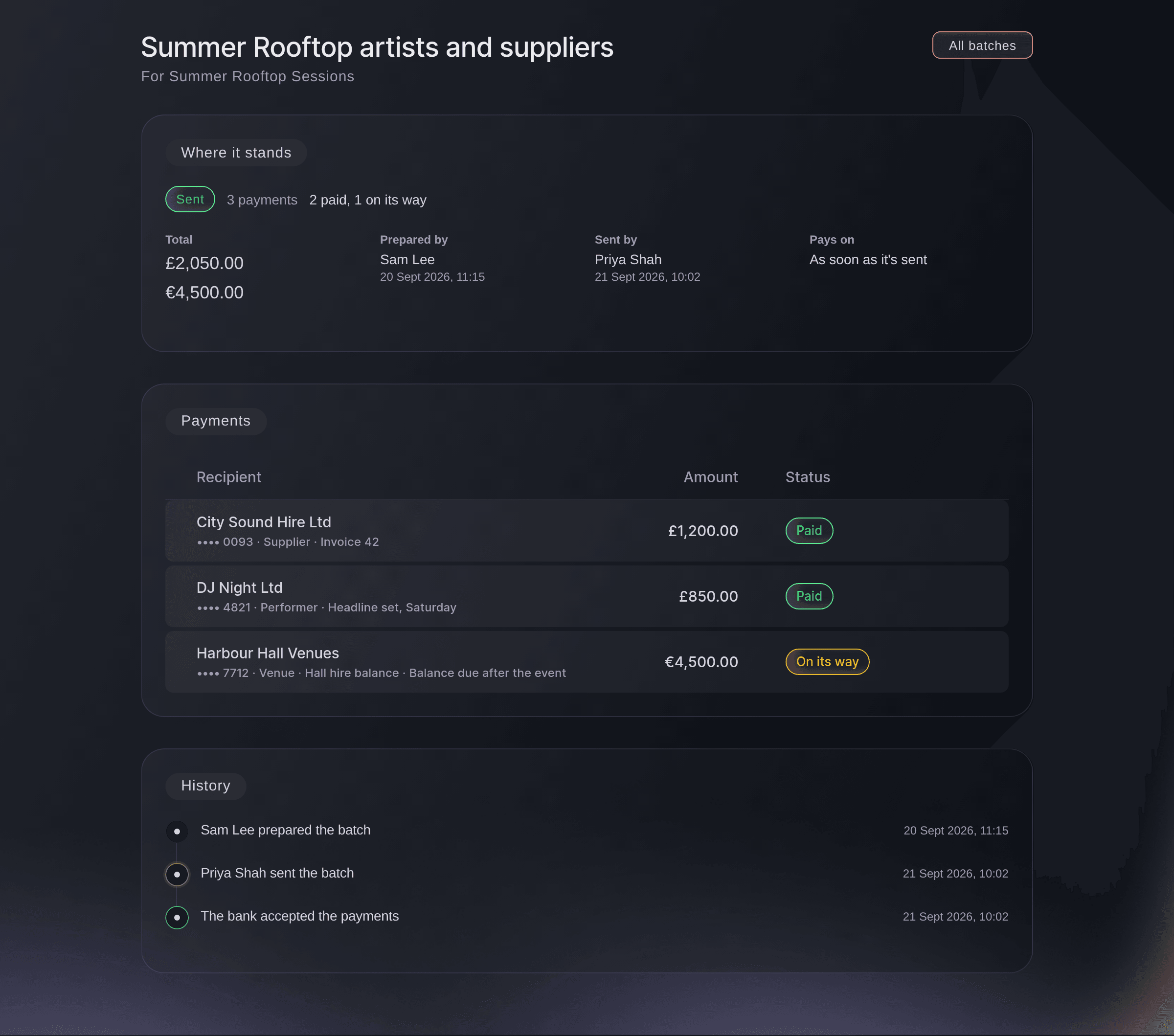
Vault, a sent payment batch.
Essayez ces étapes sur votre propre événement
Créez un compte gratuit, montez votre événement et suivez les étapes ci-dessus dans votre propre tableau de bord. Cela prend quelques minutes et vous n'avez pas besoin de réserver un appel commercial.
Pas de frais d'installation. Pas d'abonnement mensuel obligatoire. Pas de carte bancaire requise.
Ou faites-le faire pour vous
Fai, the assistant inside your dashboard, can prepare a batch for saved recipients, with a payment date and a payment taken from another balance, check what each payment costs and, after you agree, send a prepared one. She shows you every payment, the totals and the date and asks before each step, you may still need to confirm it's you in Vault, and she follows your team's second-person rule. Uploading a spreadsheet is done in Vault. MCP and the command line have no batch commands.
Dans votre tableau de bord, avec Fai
Prepare a Vault batch for <BRAND NAME> paying <RECIPIENT> <AMOUNT> and <RECIPIENT> <AMOUNT> for <EVENT NAME> on <DATE>, check what it costs, then show me it before anything is sent
Laissez Fai le faire pour vous
Fai travaille dans votre tableau de bord Ticket Fairy. Créez votre compte, ouvrez Fai et collez la consigne ci-dessus.
Pas de frais d'installation. Pas d'abonnement mensuel obligatoire. Pas de carte bancaire requise.
Check a batch that says Checking
-
Select Check again
On the batch, select Check again under
We're checking whether these payments went through
. If the bank has answered, the status changes to Sent or Didn't go through.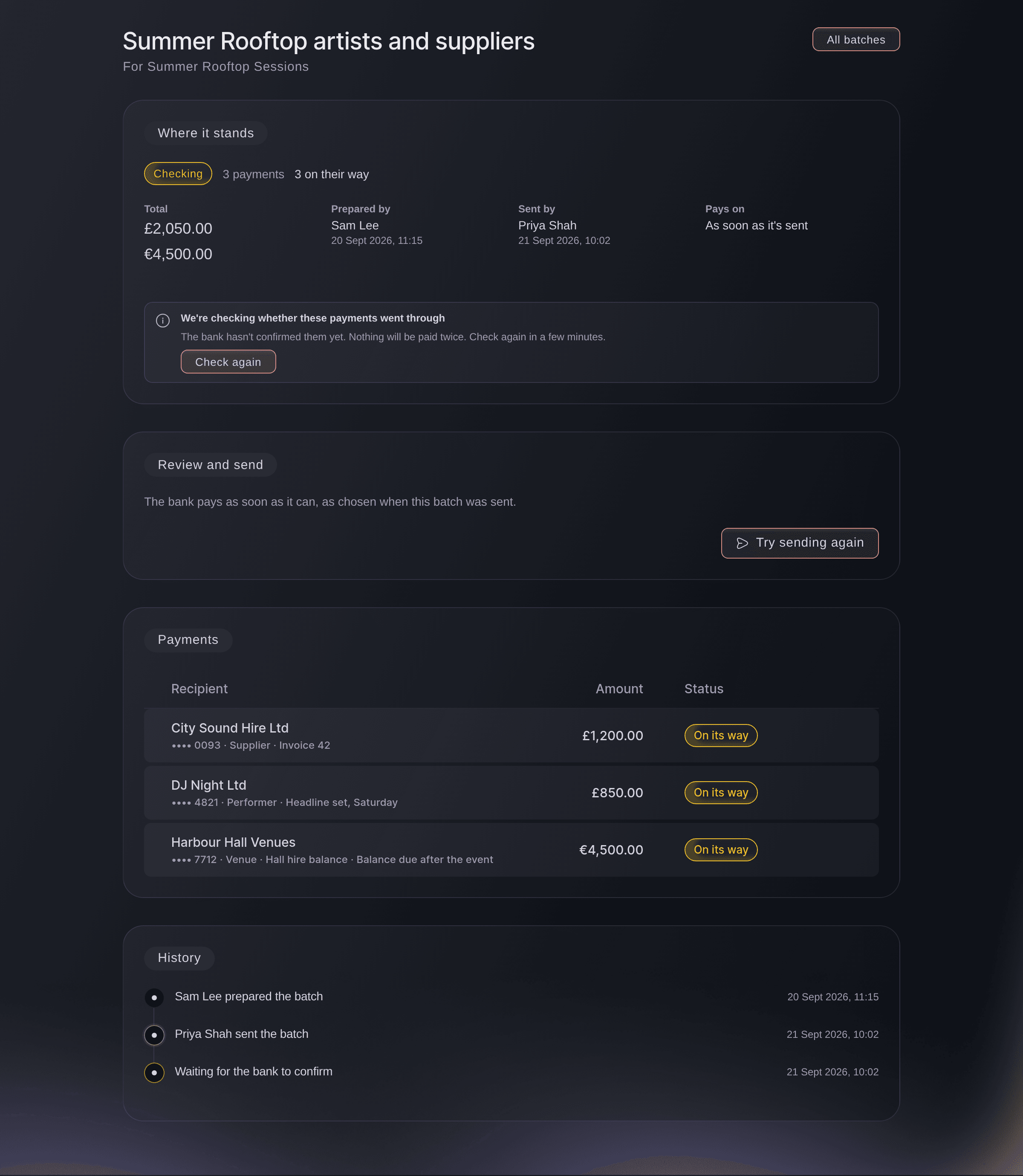
A sent batch the bank has not confirmed yet. -
Try sending again
If it still says Checking, select Try sending again, then Try sending again in the confirmation.
Remarque: Vault asks the bank first and sends the same instruction again, so a payment that already went is never paid twice.
Fai can read where a batch stands and each payment's status. Checking again and sending again are done on the batch in Vault, or by asking Fai to send it after you agree.
Dans votre tableau de bord, avec Fai
Where does the Vault batch <BATCH NAME> stand, and did every payment go through?
Cancel a batch before it is sent
-
Select Cancel batch
Open the batch from the list and select Cancel batch, then Cancel batch in
Cancel this batch?
.Remarque: You can cancel a batch while it is Ready to send. Nothing in it has been paid, and people it pays from an event's list go back to To pay.
Fai can cancel a batch that hasn't been sent, after she shows you which batch and you agree.
Dans votre tableau de bord, avec Fai
Cancel the Vault batch <BATCH NAME>, it hasn't been sent
Questions que vous pourriez avoir
- Can I send a batch I prepared myself?
- Yes, unless your team has turned on Require a second person to send payments. With it on, another owner or admin sends it, as Turn on payment approvals shows.
- Why can't I select Send payments?
- The batch says why in place of the button: a second person has to send it, only an owner or admin can send payments, or
Payments are paused for this account right now. You can send this batch once they resume.
appears while payments are paused for your account. - What if I lose my connection while the batch is sending?
- Open the batch again. If Vault couldn't confirm the result, it says Checking, and Check again or Try sending again settles it without paying anyone twice.
- What happens to a payment that didn't go through?
- No money left your Vault for it, and the payment gives the reason, such as
There wasn't enough money in your Vault. Add money, then pay this person in a new batch.
Fix what it says, then pay that person in a new batch. - Can I change the payment date after I prepare the batch?
- Yes, until the batch is sent. The person who sends it keeps or changes the date under Review and send. Once a batch is sent the bank holds the payments until that date, and the batch can't be cancelled.
- Why can't I select Send payments on a batch that converts currency?
Some payments convert money from another balance. Check the cost before you send.
appears until you select Check the cost. If the estimate runs out, select Check again for the latest rate.- Which columns does the spreadsheet need?
- recipient, amount, currency, reference, purpose, description and pay_from_currency, in a CSV file. The recipient is a saved recipient's name or the last 4 digits of their account number, and pay_from_currency is the balance to pay from, or empty for the balance in the payment's currency. Download template gives you a file with these columns.
- Can I pay someone the same amount every month instead?
- Yes. Select Recurring payments at the top of the Pay several people page, as Pay rent, residencies and regular suppliers automatically from Vault shows.
- How many payments can a batch hold?
- Up to 100. Split a larger payroll into two batches.
- Can two teammates send the same batch at once?
- No. The first person to send it wins, and the other sees
Someone is sending this batch right now. Wait a moment, then check again.
- Who sent a batch, and when?
- Open the batch. History lists who prepared it, who sent or cancelled it and when, and the batch list shows who prepared and sent each one.
- What do I check when Vault asks me to confirm it's me?
- You are approving at the top of the check names what you are doing, such as Send a batch of payments, with the total and the number of payments. Continue only if they match what you want to do.
Vous avez encore une question ?
Réservez une démo et nous y répondrons lors d'un appel, pour votre type d'événement. Ou créez votre compte et voyez par vous-même.
Pas de frais d'installation. Pas d'abonnement mensuel obligatoire. Pas de carte bancaire requise.
Guides associés
Faites-le sur votre propre événement
Créez votre compte, montez votre événement et suivez les étapes dans votre propre tableau de bord. Vous n’avez pas besoin de réserver un appel commercial.