
Piloter la production
Check your running order for clashes before show day
Festival programmers and production managers rebuild the running order many times as set times, flights and stages change. The running-order checks read the whole day every time it changes and point at the clash before an act, a stage manager or the curfew finds it on the day.
Have Fai check each day of your event's run of show for overlapping sets, short changeovers, an act booked on two stages, flights that land after soundcheck, sets outside a stage's hours or past curfew, and riders a stage cannot meet. Each problem comes with up to two fixes Fai has tried against the rest of the day, which you apply in one tap and can undo.
- Pour
- Catching clashes in your running order before show day
- Durée
- 6 minutes
Avant de commencer
- You are an owner, admin or producer on the event. The event's Operations page opens for those roles only.
- The day has a run of show with its sets, soundchecks and curfew.
-
Open the checks
Open the event, select Operations, select Run of show, then go to Running-order checks under the day's stages.
Remarque: The button beside the day, such as 3 problems to check, takes you there. The checks run again whenever the run of show changes.
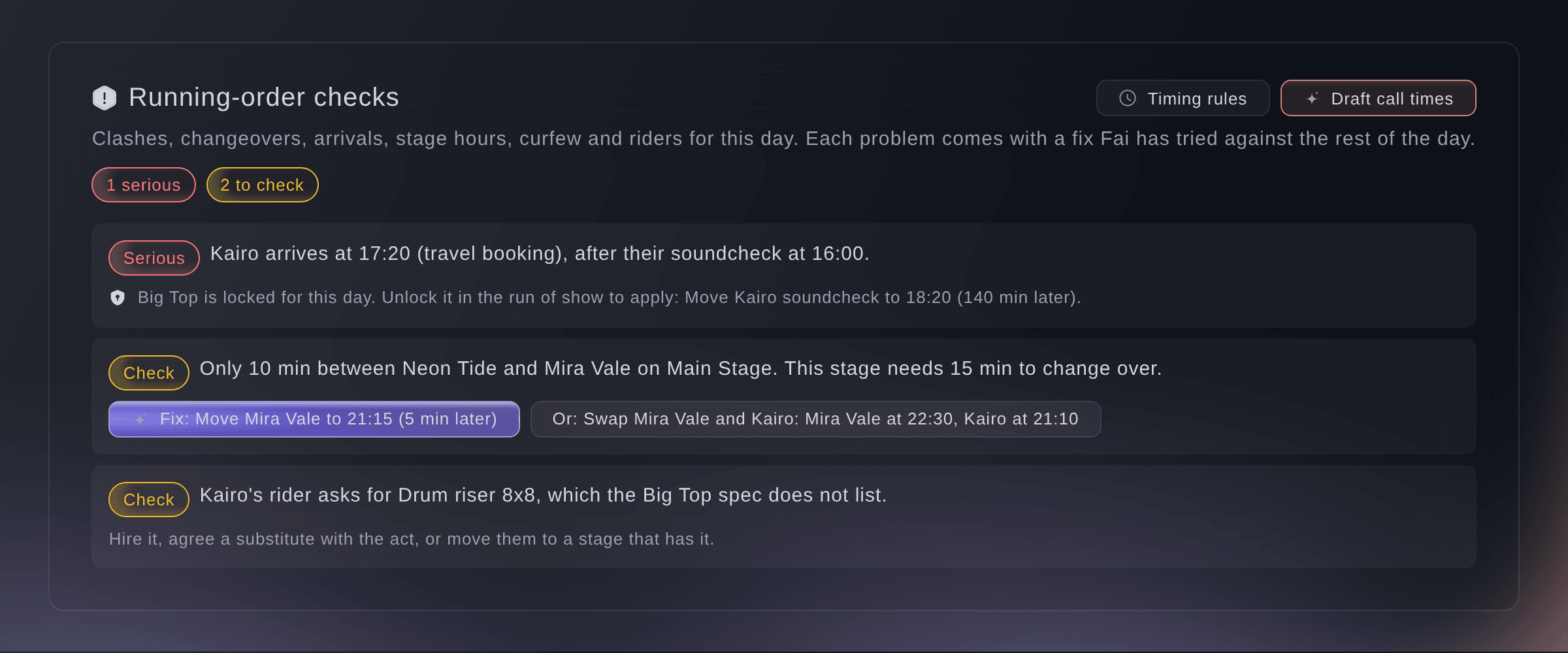
Running-order checks for one day. -
Read each problem
Read each problem, marked Serious, Check or Minor.
Remarque: Arrival and departure times come from the travel bookings, or from the advance when there is no booking. A problem with no fix says what to change instead, such as the travel booking.
-
Apply a fix
Select the button that starts with Fix:, check which cues move and where to, then select Apply fix.
Remarque: Fai tried each fix against the rest of the day first, so it never adds a serious problem. Select Undo in the message straight after to put the cues back.
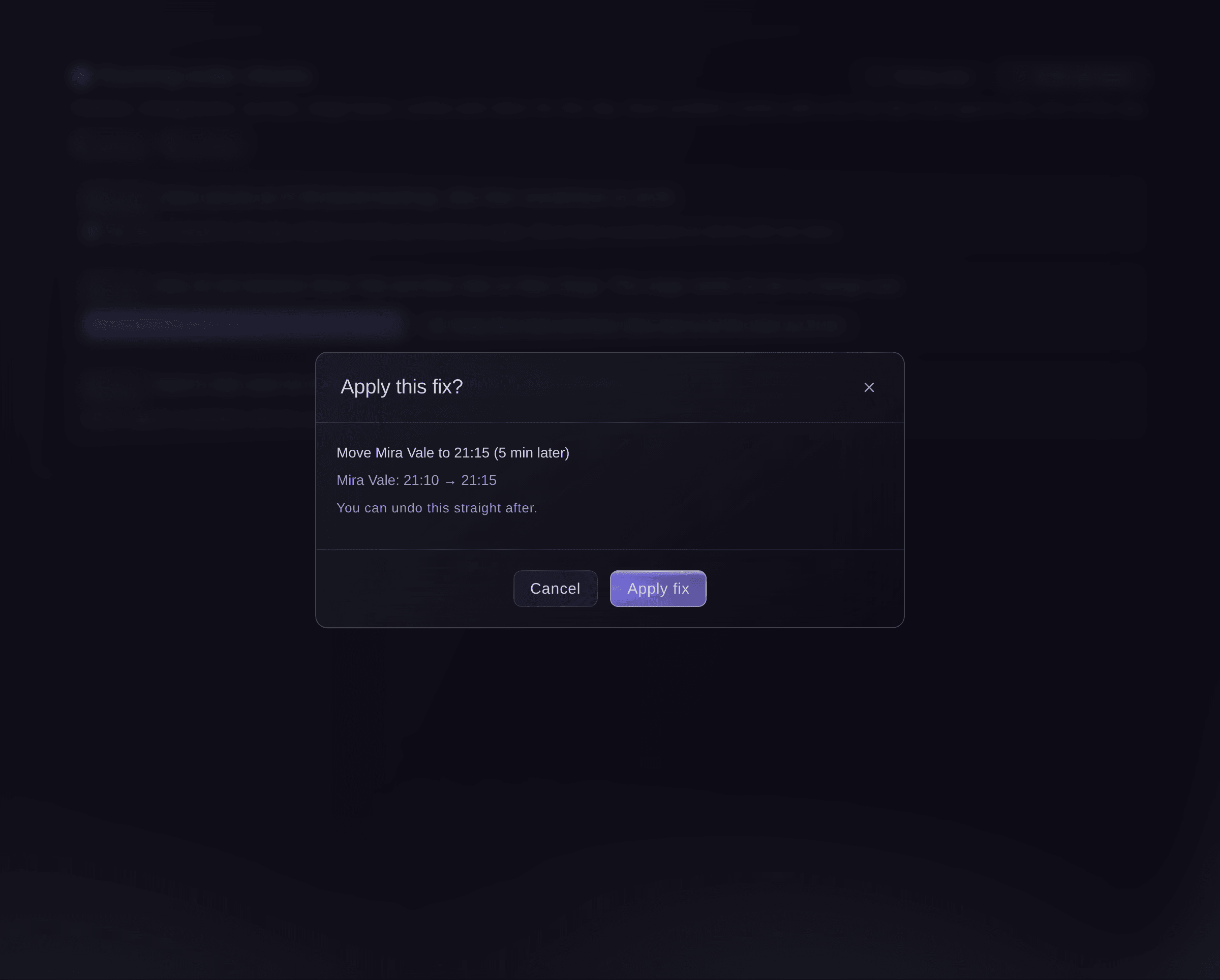
The cues a fix moves, before it changes anything. -
Set your timing rules
Select Timing rules, enter each stage's shortest changeover and its opening and closing times, then select Save.
Remarque: Also set how long an act needs between two appearances and how long before a call it should be on site. A stage's changeover and hours are part of the stage, so Stages shows the same values.
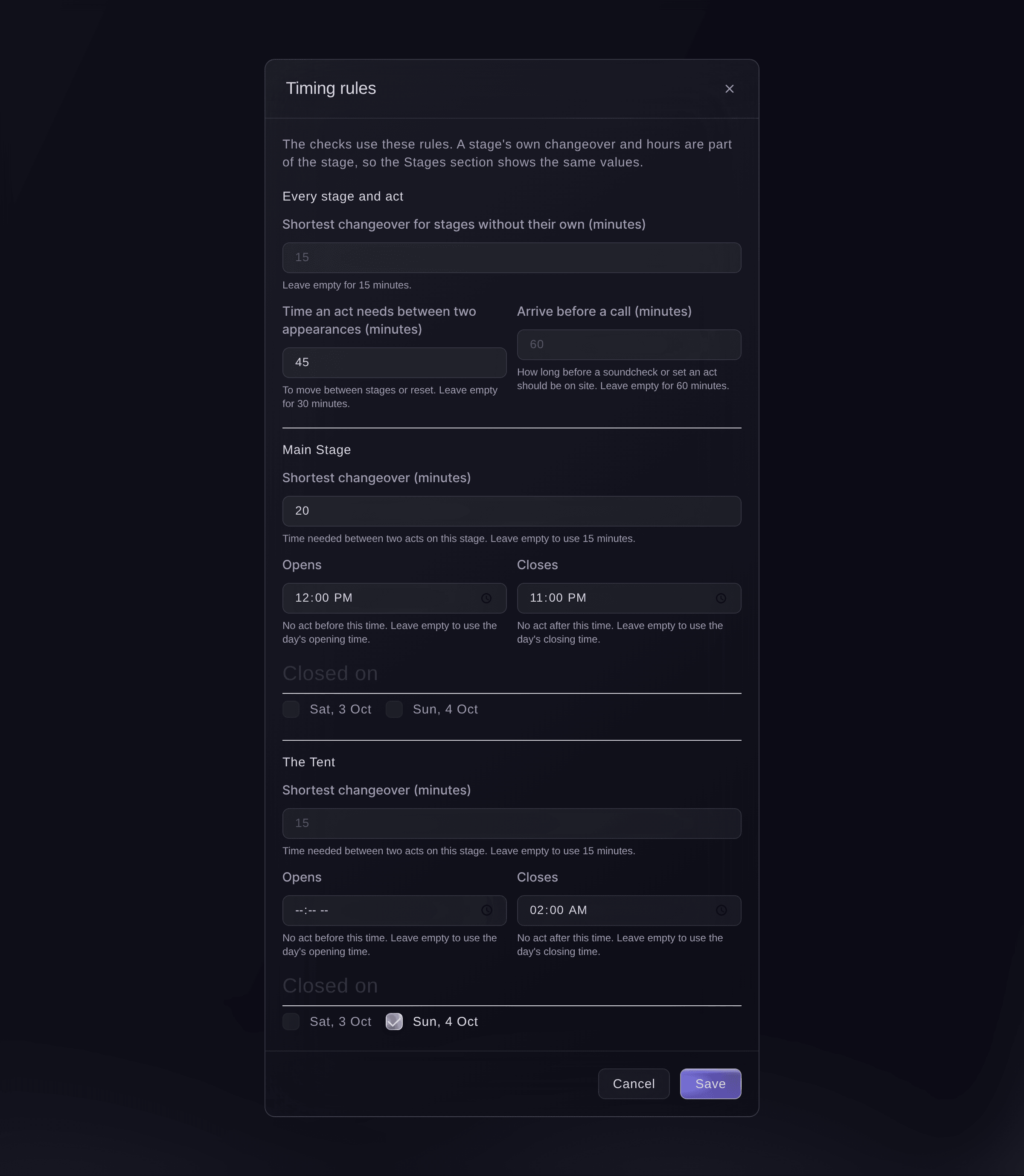
Timing rules for the checks. -
Draft the call times
Optional: select Draft call times, then open Today to approve each message.
Remarque: Fai drafts each act's load-in, soundcheck, changeover, stage call and set, and each department's cues, by email and by text where there is a mobile number. Nothing is sent until you approve it, and a moved cue drafts it again.


Essayez ces étapes sur votre propre événement
Créez un compte gratuit, montez votre événement et suivez les étapes ci-dessus dans votre propre tableau de bord. Cela prend quelques minutes et vous n'avez pas besoin de réserver un appel commercial.
Pas de frais d'installation. Pas d'abonnement mensuel obligatoire. Pas de carte bancaire requise.
Ou faites-le faire pour vous
Fai reads the problems on any day with their fixes, applies a fix after you confirm, changes the timing rules, and drafts each act's and each department's call times for you to approve on Today. She never moves a cue on a locked stage or one already called on the day.
Dans votre tableau de bord, avec Fai
Check the running order for Saturday at <EVENT NAME> and fix the short changeover on the Main Stage
Laissez Fai le faire pour vous
Fai travaille dans votre tableau de bord Ticket Fairy. Créez votre compte, ouvrez Fai et collez la consigne ci-dessus.
Pas de frais d'installation. Pas d'abonnement mensuel obligatoire. Pas de carte bancaire requise.
Set a stage's hours from Stages
-
Change the stage
In Stages, open the stage, open Changeover and opening hours, enter the times, then save the stage.
Remarque: The closed days of a stage are set in Timing rules, which knows the event's days.
Fai changes a stage's changeover, opening and closing times and closed days when you ask, after you confirm.
Dans votre tableau de bord, avec Fai
The Big Top at <EVENT NAME> closes at 23:00 and needs 20 minutes between acts
Questions que vous pourriez avoir
- Why can a fix not be applied?
- The stage and day are locked, a cue in it has already been called on show day, or the run of show changed since the fix was worked out. Unlock the stage in the run of show, or use the new fix the checks show.
- Does a fix move cues I did not see?
- No. The dialog lists every cue it moves and its new time before you apply it.
- Do the day sheets show the problems?
- Yes, in the dashboard: each day sheet shows the problems that touch its own cues. Day sheets you share by link never show them.
- How does Fai know a stage cannot meet a rider?
- Fai compares the act's technical rider with the stage's technical specs in Stages, including lines such as No drum riser. Hire it, agree a substitute with the act, or move them to a stage that has it.
- What if two of us change the timing rules at once?
- The second save does not overwrite the first. Your changes stay in the dialog, and saving again replaces your teammate's.
Vous avez encore une question ?
Réservez une démo et nous y répondrons lors d'un appel, pour votre type d'événement. Ou créez votre compte et voyez par vous-même.
Pas de frais d'installation. Pas d'abonnement mensuel obligatoire. Pas de carte bancaire requise.
Guides associés
Faites-le sur votre propre événement
Créez votre compte, montez votre événement et suivez les étapes dans votre propre tableau de bord. Vous n’avez pas besoin de réserver un appel commercial.