
Piloter la production
Book delivery times for your event and check vehicles in at the gate
Site and production managers at festivals and large venues juggle dozens of trucks, vans and suppliers in the build, and a queue at one gate holds up the whole event. Giving every team a booked arrival time and a code the gate can check keeps vehicles spread across the day and shows who is on site at any moment.
Set the times vehicles can arrive at each gate of your event and how many can come each time. Suppliers, contractors and other outside teams book a delivery on their own page and get a code for the gate, and on the day your gate team finds each vehicle by its code or number plate and checks it in and out.
- Pour
- Planning deliveries and running the gate for your event
- Durée
- 10 minutes
Avant de commencer
- You are an owner, admin or producer on the event. Arrivals and parking shows drivers' names and phone numbers, so it opens for those roles only.
- The teams delivering are in the event's Outside teams section, each with the link to its own page.
-
Open arrival times
Open the event, select Operations, select Arrivals and parking in the list of sections, then select Arrival times.
Remarque: Each time shows its gate or area, who can book it and how many places are left. Your traders' load-in times are here too, because traders and outside teams book the same times.
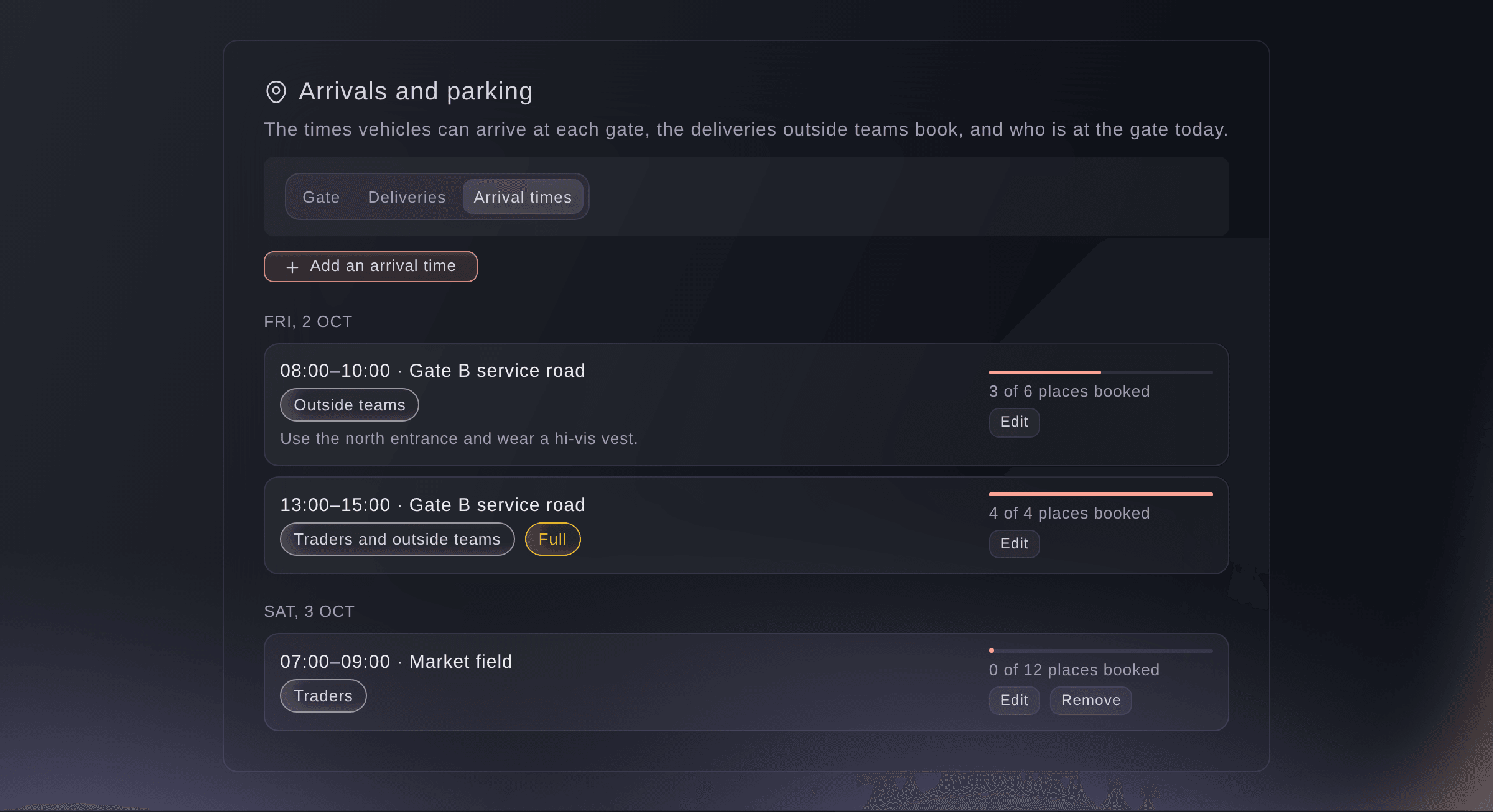
Arrival times at each gate. -
Add an arrival time
Select Add an arrival time, choose the Day, when it Starts and Ends, and enter how many vehicles can arrive in that time.
Remarque: Times are in the event's own time, and a time that ends after midnight ends the next day. Up to 500 vehicles can book one time.
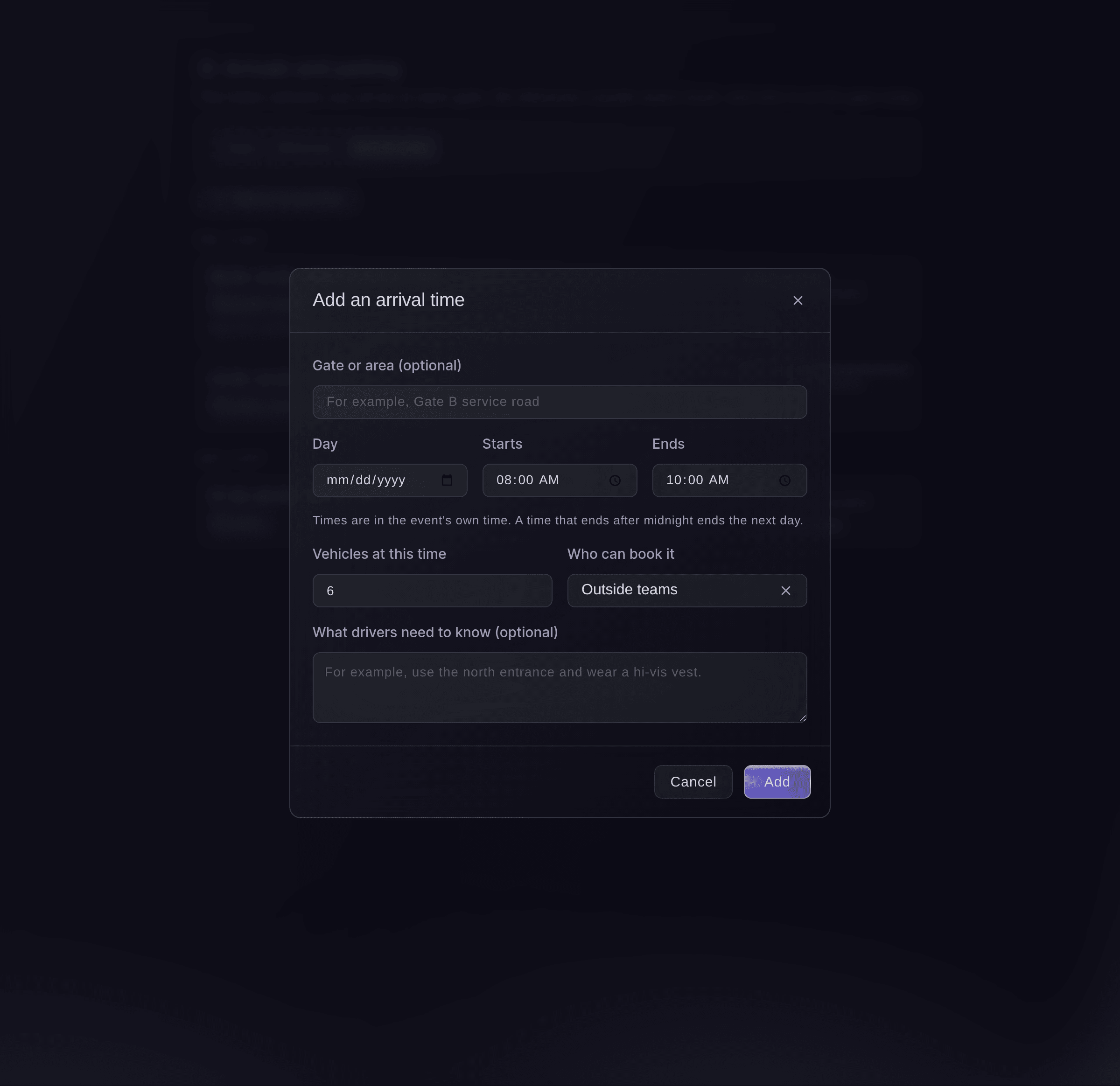
Add an arrival time. -
Choose who can book it
Under Who can book it, choose who the time is for.
-
Tell drivers where to go
Optional: enter the Gate or area (optional) and What drivers need to know (optional), then select Add.
Remarque: Teams see both when they book, for example to use the north entrance and wear a hi-vis vest.


A team's booking from its page
The team opens its page with no sign-in and, under Deliveries, selects Book beside a time with places left. They enter the number plate, the vehicle, the delivery company, the driver's name and phone and what it brings. They get a reference code and a code the gate can scan, and can change the details, Change time or Cancel delivery until the vehicle arrives.
Remarque: We email the team when a delivery is booked, moved, cancelled or decided, and when you change its arrival time. A booking an approval rule covers shows on their page as waiting for approval until it is decided.

-
Check the deliveries booked
Select Deliveries, then choose a Day or a State.
Remarque: Each delivery shows the team, the arrival time, the vehicle and Booked, Waiting for approval, Here or another state.
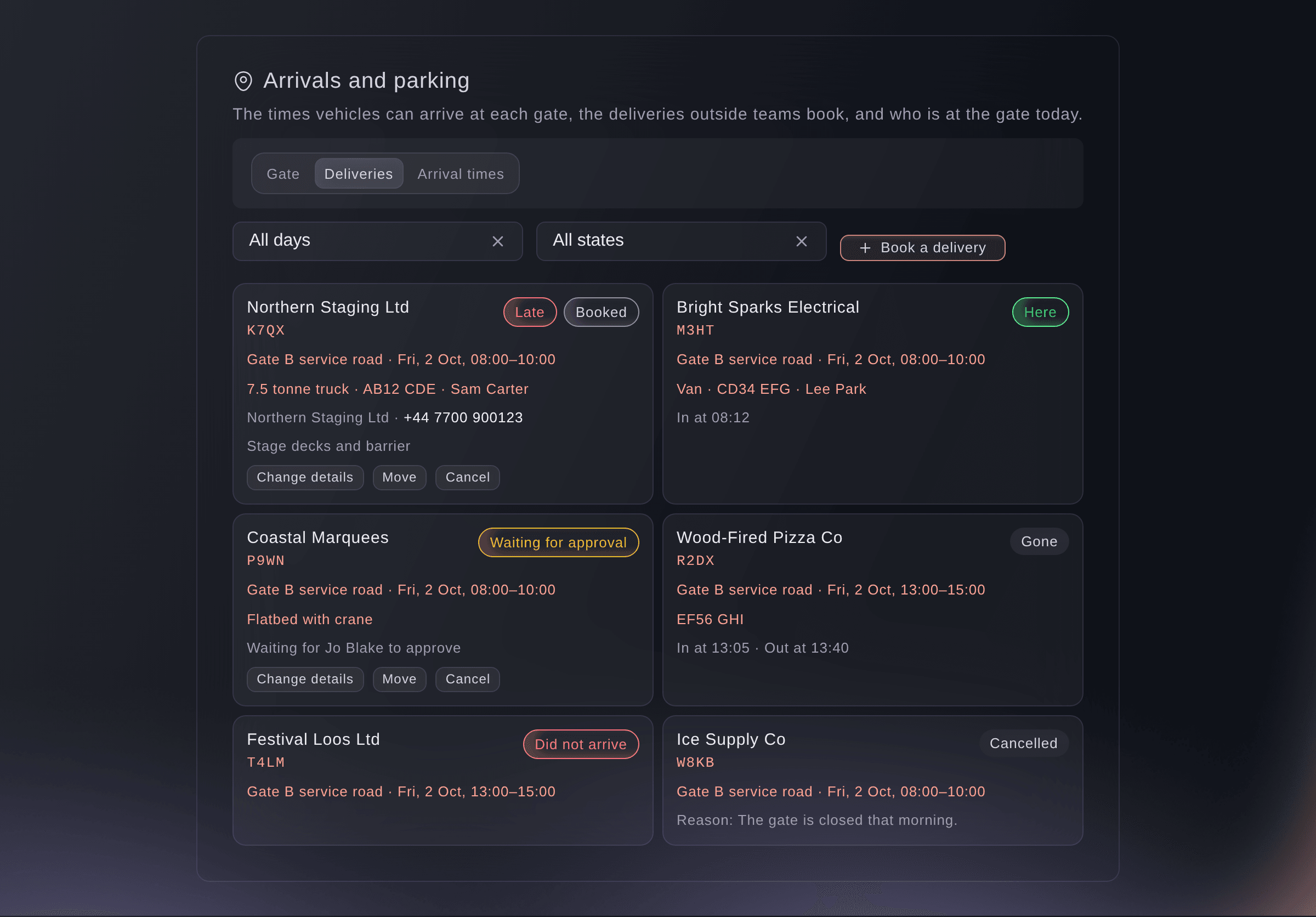
Every delivery booked. -
Open the gate on the day
Select Gate on a phone or tablet at the gate, and choose the Day if it is not today.
Remarque: The top shows how many vehicles are expected, here, gone, late, did not arrive and are waiting for approval. Below, every vehicle sits under its arrival time.
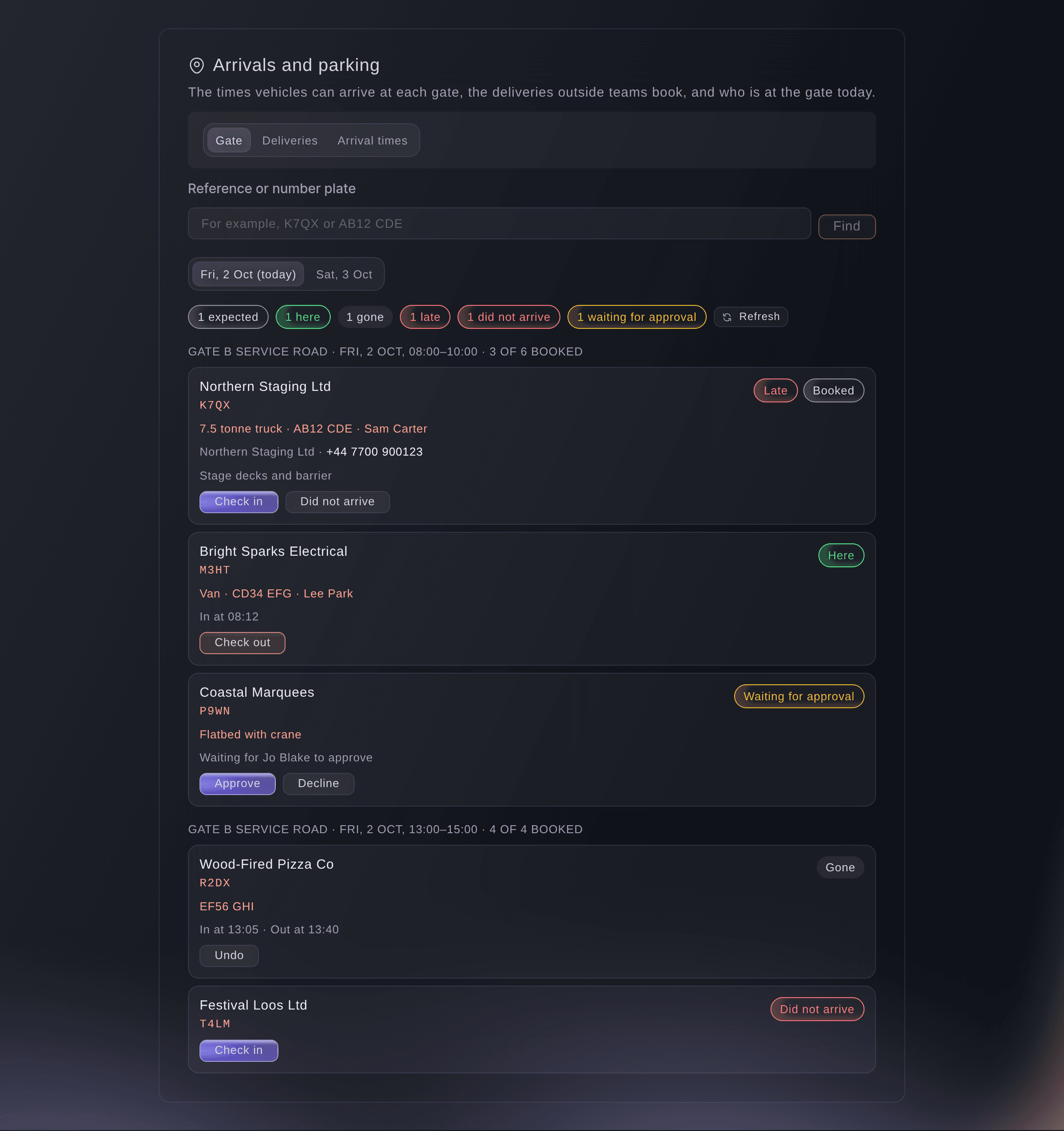
The gate on the day. -
Find the vehicle
Enter the code from the driver or their number plate in Reference or number plate, then select Find.
Remarque: The lookup finds a vehicle booked for any day. Opening the gate and each lookup are recorded, because they show drivers' details.
-
Check the vehicle in
Select Check in beside the vehicle.
Remarque: A vehicle booked for another day asks why you are letting it in today, then select Check in anyway. Select Undo in the message that appears if you pressed the wrong one.
-
Check the vehicle out
When it leaves, select Check out beside the vehicle.
Remarque: It then counts as gone. Undo puts it back as here.


Essayez ces étapes sur votre propre événement
Créez un compte gratuit, montez votre événement et suivez les étapes ci-dessus dans votre propre tableau de bord. Cela prend quelques minutes et vous n'avez pas besoin de réserver un appel commercial.
Pas de frais d'installation. Pas d'abonnement mensuel obligatoire. Pas de carte bancaire requise.
Ou faites-le faire pour vous
Fai reads your arrival times, the deliveries booked and the day at the gate, adds or changes an arrival time, books, moves or cancels a delivery for a team, and checks a vehicle in or out or marks it as not arrived. She shows you each change first and waits for your yes, and the team is emailed only when you say so.
Dans votre tableau de bord, avec Fai
Add an arrival time at Gate B on Friday 2 October from 8 to 11 for 6 vehicles from outside teams at <EVENT NAME>, then tell me who has booked so far
Laissez Fai le faire pour vous
Fai travaille dans votre tableau de bord Ticket Fairy. Créez votre compte, ouvrez Fai et collez la consigne ci-dessus.
Pas de frais d'installation. Pas d'abonnement mensuel obligatoire. Pas de carte bancaire requise.
Book a delivery for a team
-
Book it
In Deliveries, select Book a delivery, choose the Team and the Arrival time, enter the vehicle details, then select Book.
Remarque: Tick Email the team to send them the booking and its code. You can book a time meant for traders only, which a team cannot choose on its page.
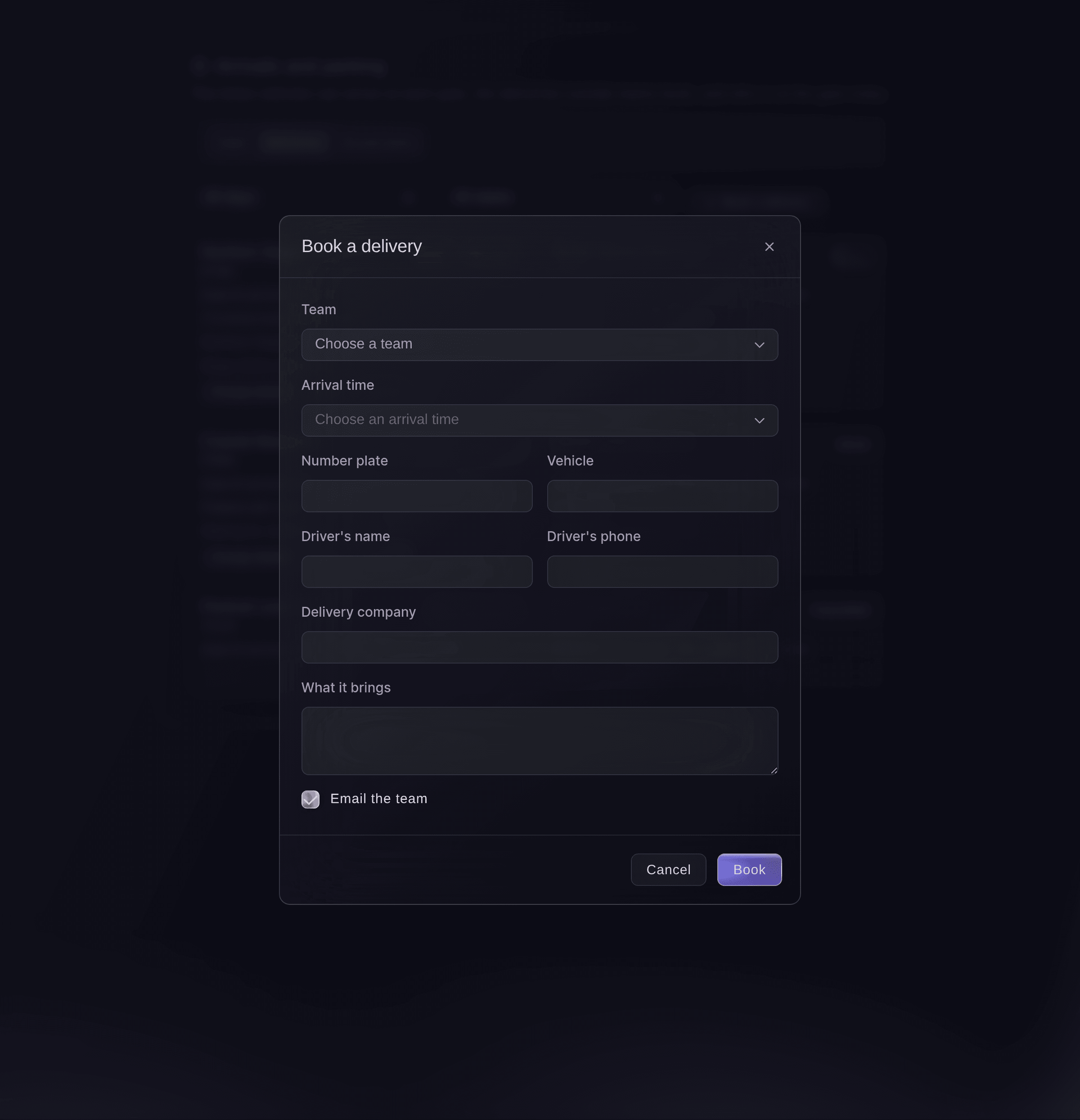
Book a delivery for a team.

Fai books a delivery for a team with the time and vehicle you give, after you confirm, and emails the team only if you ask.
Dans votre tableau de bord, avec Fai
Book Northern Staging a delivery at Gate B on Friday morning for their 7.5 tonne truck, plate AB12 CDE, and email them
Move or cancel a delivery
-
Move or cancel it
In Deliveries, select Move or Cancel beside the delivery, then confirm.
Remarque: Cancelling gives its place back to the arrival time. A delivery that has arrived cannot be moved or cancelled.
Fai moves or cancels a delivery that has not arrived, after you confirm.
Dans votre tableau de bord, avec Fai
Move Northern Staging's delivery K7QX at <EVENT NAME> to the afternoon time at Gate B
Mark a vehicle as not arrived
-
Mark it
After its arrival time has ended, select Did not arrive beside the vehicle on the gate.
Remarque: If it turns up later, check it in as usual. Undo puts it back as booked.
Fai marks a vehicle as not arrived once its arrival time has ended, after you confirm.
Dans votre tableau de bord, avec Fai
Mark delivery K7QX at <EVENT NAME> as not arrived
Questions que vous pourriez avoir
- Does the outside team or the driver need a Ticket Fairy account?
- No. The team books on its page with no sign-in, and the driver shows the code from the booking at the gate.
- What happens when an arrival time is full?
- It shows as full and teams can no longer book it. Give it more places, or add another time.
- Can two teams take the last place at the same time?
- No. The last place goes to one booking, and the other team sees that the time is full.
- Why can't I approve a delivery at the gate?
- An approval rule covers it, and only the people named on the rule see Approve and Decline beside it. Until it is approved it has no code the gate can check in.
- Can I change an arrival time after teams have booked it?
- Yes. The dialog offers to email the teams booked at that time about the change, and you cannot give it fewer places than are already booked.
- Are car parks and parking permits here?
- No. Arrivals and parking books arrival times at your gates. Give crew and guests parking on their passes in Accreditation.
Vous avez encore une question ?
Réservez une démo et nous y répondrons lors d'un appel, pour votre type d'événement. Ou créez votre compte et voyez par vous-même.
Pas de frais d'installation. Pas d'abonnement mensuel obligatoire. Pas de carte bancaire requise.
Guides associés
Faites-le sur votre propre événement
Créez votre compte, montez votre événement et suivez les étapes dans votre propre tableau de bord. Vous n’avez pas besoin de réserver un appel commercial.