
Vault y Capital
Pay everyone you owe for an event
After the show, a promoter owes the headliner, the sound company, the venue and the door team, and the list usually lives in a spreadsheet. Vault keeps that list on the event itself, fills in what your bookings already say, and pays everyone on it in one batch, so settling up is one job instead of twenty transfers.
Keep one list of the artists, suppliers, venues and crew an event has to pay, started for you from your artist and supplier bookings, then pay the people on it together from Vault and see each one move from to pay to paid.
- Para
- Settling up with the artists, suppliers and crew behind an event
- Dura
- 9 minutos
Antes de empezar
- You're an owner or an admin on the brand. Ticket Fairy support can read the list, and only owners and admins can change it or pay from it.
- Vault is switched on for your brand. You can keep the list without a Vault account, and paying from it needs an active one.
- The people you pay are saved as recipients in Vault. Add a new one on the Recipients page first, as Pay your event suppliers from Vault shows.
-
Open the event's money
Open Vault, select Events, then select View money on the event's row.
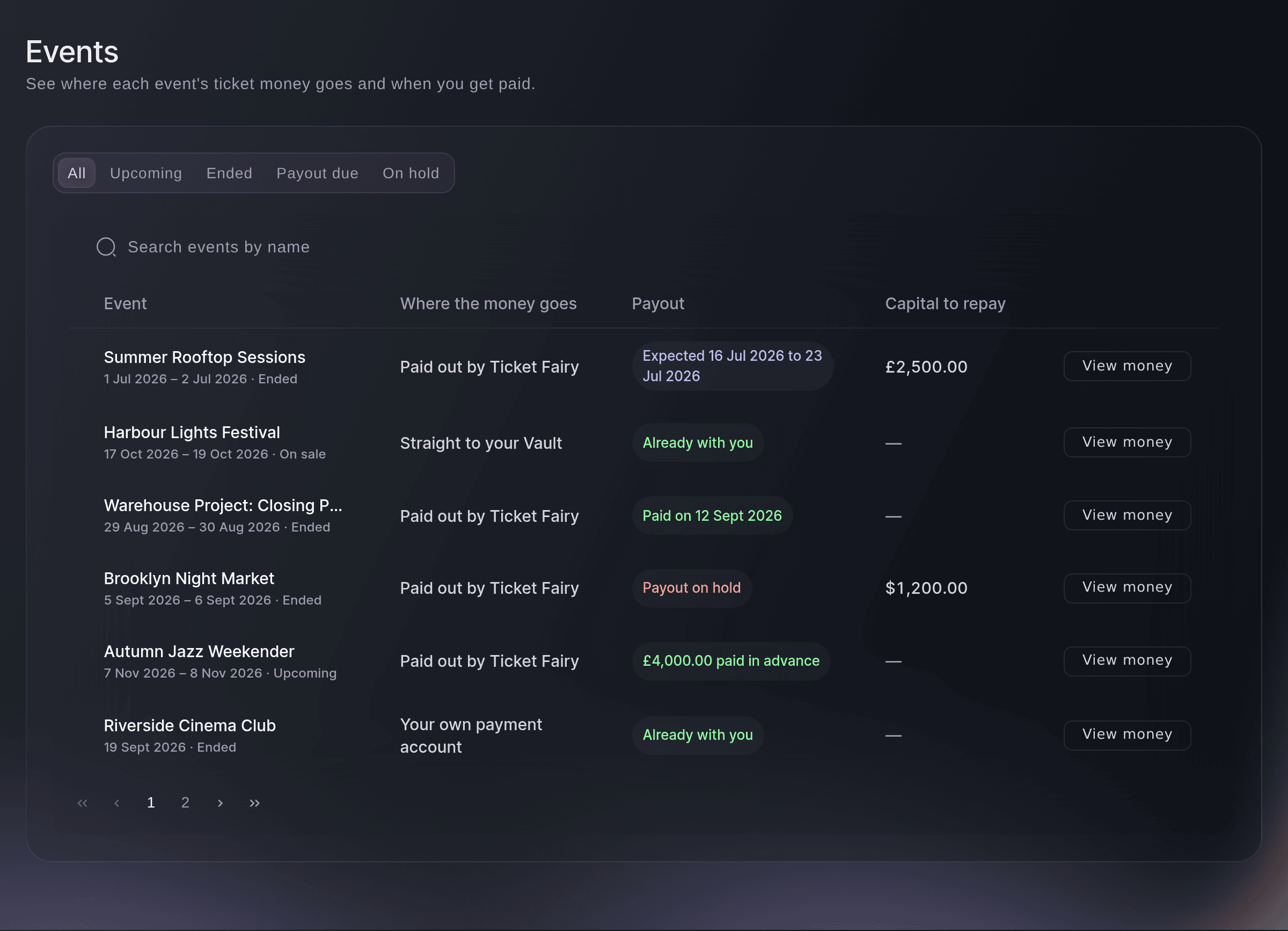
Brand, Vault, Events. -
Find Who you owe for this event
Scroll to Who you owe for this event under the figures. Each row is one person or business with the amount, the saved recipient that receives it and a status such as To pay.
Nota: Each row says who last changed it and when, so your team can see who added or paid someone.
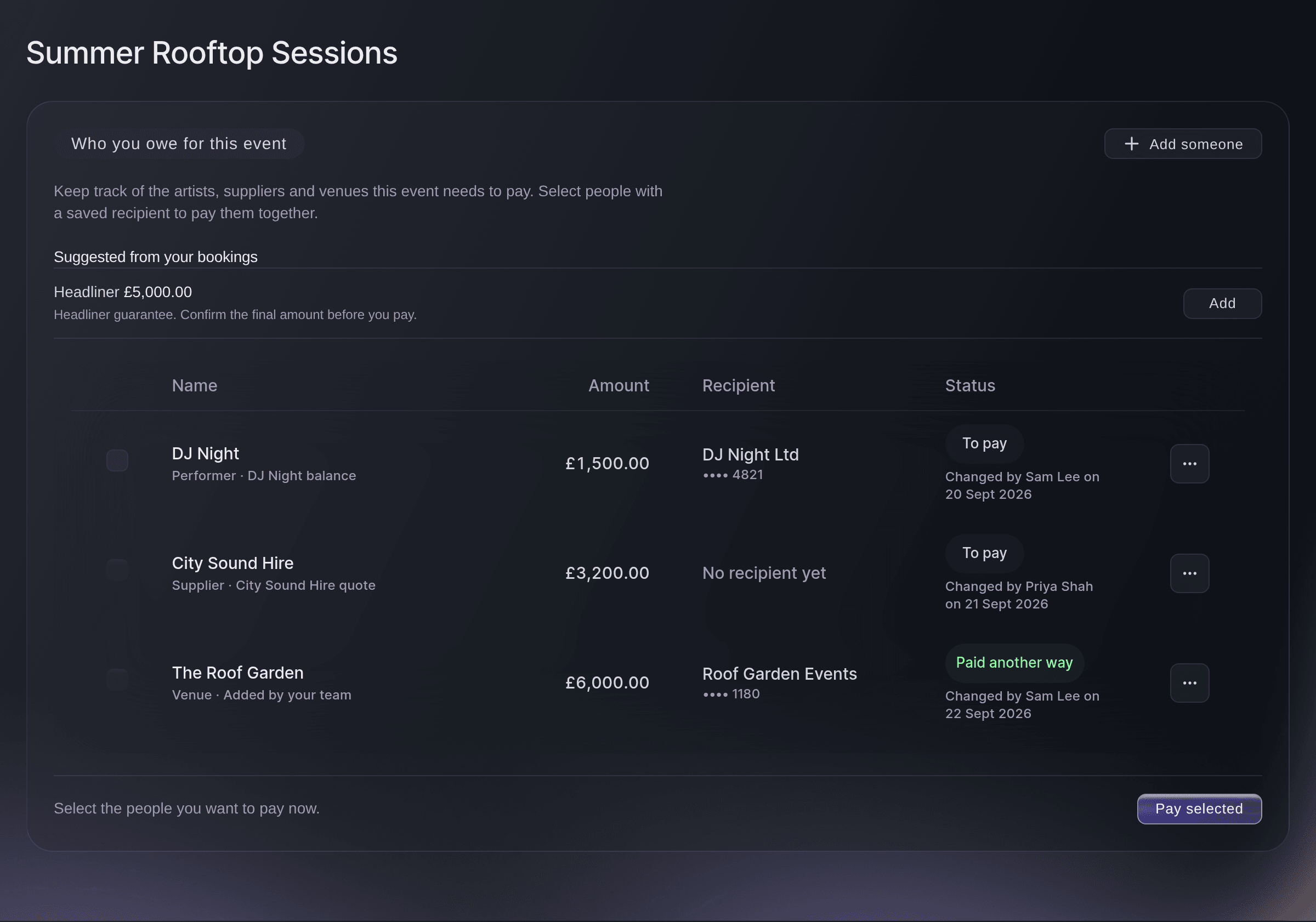
Vault, one event's money, Who you owe for this event. -
Add a suggestion from your bookings
Optional: Under Suggested from your bookings, select Add beside an artist fee or supplier quote. Add someone to pay opens with its name and amount filled in.
Nota: For an artist on a percentage deal we fill in the guaranteed fee and ask you to confirm the final amount from the contract. Fai can work that amount out for you, as Let Fai prepare your finance work shows.
-
Select Add someone for anyone else
Select Add someone to add a person or business that no booking covers. Add someone to pay opens empty.

Who you owe for this event, Add someone to pay. -
Enter the name and amount
Enter who you owe in Name, then enter what you owe them in Amount and choose the Currency.
-
Choose the recipient
In Recipient, choose the saved bank details that receive the money. Leave it on No recipient yet to add them to the list now and choose the bank details later.
-
Choose what they do
In What they do, choose Performer, Supplier, Venue, Staff, Partner or Other.
Consejo: Enter an invoice number or anything else your team should know in Note. Only your team sees it.
-
Select Add
Select Add. The person joins the list as To pay, and nothing is paid yet.
-
Select the people to pay now
Select the box at the start of each row you want to pay now. The line under the list counts how many people you selected.
Nota: A box can be selected when the row is To pay and has a saved recipient. Edit a row from its menu to add the recipient first.
-
Select Pay selected
Select Pay selected. Pay several people opens with one payment for each person you selected, linked to the event.
Nota: From here you check and send the batch, as Pay several people at once shows. Preparing it marks those people Payment on its way.
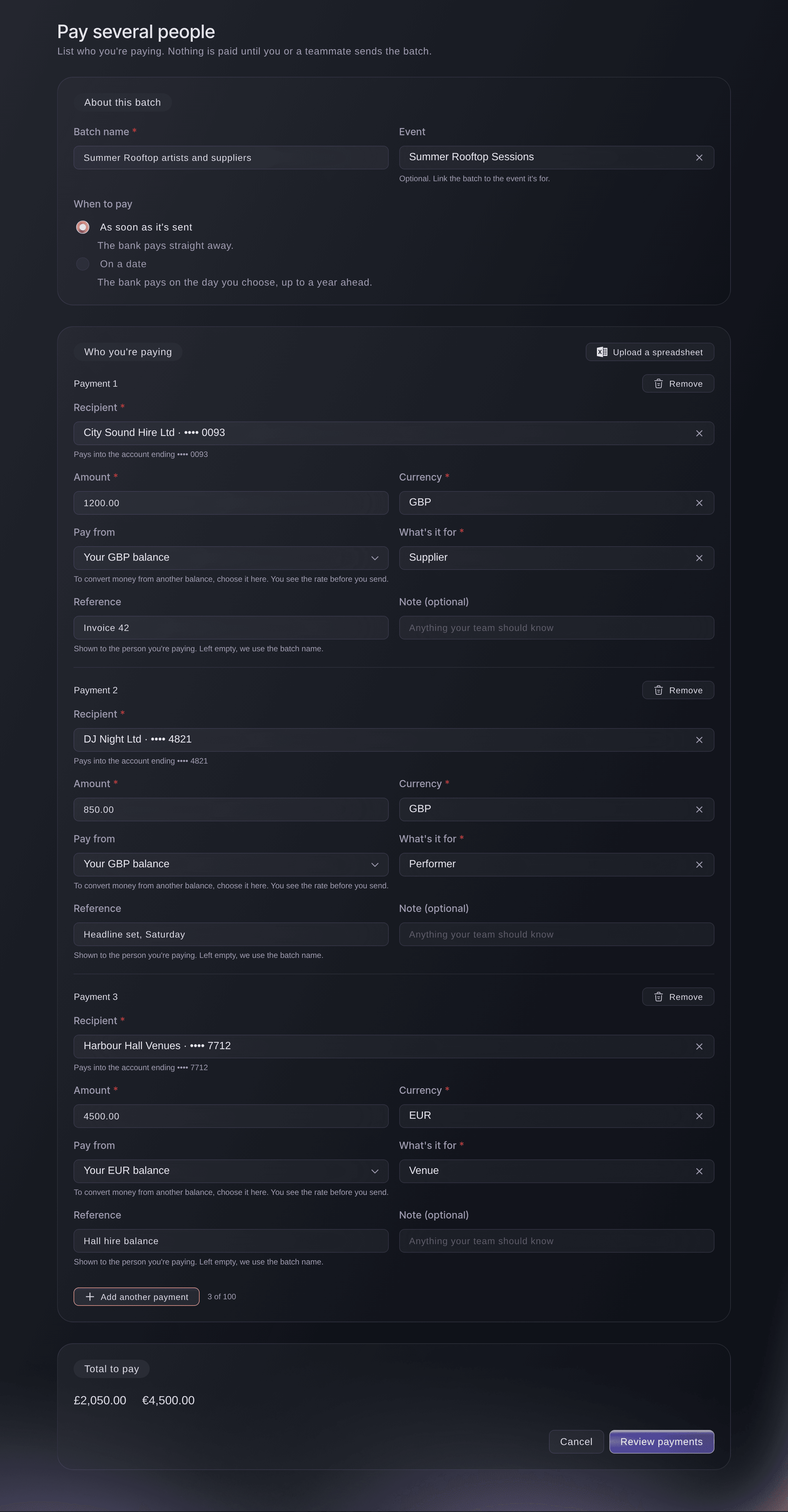
Vault, Pay several people, opened from Pay selected. -
Check who is paid
Once the batch is sent, open the event's money again and read each row's status. Paid means the payment reached them, and Payment didn't go through means it failed and the person is back for you to pay again.
Prueba estos pasos en tu propio evento
Crea una cuenta gratis, monta tu evento y sigue los pasos de arriba en tu propio panel. Tarda unos minutos y no necesitas reservar una llamada comercial.
Sin cuotas de alta. Sin cuota mensual obligatoria. Sin tarjeta de crédito.
O deja que lo hagan por ti
Fai, the assistant inside your dashboard, can read who an event owes, add people to the list, change them, mark them as paid another way and prepare one batch to pay them. She shows you each change and asks before she makes it, and she never sends money: a person on your team sends the batch in Vault. MCP and the command line have no commands for this list.
En tu panel, con Fai
For <EVENT NAME>, add the suggestions from our bookings to who we owe, then prepare a batch to pay everyone who has bank details
Deja que Fai lo haga por ti
Fai trabaja dentro de tu panel de Ticket Fairy. Crea tu cuenta, abre Fai y pega la instrucción de arriba.
Sin cuotas de alta. Sin cuota mensual obligatoria. Sin tarjeta de crédito.
Mark someone as paid another way
-
Select Mark as paid another way
Open the menu at the end of the person's row and select Mark as paid another way.
-
Confirm it
Select Mark as paid another way again in the confirmation. The row changes to Paid another way, and no money moves.
Consejo: Select Mark as still to pay from the same menu to put them back on the list to pay.
Fai can mark a person as paid another way, or put them back as still to pay, after she shows you the change and you agree.
En tu panel, con Fai
Mark <NAME> as paid another way for <EVENT NAME>, we paid them in cash
Change or remove someone
-
Select Edit to change them
Open the menu at the end of the row and select Edit, change the details, then select Save changes.
Nota: If a teammate changed the same row a moment before, the dialog says
Someone else changed this payee. We've loaded the latest version.
Check their change, then save yours. -
Select Remove to take them off the list
Open the same menu, select Remove, then select Remove again in the confirmation.
Nota: Removing someone does not cancel a payment already sent. Only a row still To pay can be changed or removed.
Fai can change the amount, recipient or note on a person still to pay, or remove them, after she shows you the change and you agree.
En tu panel, con Fai
Change the amount we owe <NAME> for <EVENT NAME> to <AMOUNT>
Preguntas que puedes tener
- Where do the suggestions come from?
- From the event's artist bookings, with each fee, deposit or balance, and from supplier bookings you have accepted or completed, with the quoted amount. A suggestion disappears once you add it to the list.
- Why can't I select someone on the list?
- A row needs a saved recipient and the status To pay. Choose the recipient with Edit; a row that is paid, being paid or paid another way can't be paid again from here.
- Does adding someone pay them?
- No. The list records who you owe. Money moves only when an owner or admin sends the batch you prepare with Pay selected.
- What happens to the list if a batch payment fails?
- The person changes to Payment didn't go through. Check their bank details on the Recipients page, then select them and pay them in a new batch. If the batch is cancelled before it is sent, they go back to To pay.
- Why does Pay selected say my Vault account must be active?
You can pay people from here once your Vault account is active.
appears while the brand has no active Vault account. You can still add people and keep the list; open the account as Open a Vault account to hold your ticket money shows, then pay them.- Can I pay someone in a different currency from the event?
- Yes. Choose the currency in Currency; the recipient's bank account has to take that currency. The payment comes out of your Vault balance in that currency, or from another balance you choose in Pay from when you build the batch.
- Who can see and change the list?
- You can change it with an owner or admin login on the brand. Ticket Fairy support can read it to help you.
¿Todavía tienes una pregunta?
Reserva una demo y te la respondemos en una llamada, sobre tu tipo de evento. O crea tu cuenta y compruébalo por ti mismo.
Sin cuotas de alta. Sin cuota mensual obligatoria. Sin tarjeta de crédito.
Guías relacionadas
Hazlo en tu propio evento
Crea tu cuenta, monta tu evento y sigue los pasos en tu propio panel. No necesitas reservar una llamada comercial.