
Gestionar la producción
Collect insurance and certificates from your event's outside teams
Festival and venue operations teams need insurance and safety paperwork from every supplier on site, and chasing it by email leaves gaps the licensing officer finds first. Asking once for each document, from every team that owes it, shows you who has sent what and whose cover runs out before the gates open.
Ask your event's suppliers, contractors, caterers and other outside teams for public liability insurance, risk assessments, method statements and safety certificates. Each team adds the file on its own page with no sign-in, Fai reads the expiry date and cover, and you accept the file or ask for changes, with reminders before it is due and before it expires.
- Para
- Getting every outside team's paperwork in before your event
- Dura
- 9 minutos
Antes de empezar
- You are an owner, admin or producer on the event. The event's Operations page opens for those roles only.
- The teams you are asking are in the event's Outside teams section, each with a contact email and the link to its own page.
-
Open documents from outside teams
Open the event, select Operations, select Licences and certificates in the list of sections, then select Outside teams.
Nota: Each document you asked for shows how many teams have it accepted and what needs you. If Licences and certificates is not in the list, select More sections and open it there.
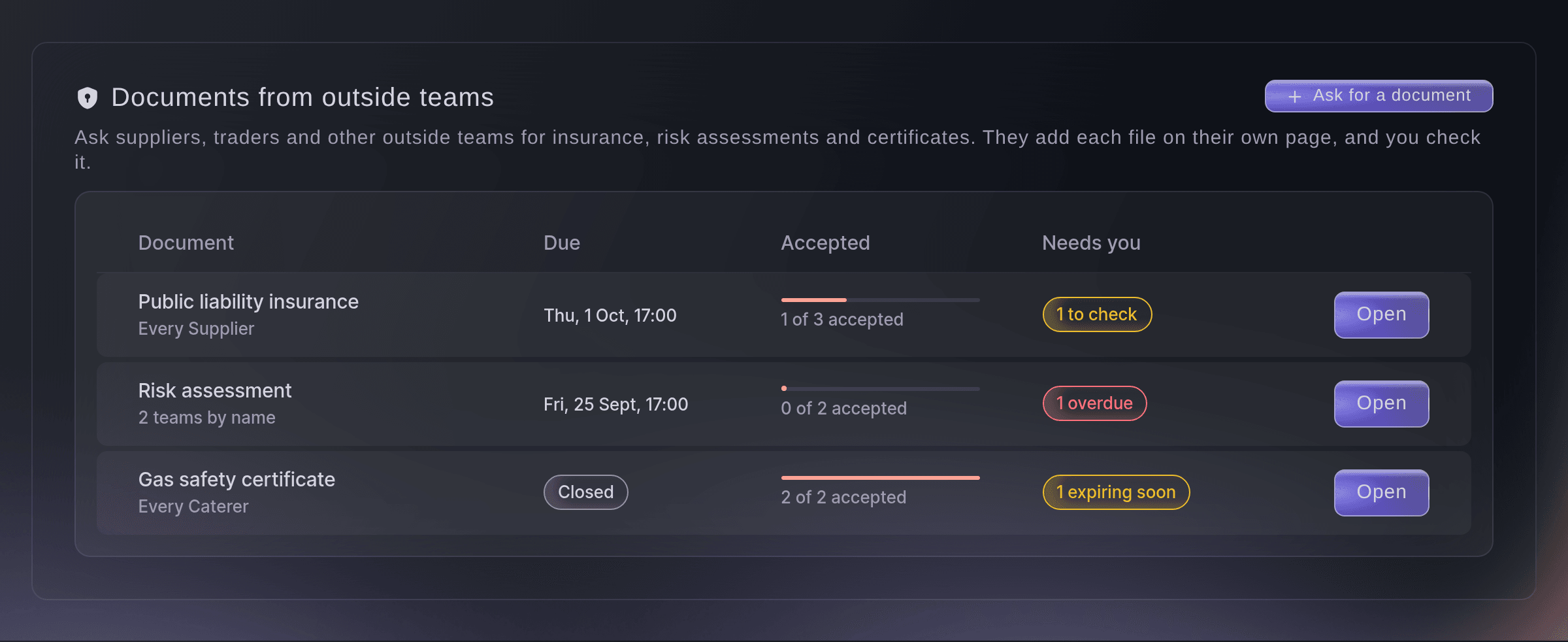
Documents from outside teams. -
Ask for a document
Select Ask for a document, then enter What you need or choose one under Common documents.
Nota: The common documents are public liability insurance, a risk assessment, a method statement and food hygiene, gas safety and electrical safety certificates.
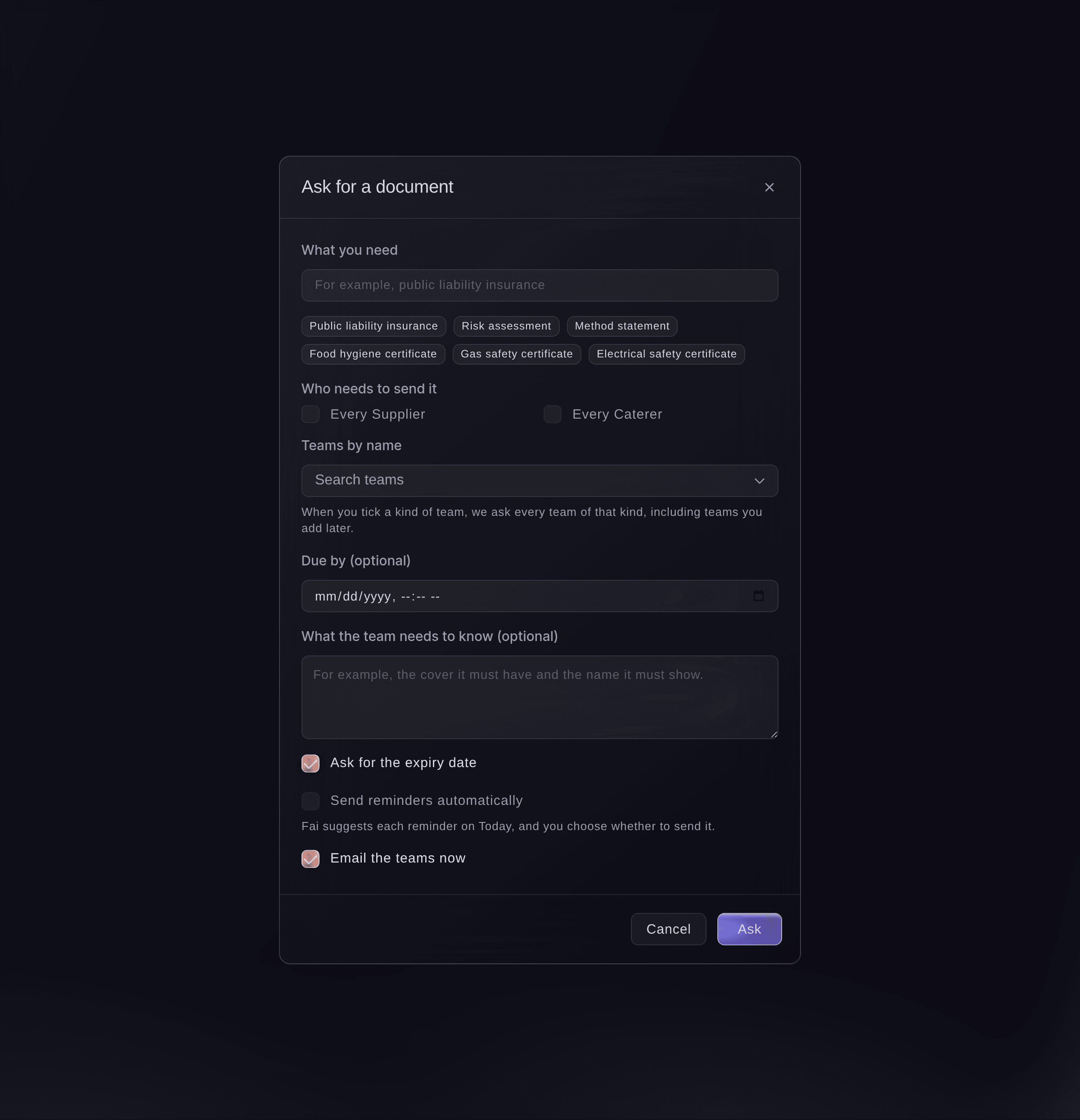
Ask for a document. -
Choose who sends it
Under Who needs to send it, tick the kinds of team, choose teams under Teams by name, or both.
Nota: A kind of team you tick includes every team of that kind you add to the event later. A team you choose by name is asked whatever its kind.
-
Set the due date and reminders
Optional: fill in the rest of the dialog before you send it.
-
Send the request
Select Ask.
Nota: The document appears on the page of every team you asked, under Documents we need.


A team's file from its page
The team's contact opens their page with no sign-in and sees Documents we need, with what you asked for, when it is due and what they need to know. They select Add file, choose a PDF, a photo or a Word file of up to 25 MB, enter the expiry date if you asked for it, and send it. Each document then shows Needed, Being checked, Accepted or Changes needed with what you asked them to change.
Nota: A team can add up to 30 files a day on its page. After the due date passes, the page asks them to contact you for more time.

-
Open the request
Select the document in the list to see each team you asked, its file and where it stands.
Nota: Under each file, Fai shows what she read in it, such as the expiry date, the cover and the name it insures, and says what does not match, such as a policy that ends before the event does.
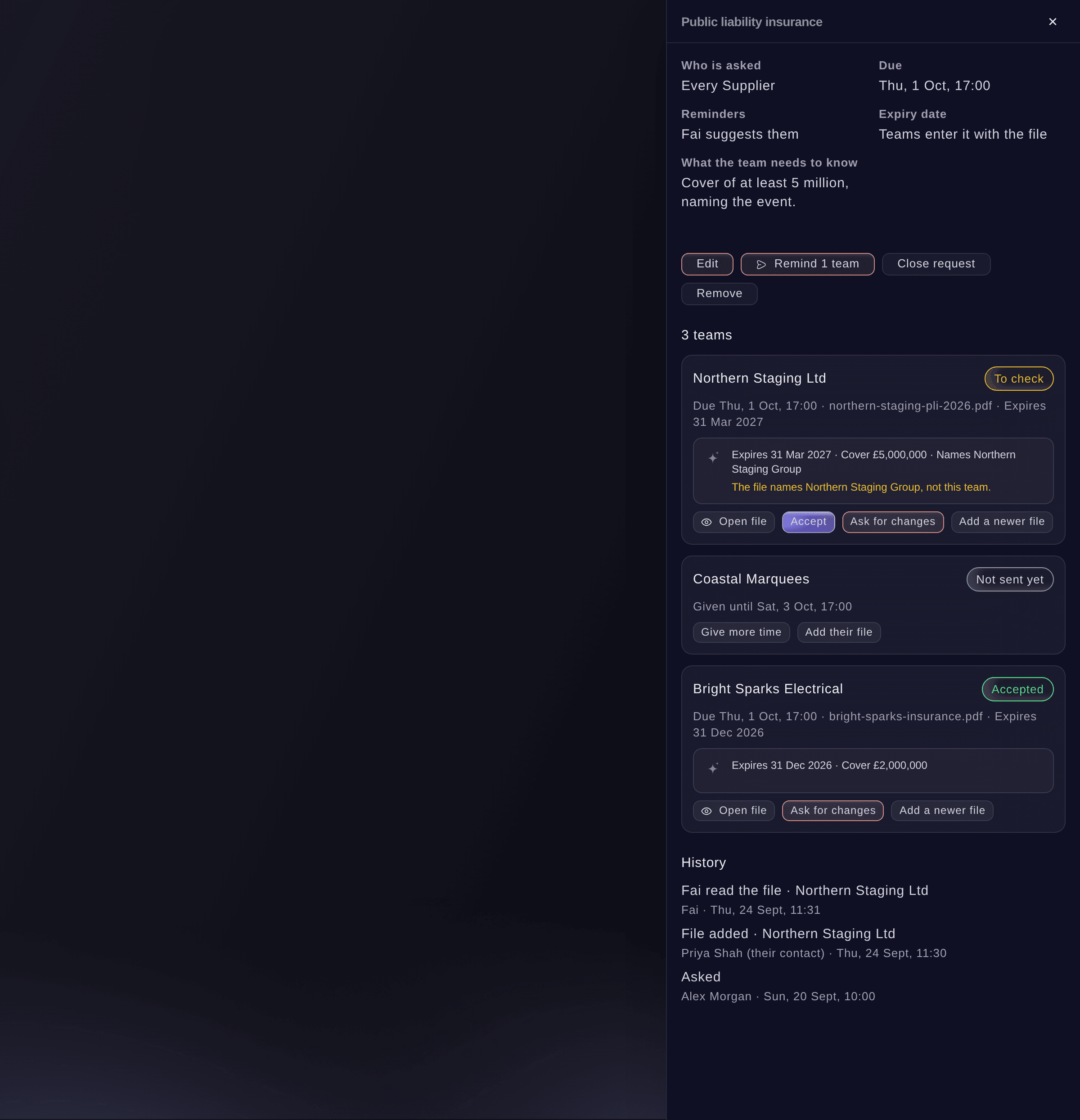
One request, team by team. -
Accept a file
Select Open file beside a team to check it, then select Accept, check the Expiry date and select Accept.
Nota: The date starts as the one the team entered or Fai read. Change it if the file says something else, because we remind the team before it expires.
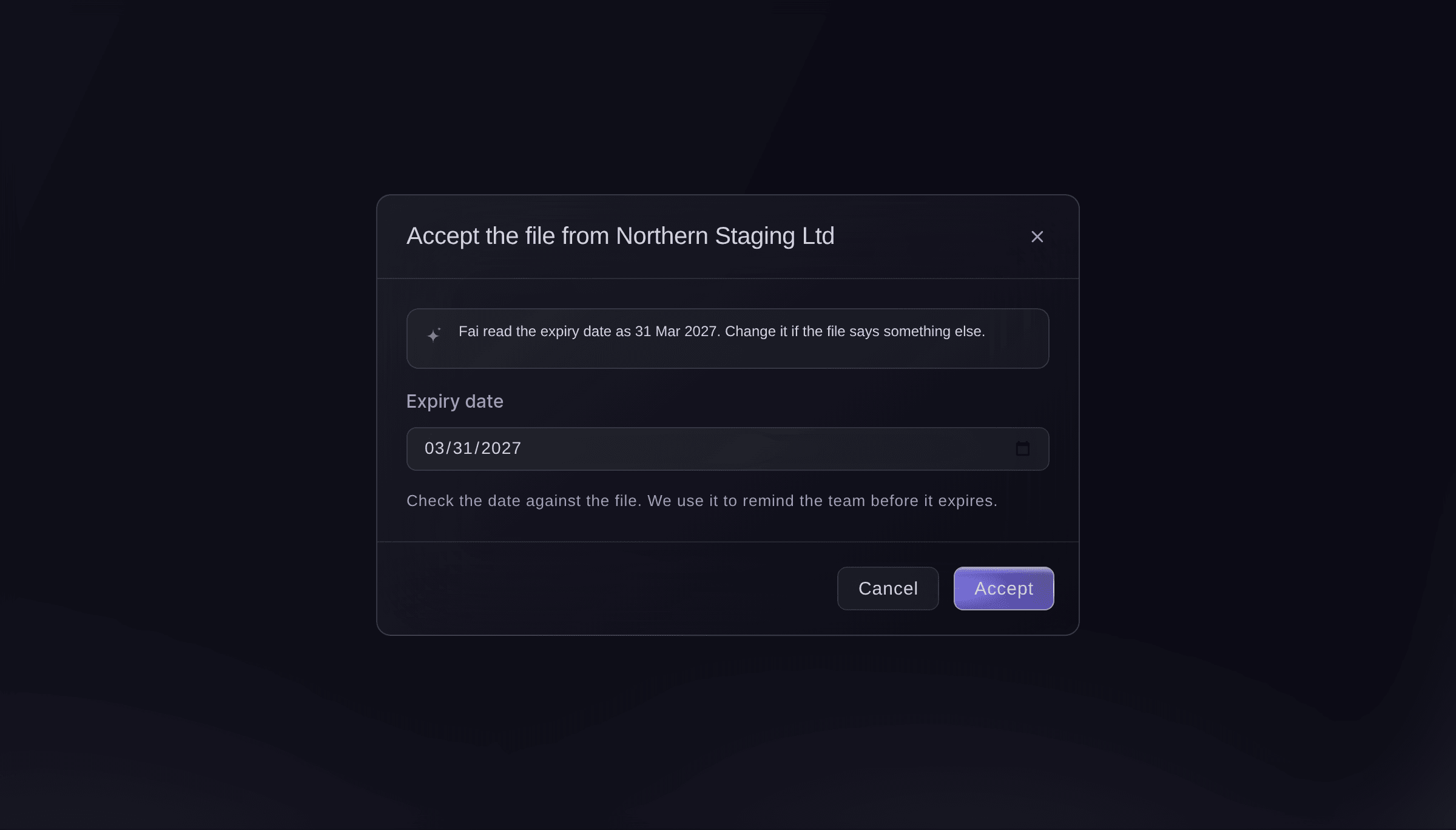
Accept a file. -
Ask for changes
If a file is not right, select Ask for changes, enter What needs to change, then select Send.
Nota: We email the team what to change, in their language, and their page shows it. They add a new file, and it comes back to you to check.
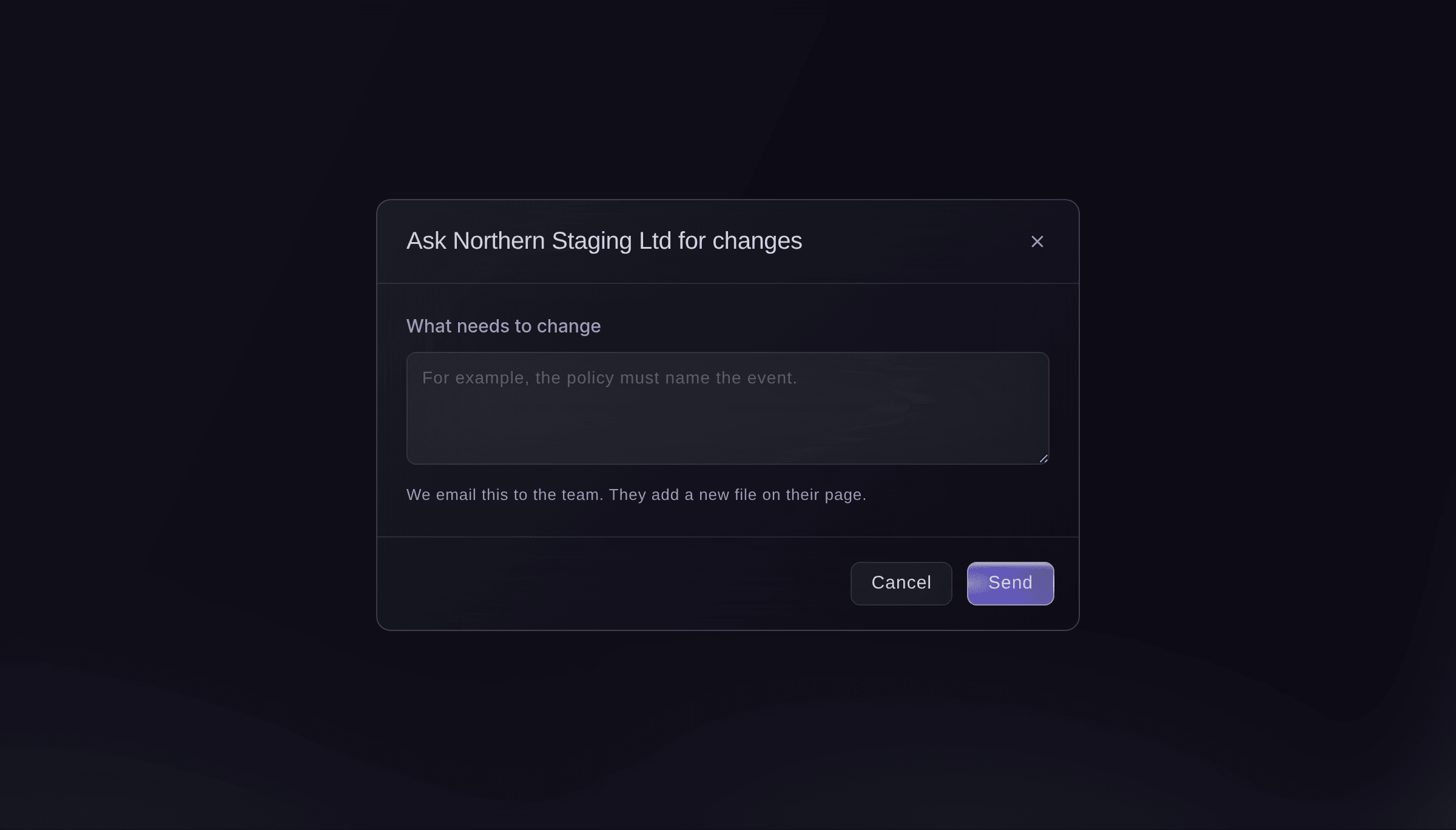
Ask for changes. -
Check who is still missing
Go back to the list of documents.
Nota: Each document shows how many teams are accepted of those asked, and counts the files to check, the teams overdue and the files expiring soon. Accepted files are also in the This event view, under each team.


Prueba estos pasos en tu propio evento
Crea una cuenta gratis, monta tu evento y sigue los pasos de arriba en tu propio panel. Tarda unos minutos y no necesitas reservar una llamada comercial.
Sin cuotas de alta. Sin cuota mensual obligatoria. Sin tarjeta de crédito.
O deja que lo hagan por ti
Fai lists what you asked outside teams for and where each team stands, asks teams for a new document, changes, closes or removes a request, accepts a file with its expiry date, asks a team for changes, gives a team more time and sends reminders. She shows you each change or email first and waits for your yes. She cannot add a file for a team; select Add their file in the dashboard for that.
En tu panel, con Fai
Ask every supplier at <EVENT NAME> for public liability insurance by 1 October, and tell me which teams still owe their risk assessment
Deja que Fai lo haga por ti
Fai trabaja dentro de tu panel de Ticket Fairy. Crea tu cuenta, abre Fai y pega la instrucción de arriba.
Sin cuotas de alta. Sin cuota mensual obligatoria. Sin tarjeta de crédito.
Send a reminder now
-
Remind the teams
Open the request, select the Remind button, which shows the number of teams, then select Send reminder.
Nota: We email each team you still ask that has not sent a file you accepted yet.
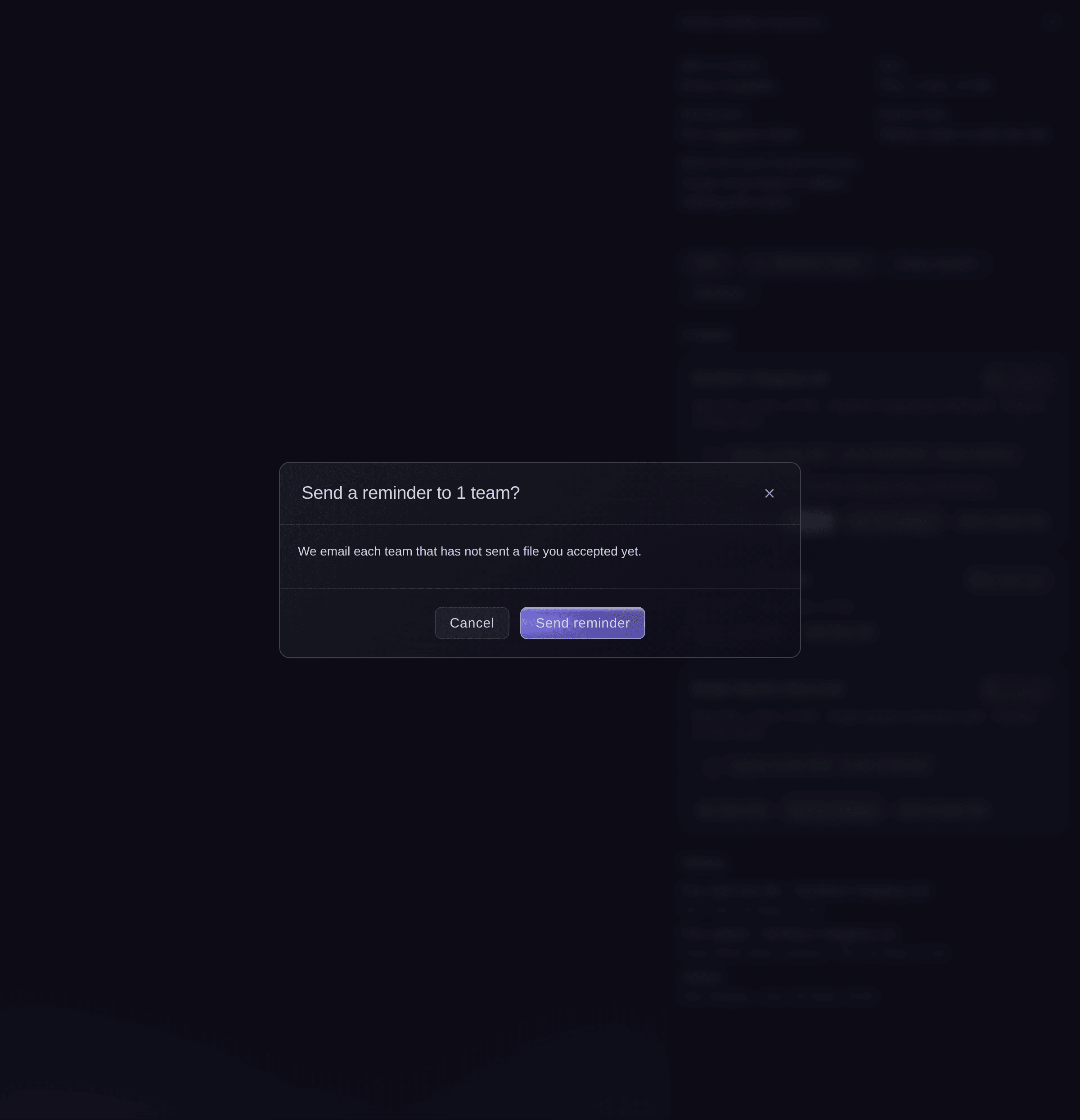
Send a reminder now.

Fai emails a reminder to the teams that still owe a document, after you confirm.
En tu panel, con Fai
Remind the suppliers who have not sent their insurance for <EVENT NAME>
Give a team more time
-
Change its due date
Open the request, select Give more time beside the team, choose the New due date, then select Save.
Nota: Only that team gets the new date. The others keep the request's own due date.
Fai gives one team a later due date, after you confirm.
En tu panel, con Fai
Give Northern Staging until Friday to send their insurance for <EVENT NAME>
Add a file a team emailed you
-
Add their file
Open the request, select Add their file beside the team, choose the file, then select Add file.
Nota: It arrives as if the team had sent it, ready for you to accept. Fai reads it the same way.
Fai cannot upload a file. Add it with Add their file, then ask Fai what she read in it.
En tu panel, con Fai
What did you read in the insurance Northern Staging sent for <EVENT NAME>
Close or remove a request
-
Close it
Open the request and select Close request.
Nota: Teams can no longer add a file to it until you select Open again. Select Remove instead to take it off their pages; the files already sent stay in Licences and certificates.
Fai closes, opens again or removes a request, after you confirm.
En tu panel, con Fai
Close the gas safety certificate request for <EVENT NAME>, we have everything we need
Preguntas que puedes tener
- Where are my traders' certificates?
- In Licences and certificates, under each trader, beside your outside teams' documents. Traders upload them on their own trader page, and you set the certificates every trader needs in the trader set-up, as in the guide to getting your traders ready.
- Does the outside team need a Ticket Fairy account?
- No. The team's contact opens the link to their page on any phone or computer with no sign-in, and adds the file there.
- Does Fai accept a file for me?
- No. Fai reads the file and tells you what it says and what does not match, and you accept it or ask for changes. When you accept, you confirm the expiry date yourself.
- What happens when an accepted document is about to expire?
- Before it expires, the team gets a reminder, sent automatically or suggested by Fai on Today, depending on the request. They add a newer file on their page, and it comes back to you to check.
- Where are the files kept?
- Each file is kept once, in Licences and certificates under the team. Accepting it or asking for changes there or in the request changes both, so the two never disagree.
- Can a team add a file after the due date?
- No. Their page says the due date has passed and asks them to contact you for more time. Give that team more time, or add the file for them.
- Who can see the files?
- Owners, admins and producers on the event. Each time someone opens a file, it is recorded.
¿Todavía tienes una pregunta?
Reserva una demo y te la respondemos en una llamada, sobre tu tipo de evento. O crea tu cuenta y compruébalo por ti mismo.
Sin cuotas de alta. Sin cuota mensual obligatoria. Sin tarjeta de crédito.
Guías relacionadas
Hazlo en tu propio evento
Crea tu cuenta, monta tu evento y sigue los pasos en tu propio panel. No necesitas reservar una llamada comercial.