
Gestionar la producción
Send your event hire lists to suppliers
Production managers and promoters send the same backline and production lists to suppliers again and again as riders change in the weeks before a show. Sending from the hire list keeps a copy of each send, shows exactly what changed since, and has Fai draft the change email so the supplier never works from an old version.
Send each supplier the items they are providing for your event, with the quantities, hire dates, delivery and collection, in an email Fai drafts for you to check. Each send keeps a copy of the list, so you see what changed since and send only the changes, and a supplier's priced items become a draft purchase order in one step.
- Para
- Sending equipment and shopping lists to the suppliers of your event
- Dura
- 5 minutos
Antes de empezar
- You are an owner, admin or producer on the event. The event's Operations page opens for those roles only.
- The items are on the hire or shopping list in Hire and shopping.
-
Open the suppliers of a list
Open the event, select Operations, select Hire and shopping, choose the list, then go to Suppliers under the items.
Nota: Each supplier shows how many items it has, when it delivers and collects, when you last sent the list and how many changes there are since.
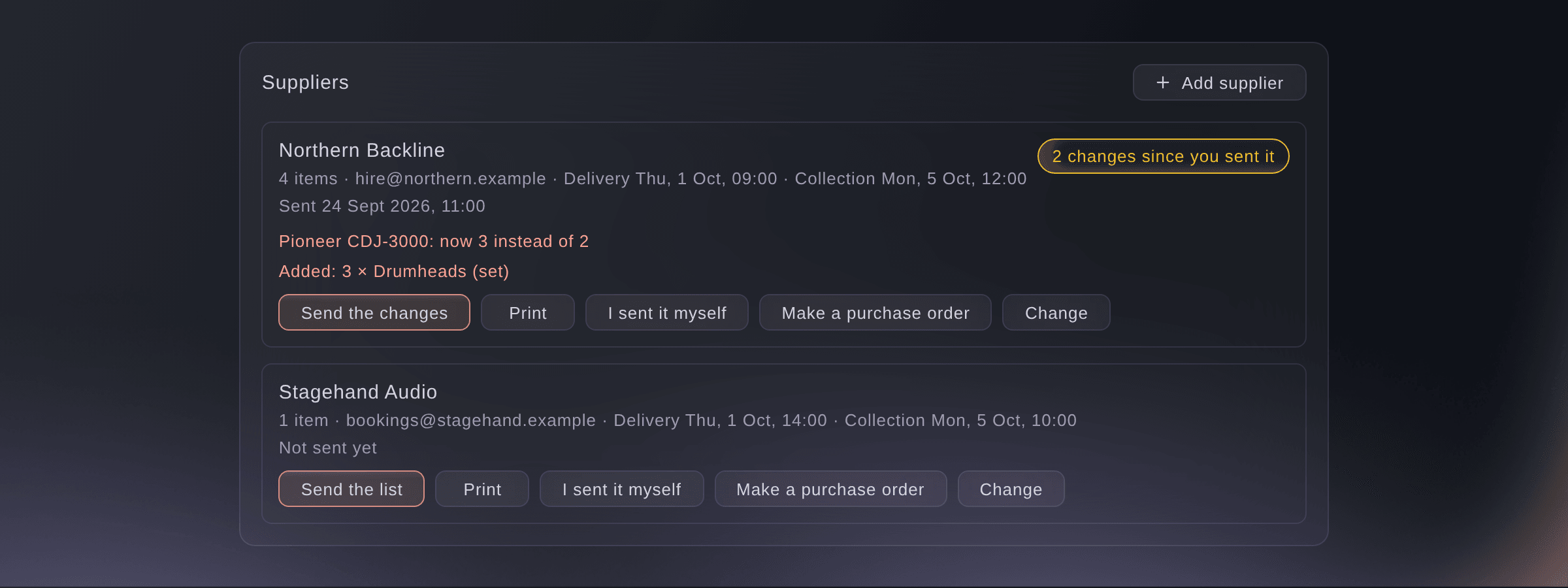
Suppliers, and what changed since you sent their list. -
Add a supplier
Select Add supplier, enter the Supplier name, Contact name and Email, then select Save.
Nota: Enter Delivery (as it reads on the day) and Collection (as it reads on the day) in the event's own time. Then choose the supplier on each of its items, under the item's details.
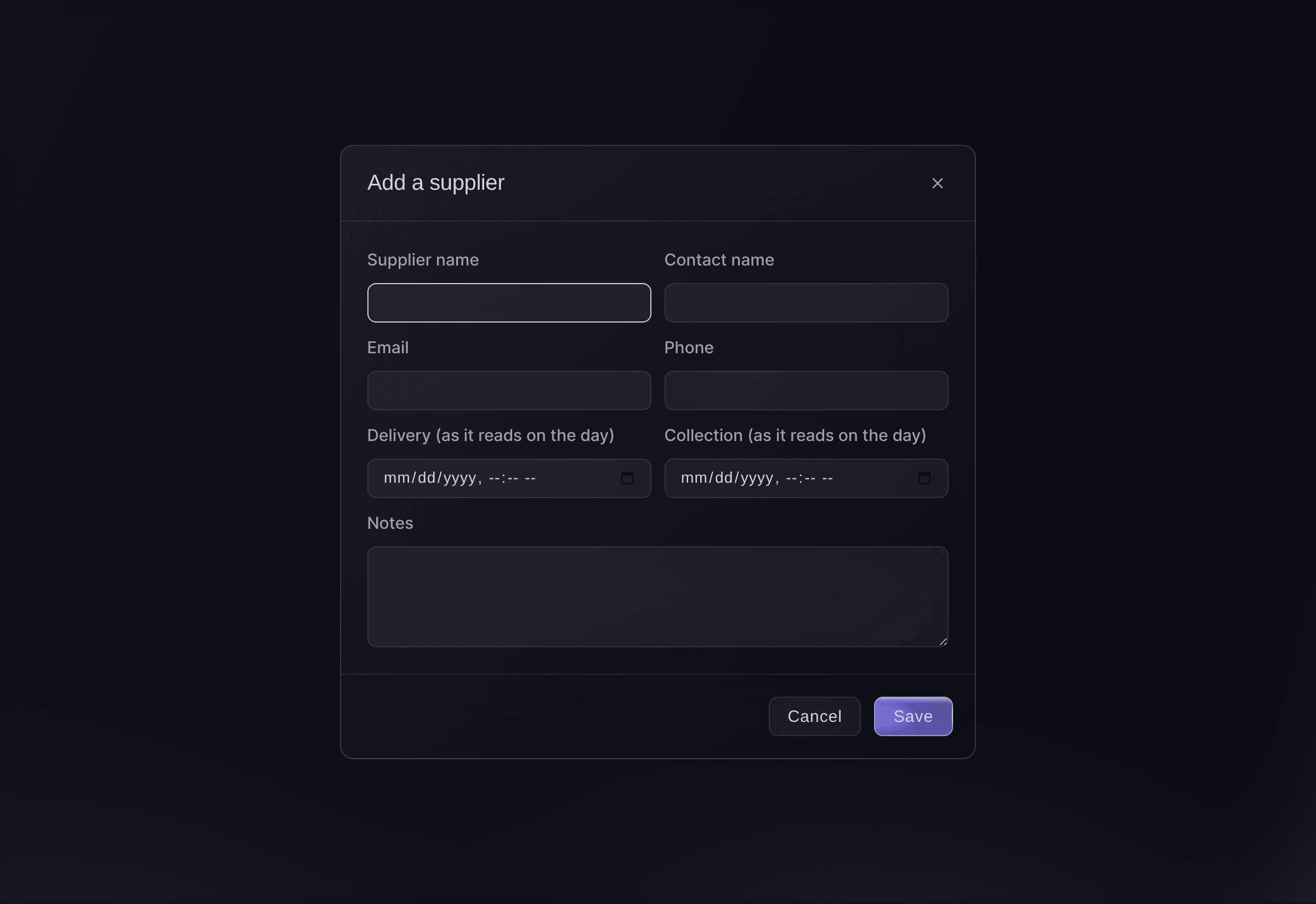
Add a supplier. -
Send the list
Select Send the list on the supplier, check To, Subject and Message, then select Send.
Nota: Fai drafts the message from the supplier's items, dates, delivery and collection. After the first send the button reads Send the changes, and the draft lists only what changed.
Advertencia: The email goes as soon as you select Send.
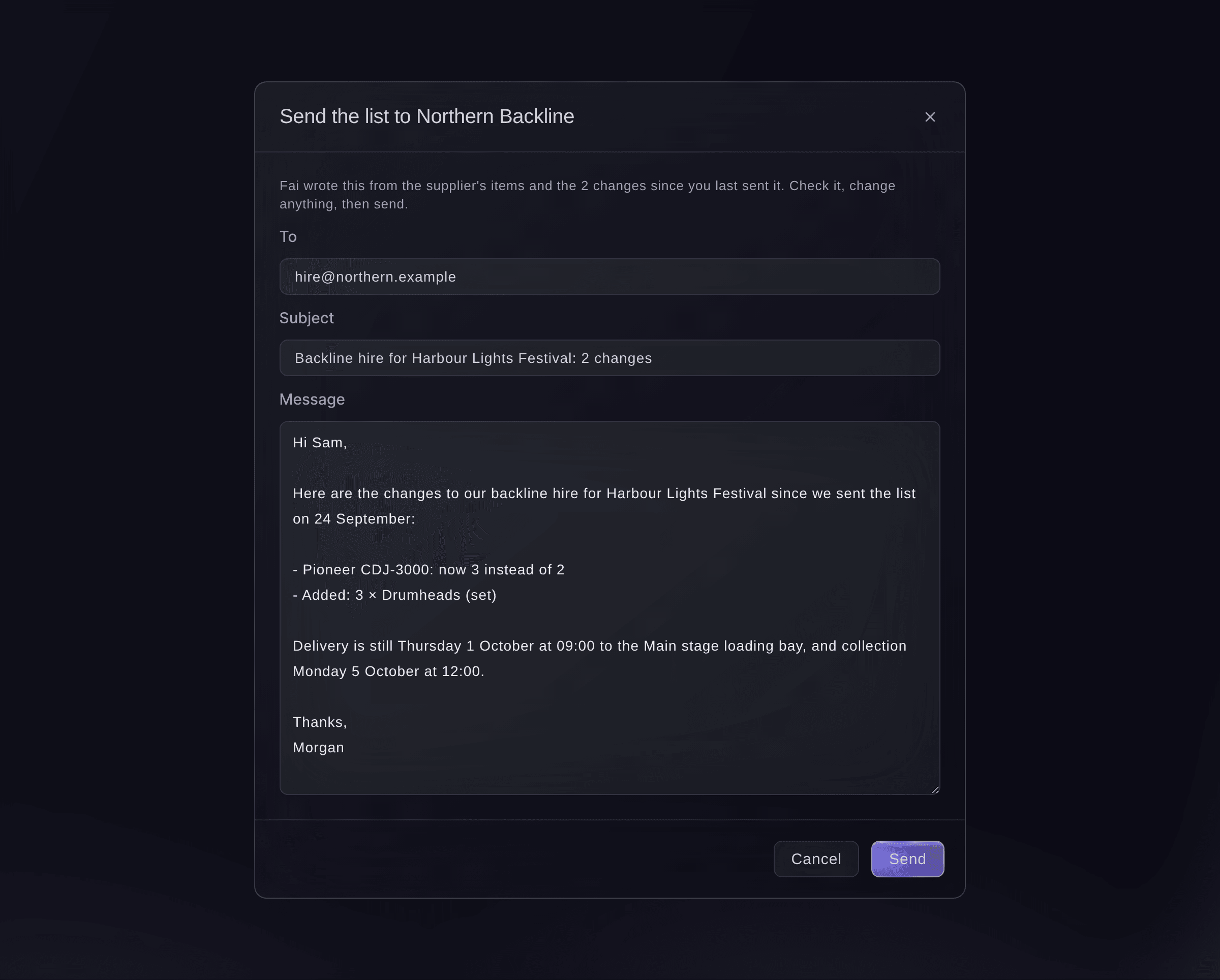
The email Fai drafts, ready to check.


Changes since you sent it
Each send keeps a copy of the supplier's list as it was. When a rider or your team changes an item after that, the supplier shows how many changes there are, and each changed item says Changed since you sent it. If you sent the list another way, select I sent it myself so the changes are counted from now.
Prueba estos pasos en tu propio evento
Crea una cuenta gratis, monta tu evento y sigue los pasos de arriba en tu propio panel. Tarda unos minutos y no necesitas reservar una llamada comercial.
Sin cuotas de alta. Sin cuota mensual obligatoria. Sin tarjeta de crédito.
O deja que lo hagan por ti
Fai drafts the email to a supplier from their items and what changed since the last send, and sends it after you have read it and said yes. When a supplier's items change after a send, she also suggests sending the changes on Today.
En tu panel, con Fai
Send Northern Backline the changes to our backline hire for <EVENT NAME>
Deja que Fai lo haga por ti
Fai trabaja dentro de tu panel de Ticket Fairy. Crea tu cuenta, abre Fai y pega la instrucción de arriba.
Sin cuotas de alta. Sin cuota mensual obligatoria. Sin tarjeta de crédito.
Make a purchase order from a supplier's items
-
Make the draft
Select Make a purchase order on the supplier, then select Make the draft.
Nota: The draft is in Contracts with the supplier's priced items, where you approve it and send it. Every item needs a price in one currency first.
Fai makes a draft purchase order from a supplier's priced items when you ask, after you confirm. You approve and send it in Contracts.
En tu panel, con Fai
Make a purchase order for Northern Backline's items at <EVENT NAME>
Print a supplier's list
-
Print it
Select Print on the supplier, then print from the preview.
Nota: The sheet carries each item, how many and the hire dates, with the delivery and collection times at the top.
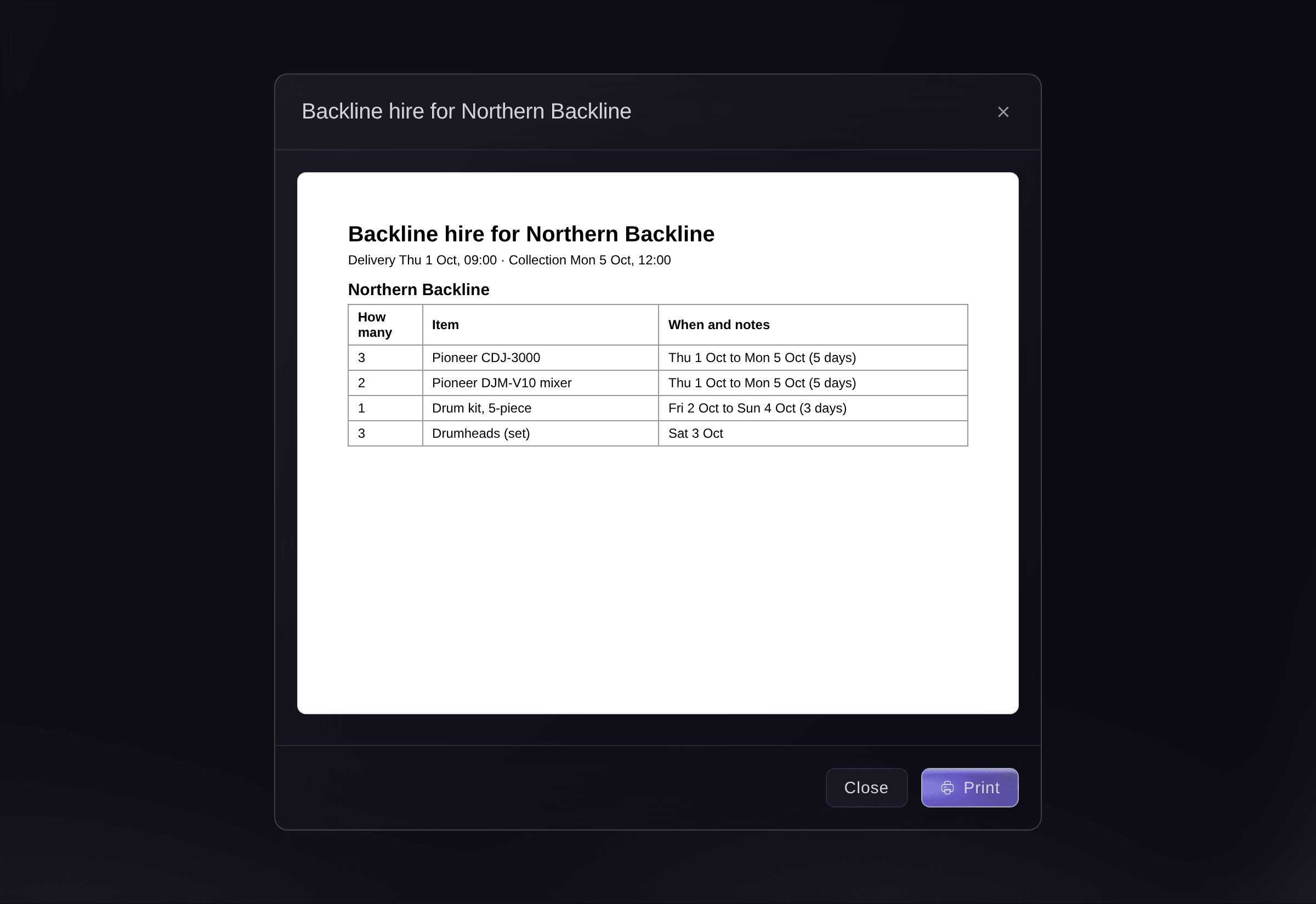
A supplier's list, ready to print.

Printing is done in the dashboard. Fai reads you a supplier's items, dates and delivery times instead.
En tu panel, con Fai
What is on Northern Backline's list for <EVENT NAME>, and when do they deliver and collect?
Preguntas que puedes tener
- What if the email may not have arrived?
- The supplier says
The email may not have arrived
. Check your sent mail before you send it again, so the supplier does not get two. - Who do the supplier's replies go to?
- To the teammate who sent it. The email goes out under your brand's name and look.
- Why can I not make a purchase order?
- Every item needs a price, all in one currency, and items already on an order are left out. Add the missing prices on the items, then try again.
- Does sending change the budget?
- No. Items count as committed costs in Budget when you mark them ordered, or once, through the purchase order you approve.
¿Todavía tienes una pregunta?
Reserva una demo y te la respondemos en una llamada, sobre tu tipo de evento. O crea tu cuenta y compruébalo por ti mismo.
Sin cuotas de alta. Sin cuota mensual obligatoria. Sin tarjeta de crédito.
Guías relacionadas
Hazlo en tu propio evento
Crea tu cuenta, monta tu evento y sigue los pasos en tu propio panel. No necesitas reservar una llamada comercial.