
Управление продакшеном
Hand out radios and kit to your event crew
Production and site managers hand out hundreds of radios, vests and keys at a festival and spend the week after chasing the ones that did not come back. The kit desk records who took what in one tap, and the radio plan gives every team the channel and call sign they answer on.
Keep a list of the radios, hi-vis vests, tablets, torches, keys and buggies for your event, hand them out at the kit desk with a scan or a search, and take them back with their condition. See who has what at any moment, keep a radio plan of channels and call signs, and let Fai chase anyone who has not returned their kit after the event.
- Для кого
- Handing out and getting back your event's radios and kit
- Займёт
- 10 минут
Перед началом
- You are an owner, admin or producer on the event. The event's Operations page opens for those roles only.
- Your crew and volunteers are in the event's Crew and Volunteers sections, so you can hand kit to them by name.
-
Open Kit and equipment
Open the event, select Operations, then select Kit and equipment in the list of sections.
Примечание: If Kit and equipment is not in the list, select More sections and open it there. It opens on the Kit desk.
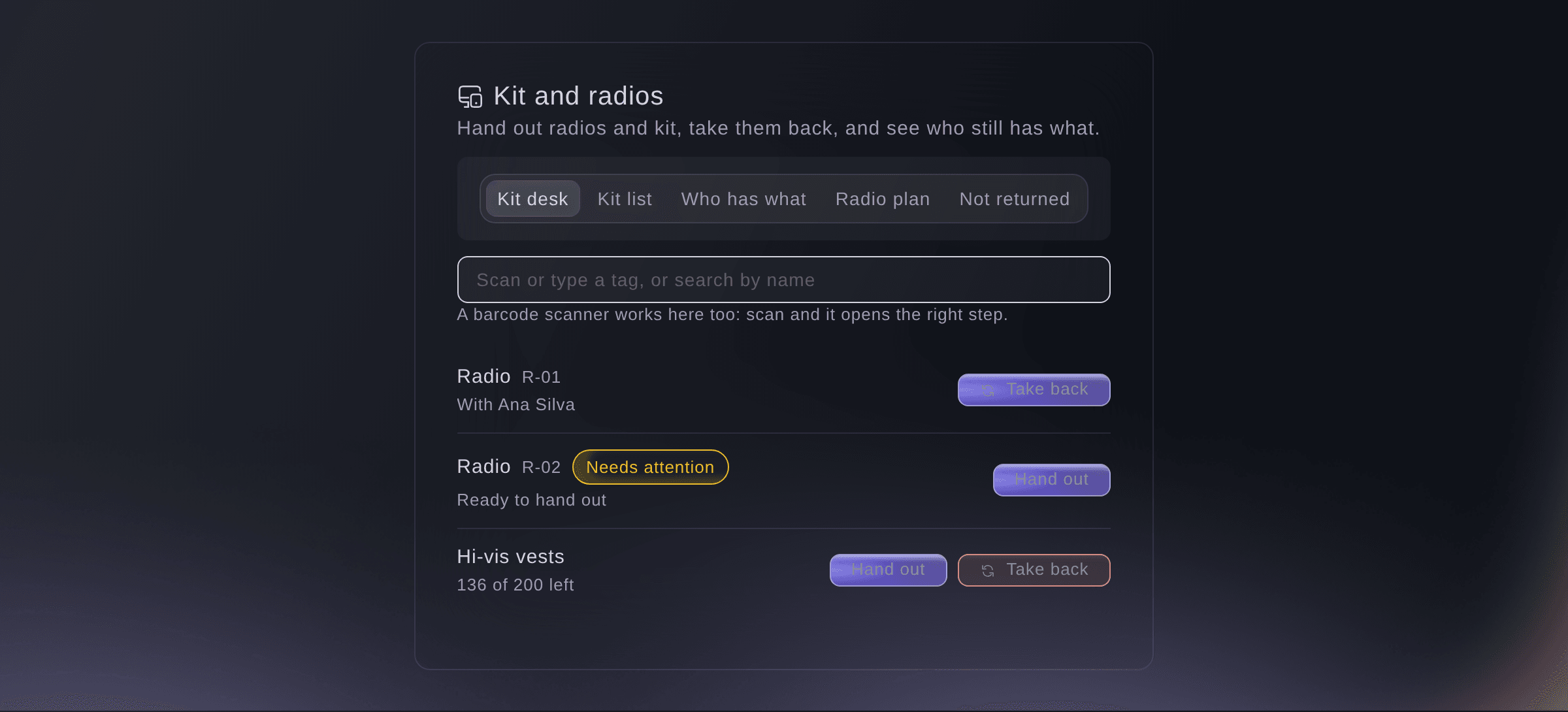
The kit desk. -
Add your kit
Select Add kit, choose what you are adding under What are you adding?, enter the details, then select the add button.
Примечание: Under More details, record Who owns it?, the supplier you hired it from, a serial number and the department that usually uses it.
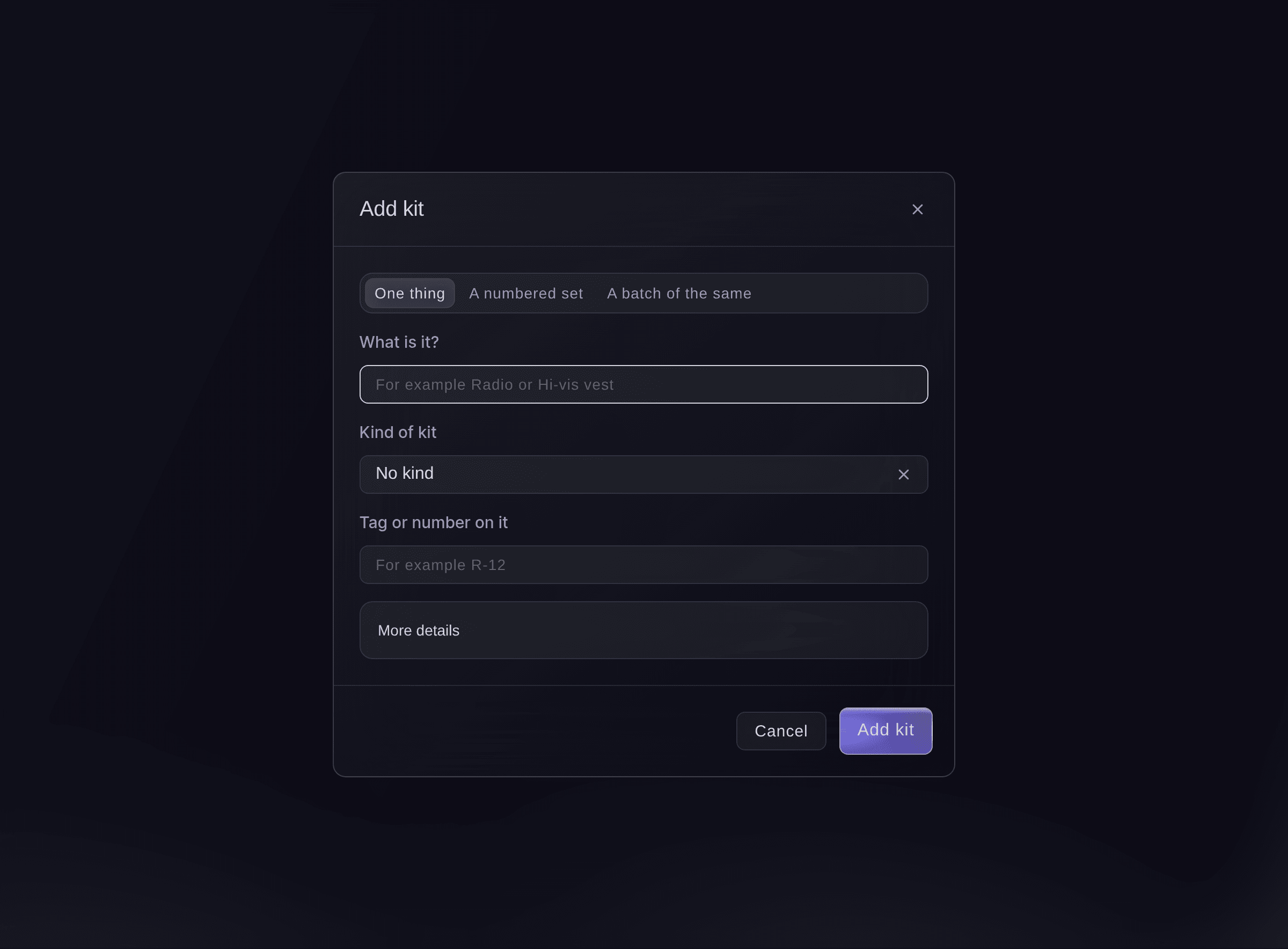
Add kit. -
Hand kit out
At the kit desk, scan or enter the tag, select Hand out, choose who is taking it under Who is taking it?, then select Hand out.
Примечание: Start typing a crew member's or volunteer's name, or choose Someone else and enter their name. Under More details, set Due back and note any Deposit or ID taken.
Совет: A USB or Bluetooth barcode scanner works in the scan field: scan a tag and the right step opens.
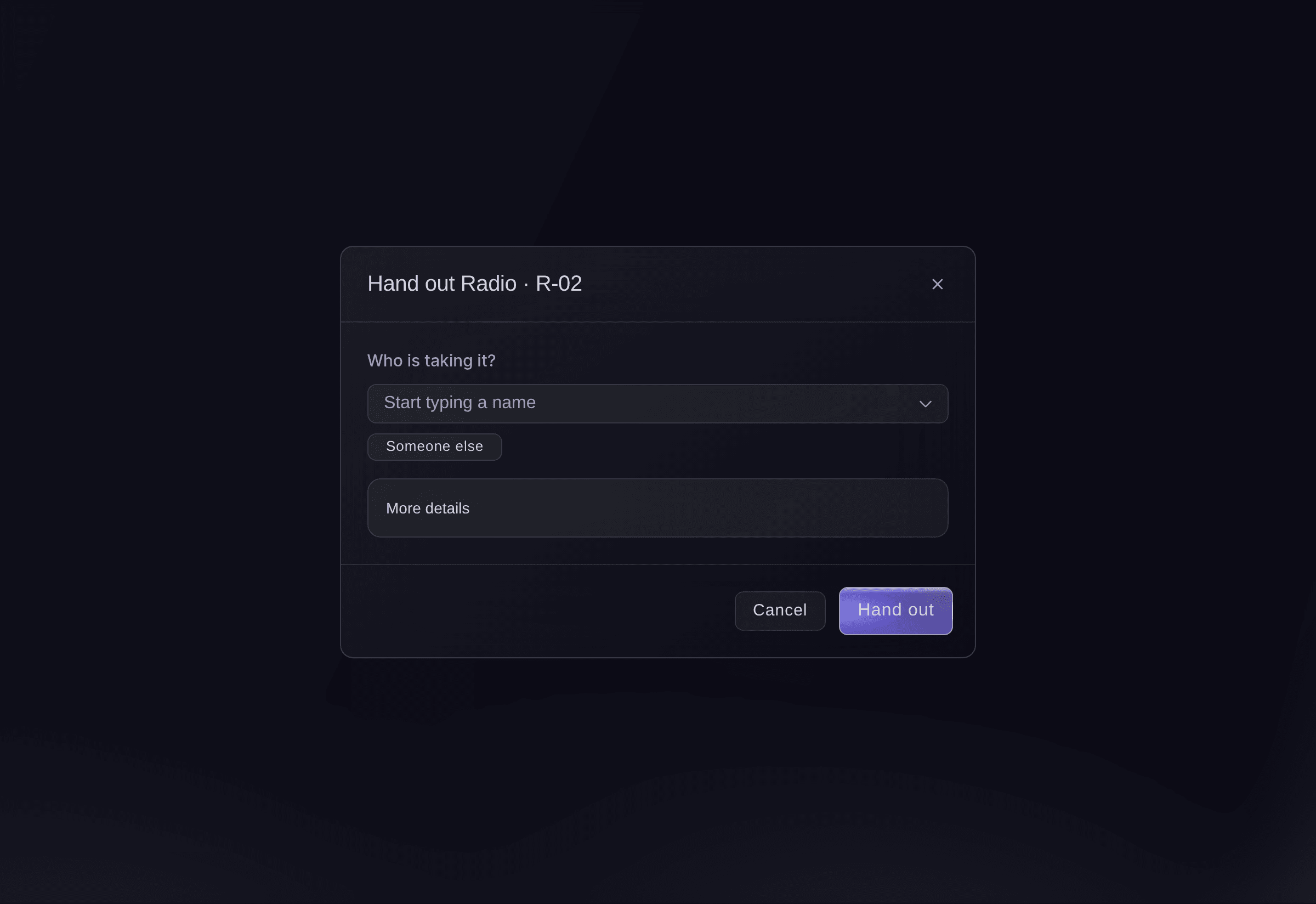
Hand out a radio. -
Take kit back
Scan or enter the tag, select Take back, choose How did it come back?, then select Take back.
Примечание: For a batch, enter how many came back; the rest stay with the person. If it came back damaged, enter what is wrong with it, and the kit list shows it needs attention.
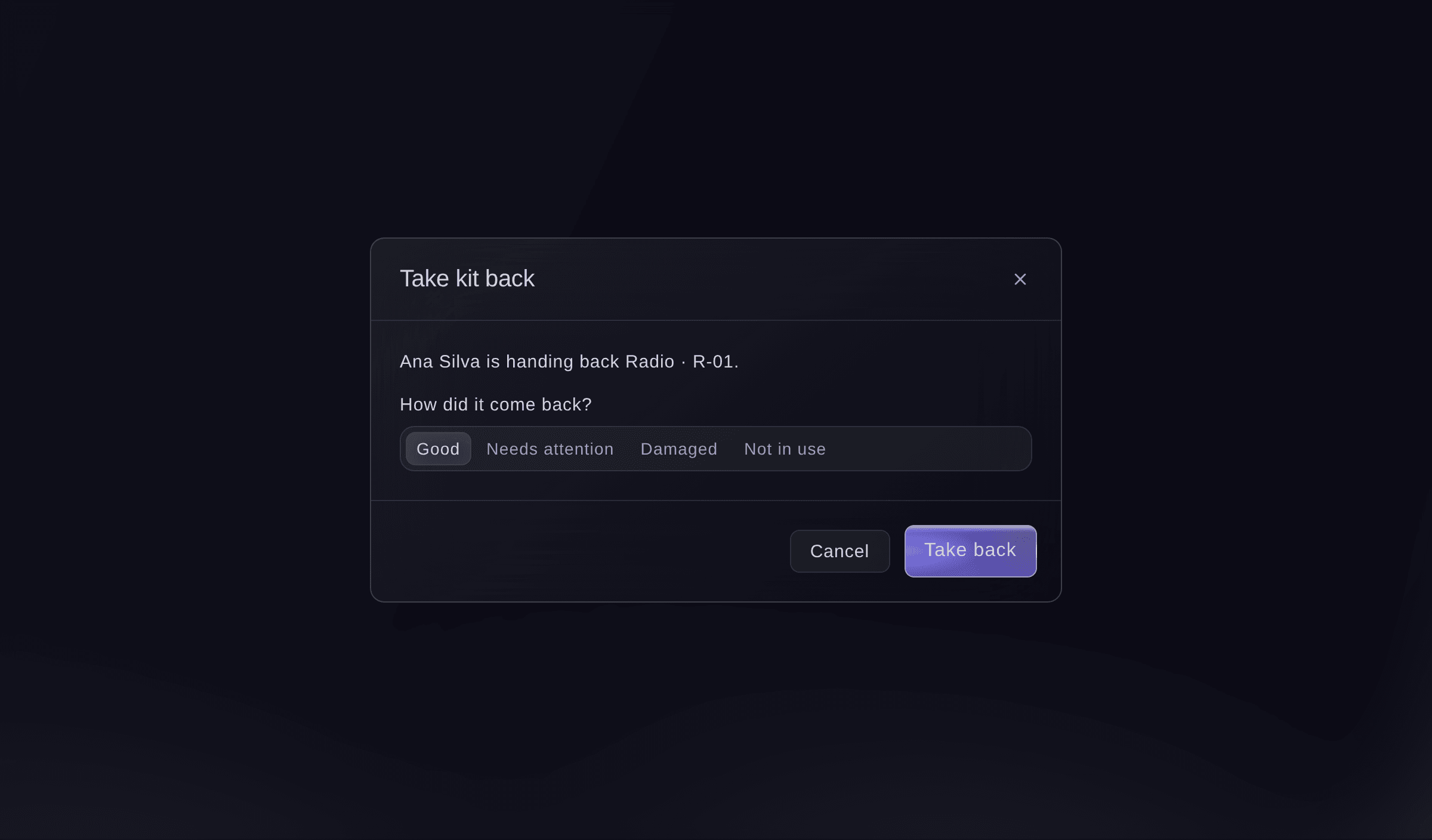
Take kit back. -
See who has what
Select Who has what.
Примечание: Choose By person or By item, filter by department or Only overdue, and tick several checkouts to take them all back at once.
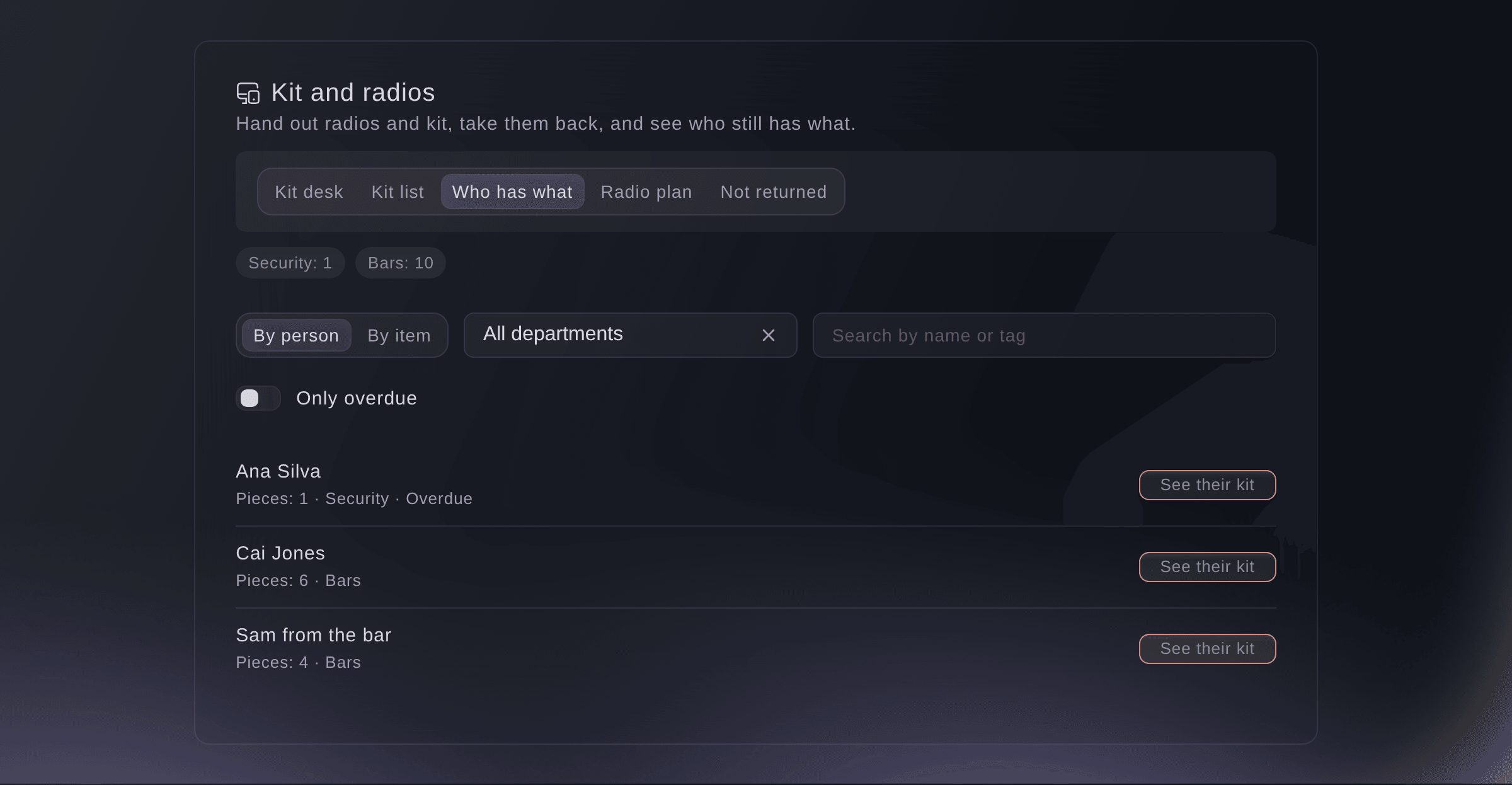
Who has what. -
Set up your radio plan
Select Radio plan, select Add a channel, enter the Channel as it shows on the radio dial and who uses it, then save.
Примечание: Select Add a call sign on a channel for each call sign and the person who answers. Select Print radio sheet for a sheet to pin up, and each team's day sheet shows its channels.
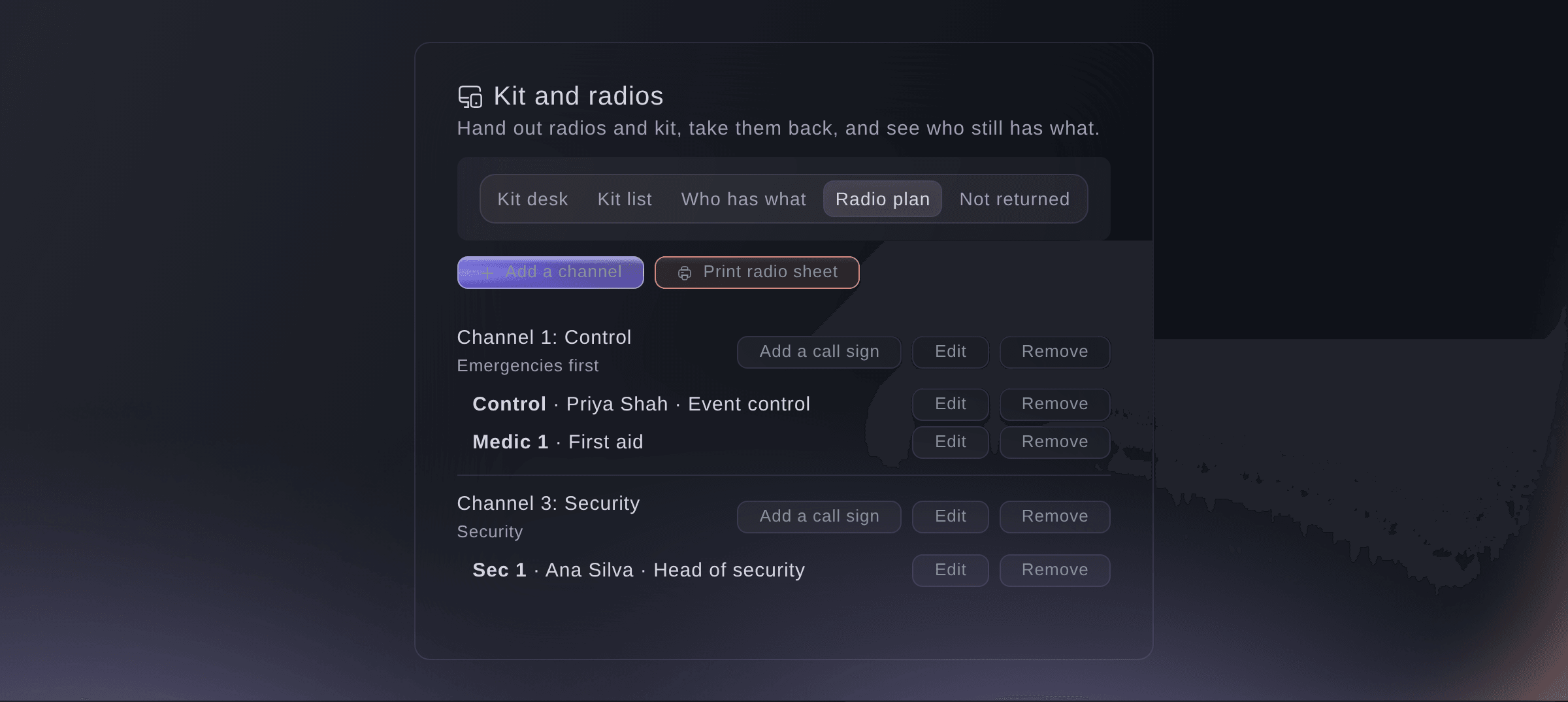
The radio plan. -
Chase kit that has not come back
After the event, select Not returned, then select Let Fai draft reminders, which shows how many people it covers.
Примечание: Fai drafts one email to each crew member or volunteer with an email address, listing what they still have, and you approve each one on Today before it is sent. Select Take back all or Mark as lost beside a person as things are resolved.
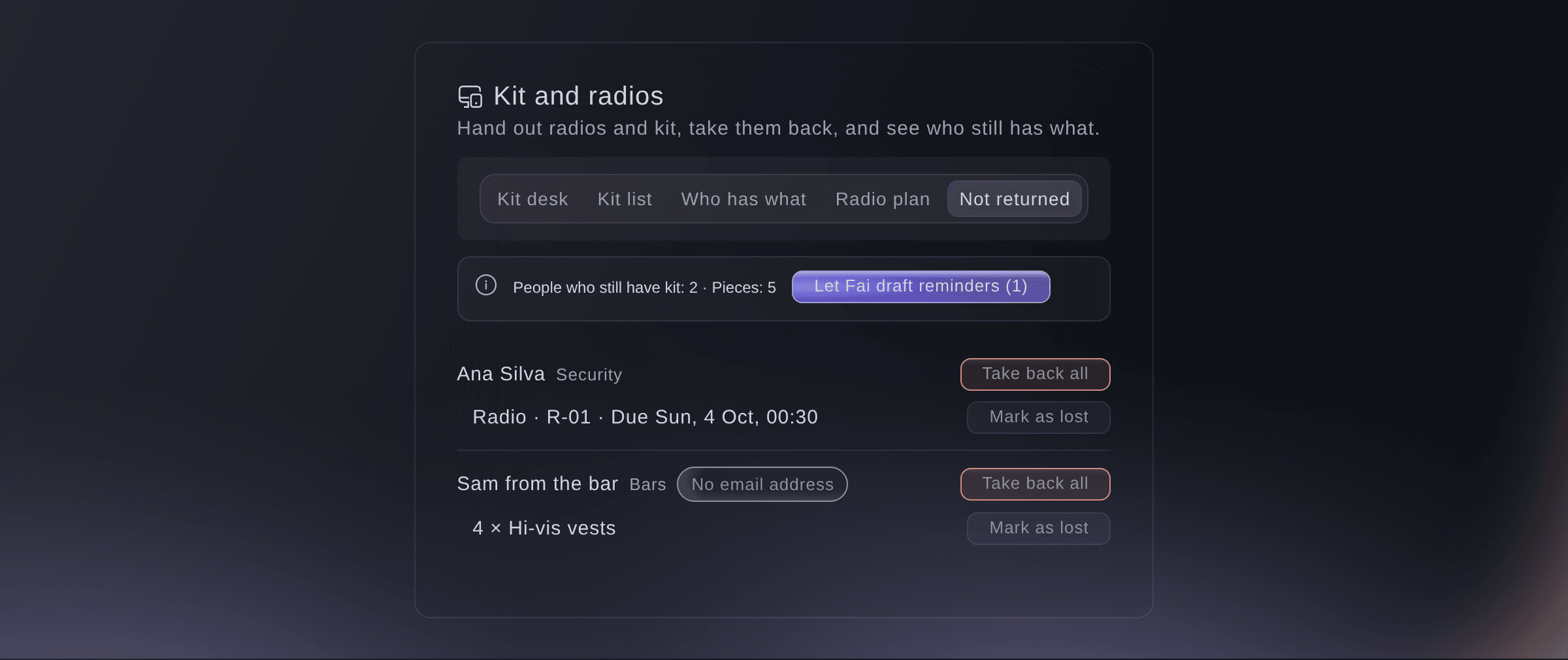
Kit not returned.


Попробуйте эти шаги на своём мероприятии
Создайте бесплатный аккаунт, настройте мероприятие и выполните шаги выше в своей панели управления. Это займёт несколько минут, и звонок с отделом продаж не нужен.
Без платы за подключение. Без обязательной ежемесячной платы. Банковская карта не нужна.
Или поручите это помощнику
Fai reads your kit list, who has what, the kit history, the not-returned list and the radio plan, hands kit out or takes it back, adds or changes kit, marks kit as lost and changes channels and call signs. She shows you each change and waits for your yes first. Any member of your event's team can ask Fai to hand out or take back kit; only owners, admins and producers can change the kit list or the radio plan.
В вашей панели, с Fai
Hand radio R-12 to Ana Silva from security at <EVENT NAME>, due back at midnight
Пусть Fai сделает это за вас
Fai работает внутри вашей панели Ticket Fairy. Создайте аккаунт, откройте Fai и вставьте запрос выше.
Без платы за подключение. Без обязательной ежемесячной платы. Банковская карта не нужна.
Take lost kit off the list
-
Take it off the list
In Who has what, select By item, select Take off the list beside the lost units, then confirm.
Примечание: The batch gets smaller and the history keeps a record. If they turn up later, add them to the list again.
Fai takes lost units of a batch off the kit list when you ask, after you confirm.
В вашей панели, с Fai
Take the 4 hi-vis vests Sam from the bar lost off the kit list at <EVENT NAME>
Вопросы, которые могут возникнуть
- Can my crew hand out kit without the Operations page?
- Yes. Any member of your event's team can ask Fai to hand out or take back kit, and Fai waits for their yes first. Desk links, for staff with no dashboard login, cover the hand-out desk, meal desks, staff gates and registration, so kit stays with your team.
- What does Mark as lost do?
- The kit stays counted as out with that person and is left out of reminders. If it turns up, take it back as usual.
- Can I remove something from the kit list?
- Yes. Open it on the Kit list and select Remove. Its history stays, and you can put it back straight away.
- Can I scan tags with a phone camera?
- Type or paste the tag into the scan field, or use a USB or Bluetooth barcode scanner, which types the tag for you.
Остался вопрос?
Запишитесь на демо, и мы ответим на него на звонке применительно к вашему типу мероприятия. Или создайте аккаунт и посмотрите сами.
Без платы за подключение. Без обязательной ежемесячной платы. Банковская карта не нужна.
Похожие руководства
Сделайте это на своём мероприятии
Создайте аккаунт, соберите мероприятие и выполните шаги в своей панели управления. Звонок в отдел продаж не нужен.