
Управление продакшеном
Publish your event line-up and set times
Festival and club promoters announce a line-up in waves and change set times right up to the weekend, and every change has to reach the event page, the website and the app at once. Publishing from the same acts and set times your team advances keeps every public page in step, and nothing goes out before you have seen it.
Choose which acts appear on your public line-up with a photo, bio and links, let Fai draft the bios, announce acts in waves, review every change before it goes public, and put the timetable on your event page, your website and any other site, where fans star sets for their own schedule.
- Для кого
- Announcing your line-up and keeping set times current everywhere fans look
- Займёт
- 9 минут
Перед началом
- You need an owner, admin or producer role on the event to change and publish the line-up.
- Your acts are on the event's Artists list, with set times where you have them.
-
Open Public line-up
Open the event, select Operations, then select Public line-up in the list of sections. Every act on the event is listed with its set times and whether it is shown.
Примечание: Nothing here is public until you publish it, so you can prepare the line-up at your own pace. If Public line-up is not in the list, select More sections.
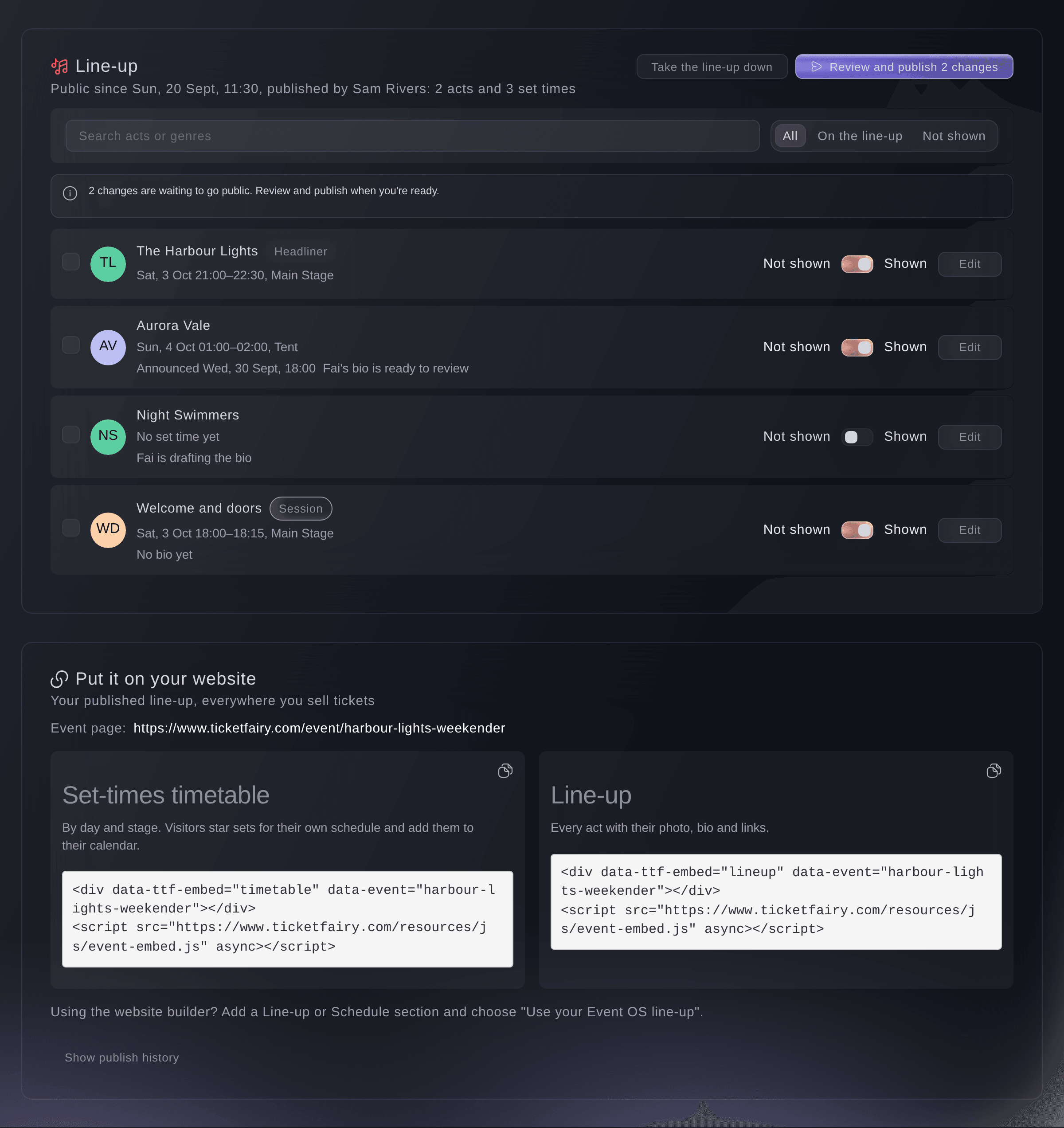
Management, Line-up. -
Switch on the acts you want to show
Turn on the switch beside each act you want on the public line-up.
Примечание: An act you hide stays public until your next publish, and you can choose to take it off at once.
-
Add each act's photo, bio and links
Select Edit on an act, then enter the Name on the line-up, a Photo link, the Bio, their Links and Genres, and select Save.
Примечание: Fai can draft the bio from the act's website and music links when you select Let Fai draft the bio. The draft appears under Fai's draft bio, and it is never public until you select Use this bio.
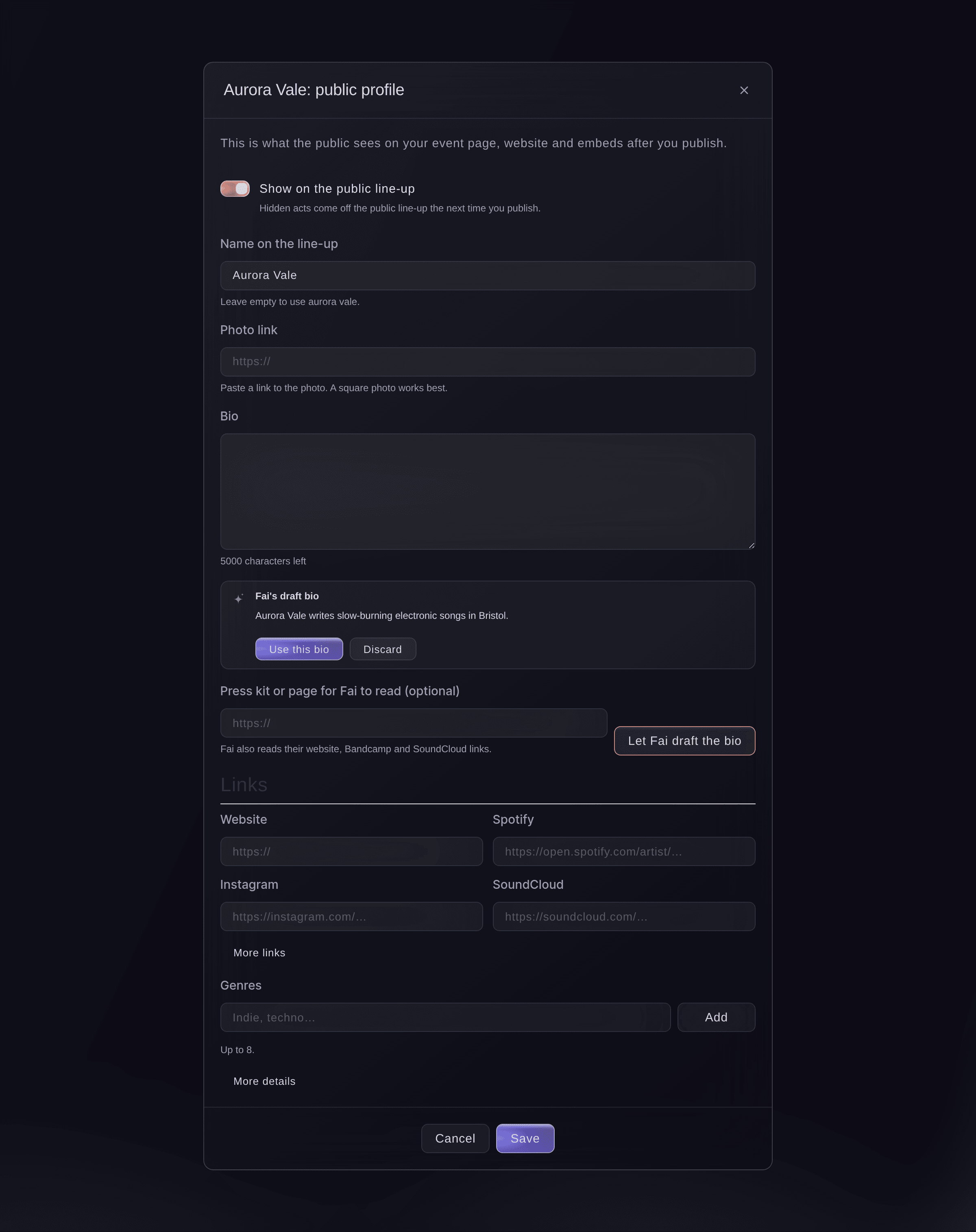
One act's public profile. -
Announce acts at a set time
Optional: Tick the acts for the next wave, select Announce at…, choose the date and time, then select Schedule.
Примечание: Those acts go public with your next publish but stay hidden until that time, so a wave appears on your pages on the minute you chose.
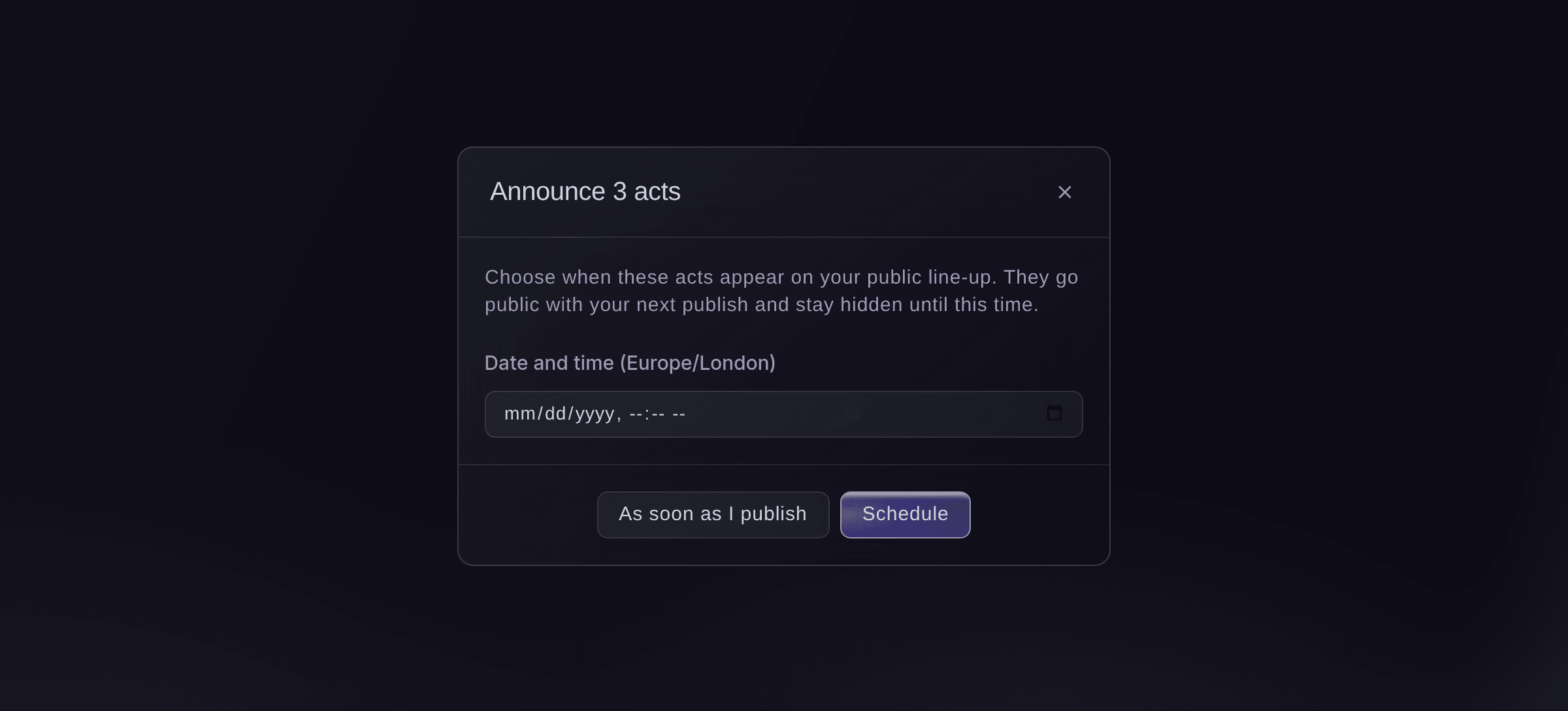
Announce acts at a set time. -
Review and publish
Select Review and publish, read what will change, then select Publish. You see Your line-up is public.
Примечание: The review lists acts added or taken off, profiles updated and set times that move, and warns about any act going public without a bio, photo or set time. If a teammate changed something while you read it, nothing is published and you see the latest review.
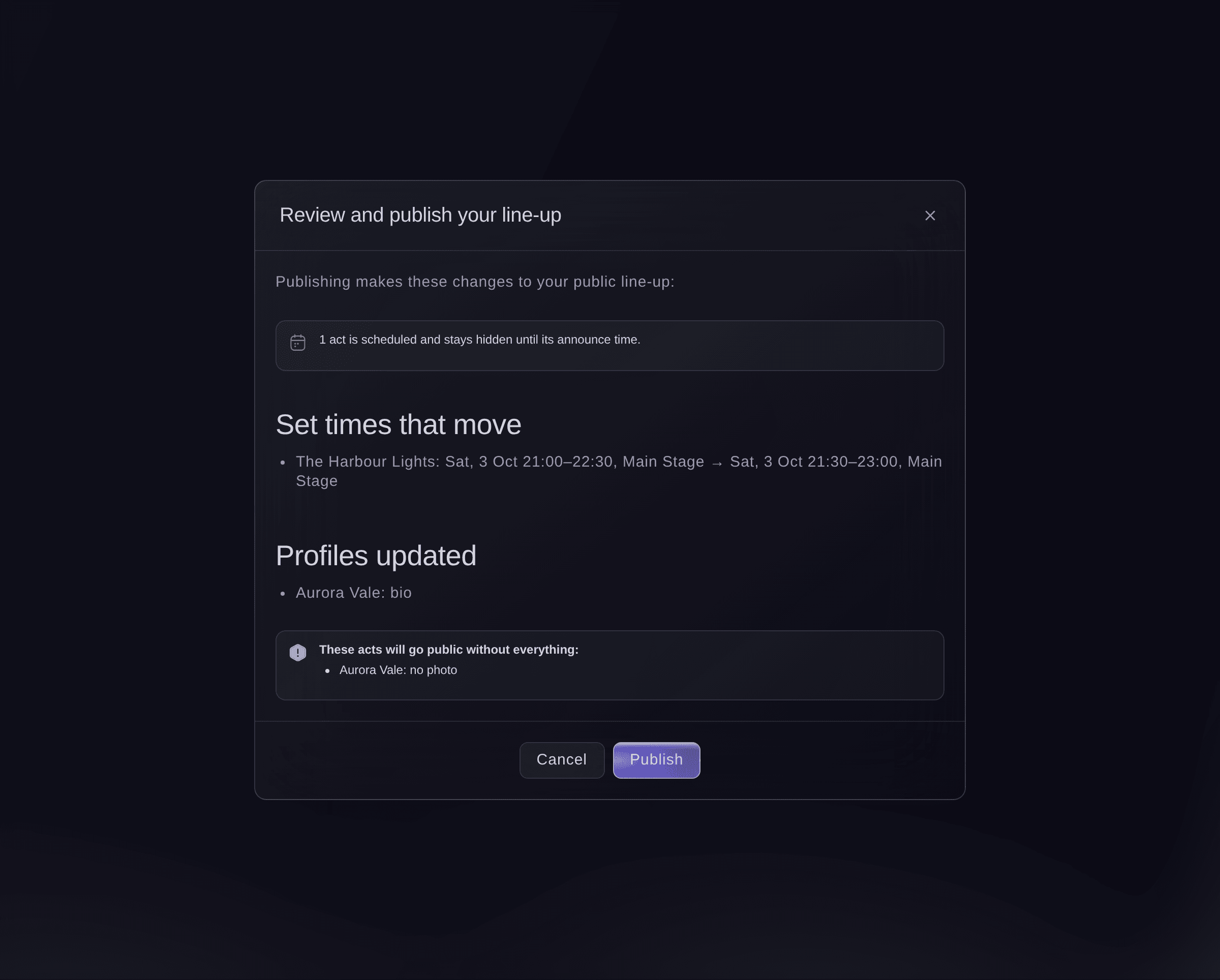
Review and publish. -
Tell ticket holders about moved set times
Optional: If set times moved, select Tell ticket holders after publishing. The ticket holder email opens with a draft listing the changes for you to check and send.
-
Put the timetable on your website
Under Put it on your website, select Copy code beside the Set-times timetable or the Line-up, and paste it into any page of your site.
Примечание: Your event page shows the published line-up by itself. On a site you build with Ticket Fairy, add a Line-up or Schedule section and choose Use your Event Operating System line-up.


My schedule for fans
On the timetable, fans filter by day and stage, star the sets they want to see and add them to their own calendar. Their stars are kept on their phone, and the timetable updates each time you publish.
-
Check your event page
Open your public event page. The line-up and set times you published are on it, and acts scheduled for a later announcement are not there yet.
Попробуйте эти шаги на своём мероприятии
Создайте бесплатный аккаунт, настройте мероприятие и выполните шаги выше в своей панели управления. Это займёт несколько минут, и звонок с отделом продаж не нужен.
Без платы за подключение. Без обязательной ежемесячной платы. Банковская карта не нужна.
Или поручите это помощнику
Fai reads your public line-up, updates an act's public profile, drafts a bio from their links for you to accept, and publishes the line-up after you have seen what will change.
В вашей панели, с Fai
Draft bios for the acts on <EVENT NAME> that have none, then show me what publishing the line-up would change
Из вашего собственного ассистента, через MCP
Подключите ассистента к нашему серверу MCP и попросите его:
Скопированная конфигурация MCP содержит --read-only. Убирайте --read-only, только если хотите разрешить ассистенту вносить изменения. Обычные изменения выполняются по вашему запросу, а перед действиями с серьёзными последствиями совместимый клиент просит ваше подтверждение. Если клиент не умеет запрашивать подтверждение, внесите изменение в панели управления.
Find my event <EVENT NAME>, show me what publishing its line-up would change, and ask me before you publish it
Из терминала
Установите CLI по ссылке нашей страницы CLI, войдите командой ticketfairy auth login и выберите бренд, с которым работаете, командой ticketfairy brand use <BRAND_ID>. ticketfairy brand list и ticketfairy event list выводят идентификаторы, которые используют другие команды.
Use the CLI to read the line-up, see what publishing would change and publish it or take it down. Profiles, bios and announce times are in the dashboard or through Fai. You need an owner, admin or producer login on the event.
Show what publishing would change: acts and set times added, moved or taken off.
ticketfairy event-os lineup show <EVENT_ID> --review
Publish the line-up. This changes the public pages and asks you first unless you add --force.
ticketfairy event-os lineup publish <EVENT_ID>
Пусть Fai сделает это за вас
Fai работает внутри вашей панели Ticket Fairy. Создайте аккаунт, откройте Fai и вставьте запрос выше.
Без платы за подключение. Без обязательной ежемесячной платы. Банковская карта не нужна.
Take the line-up down
-
Take it down
Select Take the line-up down, then Take it down.
Примечание: Your event page, website line-up and embeds stop showing it. Your acts and history are kept, and publishing again puts it back.
Fai takes the public line-up down after you confirm.
В вашей панели, с Fai
Take the public line-up for <EVENT NAME> down
Из вашего собственного ассистента, через MCP
Скопированная конфигурация MCP содержит --read-only. Убирайте --read-only, только если хотите разрешить ассистенту вносить изменения. Обычные изменения выполняются по вашему запросу, а перед действиями с серьёзными последствиями совместимый клиент просит ваше подтверждение. Если клиент не умеет запрашивать подтверждение, внесите изменение в панели управления.
Find my event <EVENT NAME> and ask me before you take its public line-up down
Из терминала
The CLI takes the line-up down with the publish command.
Take the public line-up down. This asks you first unless you add --force.
ticketfairy event-os lineup publish <EVENT_ID> --withdraw
Вопросы, которые могут возникнуть
- I changed a set time. Is it public?
- Not until you publish again. The Line-up section says how many changes are waiting, and Fai reminds you on the event's Today page when set times changed after your last publish.
- Do private sessions show on the public timetable?
- No. Only sets with public acts, and sessions open to the public that are not cancelled or postponed, go on the line-up. Fees, contacts and notes are never public.
- What if two of us publish at the same time?
- The second publish stops and shows the latest review, so nobody publishes changes they have not seen.
- Where can I see what was published and when?
- Select Show publish history to see each publish and take-down, who made it and how many changes it had.
Остался вопрос?
Запишитесь на демо, и мы ответим на него на звонке применительно к вашему типу мероприятия. Или создайте аккаунт и посмотрите сами.
Без платы за подключение. Без обязательной ежемесячной платы. Банковская карта не нужна.
Похожие руководства
Сделайте это на своём мероприятии
Создайте аккаунт, соберите мероприятие и выполните шаги в своей панели управления. Звонок в отдел продаж не нужен.