
Управление продакшеном
Place your traders on pitches on your event site map
Laying out the food court or market at your event means matching dozens of traders to pitches, then telling each one where to set up. Placing traders on the site map gives each one a pitch number, a zone and a map on their trader page, and keeps the pitch list your crew builds from in step with the plan.
Drag each approved trader onto a pitch you drew on your event site map, move a trader when a pitch changes hands, and check every pitch with its power and water. Each trader then sees their own pitch on a map on their trader page.
- Для кого
- Giving each approved trader a pitch on your site plan
- Займёт
- 6 минут
Перед началом
- You need an owner, admin or producer role on the event.
- Your site plan is on the event's site map, with each pitch drawn as an area and named with its pitch number, as in the guide to drawing your site map.
- The traders are approved. Only approved traders can have a pitch.
- Use a computer. The site map is read-only on a phone.
-
Open the site map
Open the event, select Operations, then select Site map in the list of sections.
Примечание: Traders to place beside the map lists every approved trader with no pitch yet. If Site map is not in the list, select More sections and open it there.
-
Place a trader on a pitch
Drag a trader from Traders to place onto the pitch on the map, or select the pitch, then select Place here beside the trader.
Примечание: The trader's pitch takes the name of the area you placed them on, and they leave Traders to place. A trader who already had another pitch moves to the new one.

Site map, Traders to place. -
Move a trader onto a pitch that is taken
If the pitch already has a trader, the dialog names them. Select Move and place to take them off it and put the new trader there.
Примечание: The trader you moved off goes back to Traders to place with no pitch. If you do not confirm, both traders stay where they are.
-
Check the trader's pitch
Open Traders and select the trader. Pitch on the site map names the pitch and the zone it is in.
Примечание: The zone is the smallest area you drew around the pitch, such as the food court. The same panel shows the staff passes their pitch includes and how many staff they have named.

The trader's pitch on the site map. -
Check every pitch
Select Pitches at the top of Traders. Every trading trader is listed with their pitch, the power they need in amps and whether they need water.
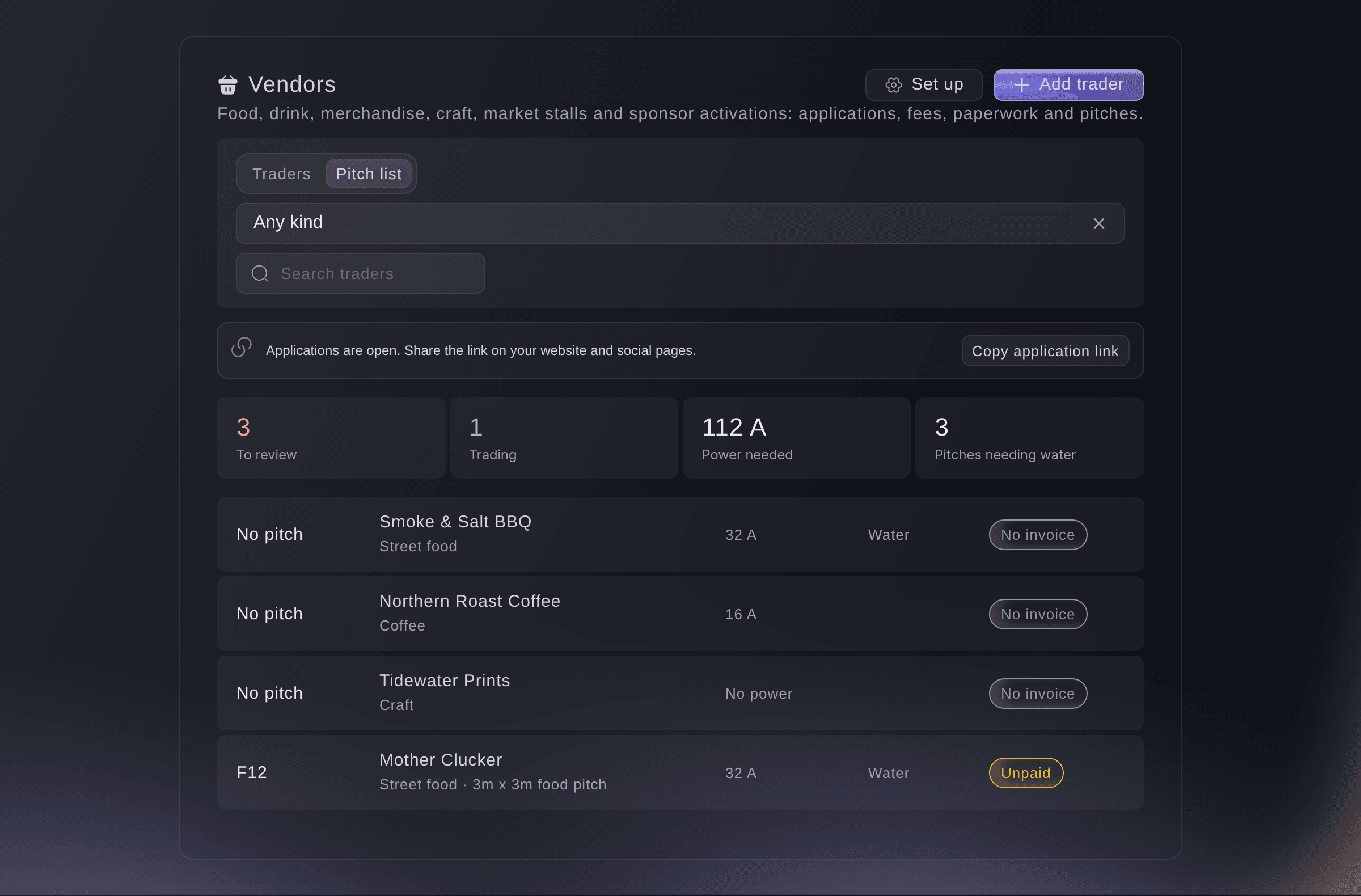
Traders, Pitches.


What the trader sees
The trader page shows Your pitch with the pitch number, the zone and a map of the area around it, with the places attendees see. It changes as soon as you move them.

Попробуйте эти шаги на своём мероприятии
Создайте бесплатный аккаунт, настройте мероприятие и выполните шаги выше в своей панели управления. Это займёт несколько минут, и звонок с отделом продаж не нужен.
Без платы за подключение. Без обязательной ежемесячной платы. Банковская карта не нужна.
Или поручите это помощнику
Fai places a trader on a pitch of your site map, moves them to another pitch or takes them off the map. She shows you the change and waits for your yes first.
В вашей панели, с Fai
Put Smoke & Salt BBQ on pitch F2 on the site map for <EVENT NAME>
Пусть Fai сделает это за вас
Fai работает внутри вашей панели Ticket Fairy. Создайте аккаунт, откройте Fai и вставьте запрос выше.
Без платы за подключение. Без обязательной ежемесячной платы. Банковская карта не нужна.
Take a trader off the map
-
Take them off
Open the trader in Traders, select Take off the map, then confirm.
Примечание: The pitch is available again and the trader goes back to Traders to place. Cancelling or declining a trader also takes them off the map.
Fai takes a trader off the site map after you confirm.
В вашей панели, с Fai
Take <BUSINESS NAME> off the site map for <EVENT NAME>
Вопросы, которые могут возникнуть
- Why is a trader not in Traders to place?
- They already have a pitch on the map, or they are not approved yet. Approve them in the Applications view of Traders, or open them to see their pitch.
- Can I type a pitch number instead of using the map?
- Yes. Enter the Pitch under Pitch and fees in the trader panel. The trader page then shows the number with no map, and a power sheet for one zone leaves the trader out.
- Can two traders share a pitch?
- No. Each pitch on the map holds one trader. Draw two areas side by side if two traders share a space.
- Does anyone else see the pitches?
- Each trader sees their own pitch, and around it only the places you show on the attendee map, with no other trader's details. A pitch shows on the attendee map only if you turn on Show on the attendee map for that area.
Остался вопрос?
Запишитесь на демо, и мы ответим на него на звонке применительно к вашему типу мероприятия. Или создайте аккаунт и посмотрите сами.
Без платы за подключение. Без обязательной ежемесячной платы. Банковская карта не нужна.
Похожие руководства
Сделайте это на своём мероприятии
Создайте аккаунт, соберите мероприятие и выполните шаги в своей панели управления. Звонок в отдел продаж не нужен.