
Vault and Capital
Mark a supplier you pay every event as trusted
Promoters and venue teams pay the same production company, venue or agent show after show. Trusted status lets those payments go with fewer security checks, and two people on your team have to agree before it's switched on.
Give a venue or supplier you pay for every event trusted status in Vault, so payments to them ask for fewer security checks. One owner or admin asks for it, a 24-hour cooling period runs, and a second owner or admin approves it.
- For
- Letting the suppliers you pay every event through with fewer security checks
- Takes
- 6 minutes
Before you start
- You're an owner or admin on the brand, and a second owner or admin can approve after you. Whoever asks for trusted status can't approve it.
- Vault is switched on for the brand and the account has finished onboarding, so Recipients is in the Vault menu. Ask Ticket Fairy support to switch Vault on if it is off.
- The supplier is already saved as a recipient, from a transfer or from the Recipients page.
- Whoever approves has their second factor to hand, because approving asks them to confirm it's them.
-
Open Recipients
Pick the brand, open Vault, then select Recipients.
Note: The Security column shows where each recipient stands, from Standard authentication to Trusted.
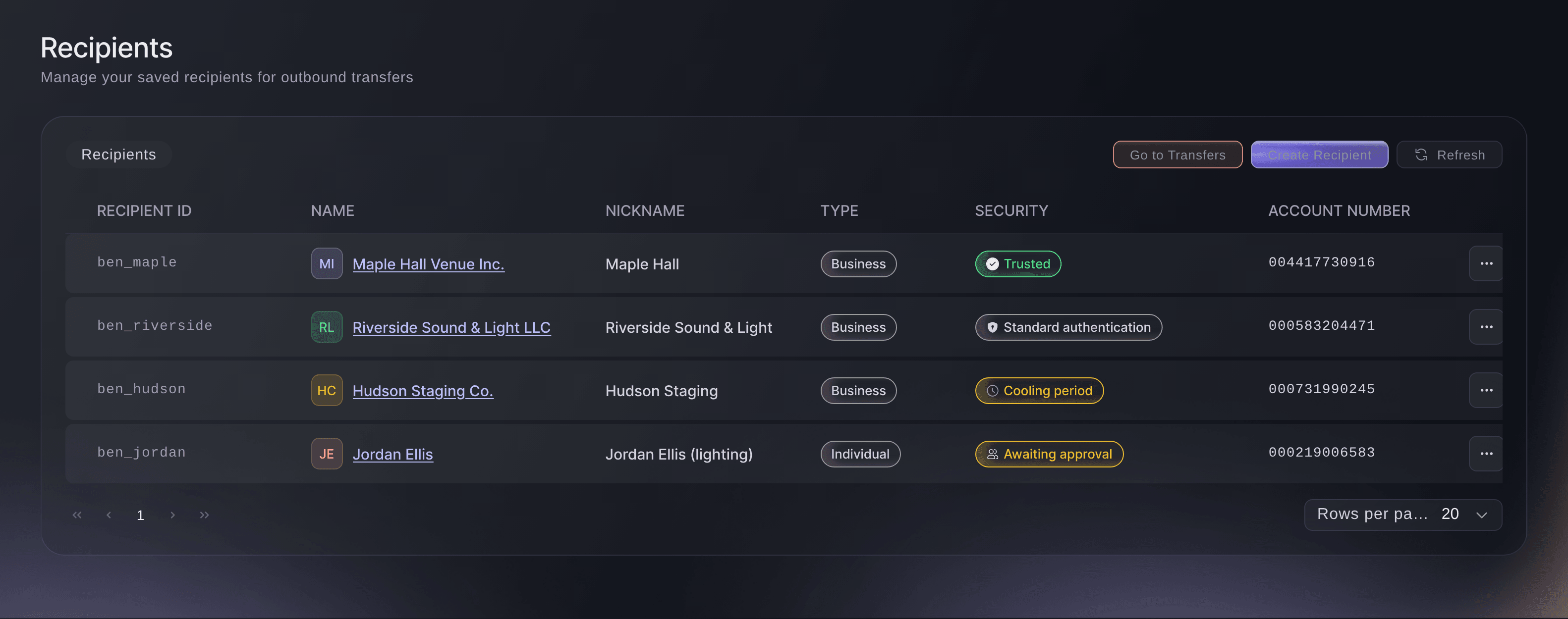
Vault, Recipients. -
Check the supplier's saved details
Select the supplier's name to open Recipient Details, and compare the bank account with the supplier's own invoice or a call to someone you know there.
Note: Trusted status lets payments to this account go with fewer checks, so the account has to be the right one before you ask for it.
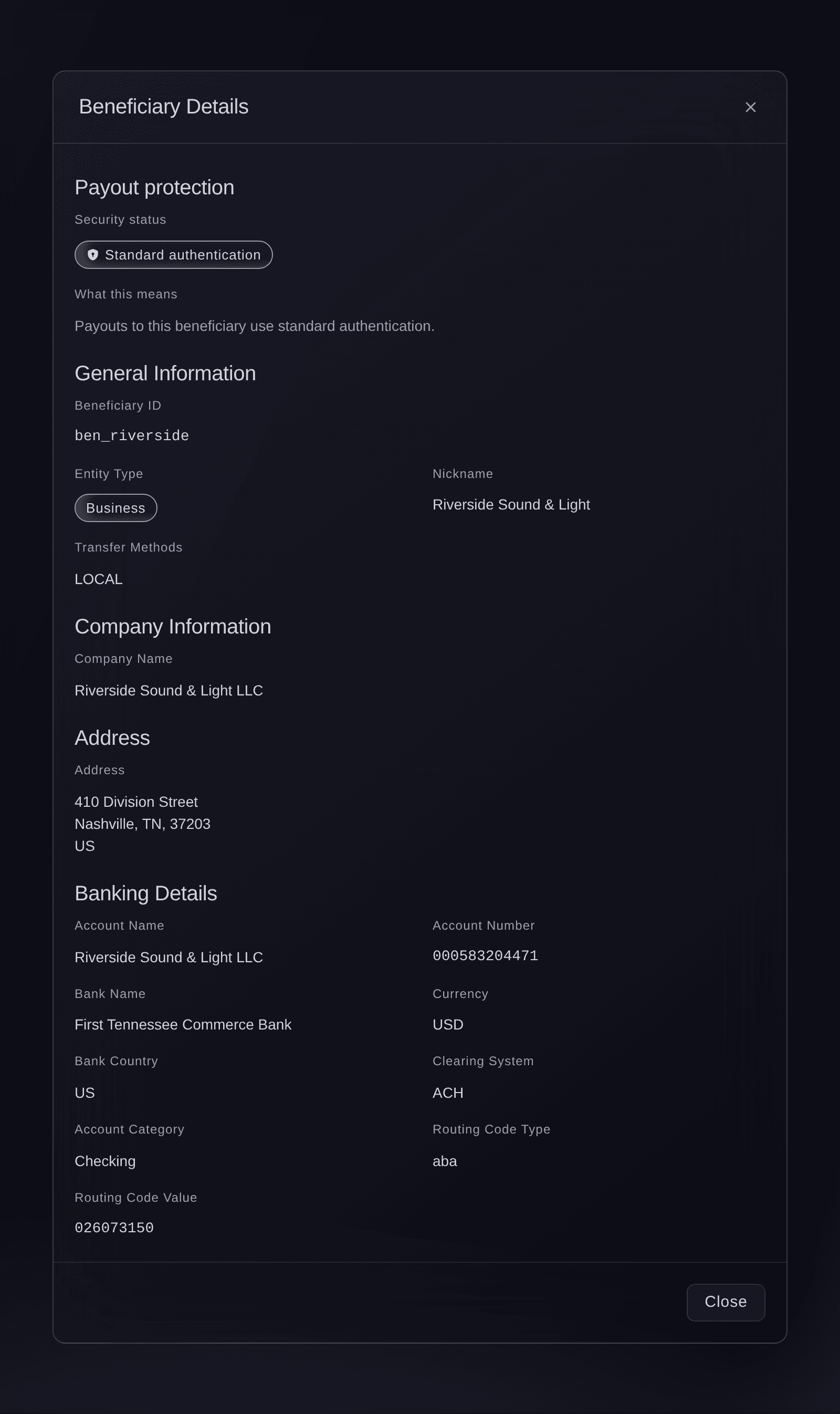
Recipients, Recipient Details. -
Select Request trusted status
Close the details, open the menu at the end of the supplier's row and select Request trusted status. The Request trusted status dialog opens.
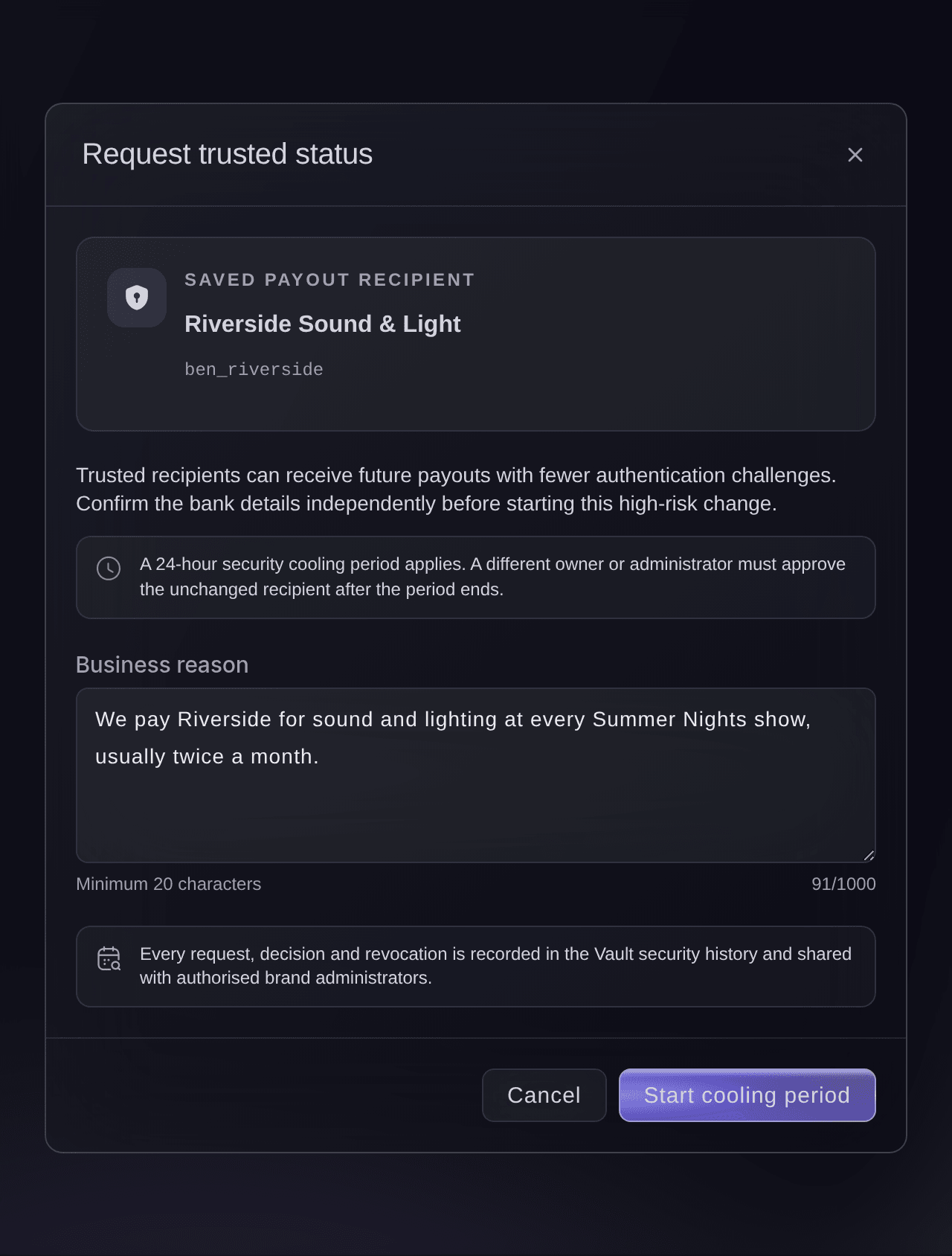
Recipients, Request trusted status. -
Enter the business reason
In Business reason, enter why you pay this supplier again and again, in at least 20 characters.
Note: The reason is kept with the request in the Vault security history, which the brand's owners and admins share.
-
Start the cooling period
Select Start cooling period. The supplier's row shows Cooling period in the Security column.
Note: Vault confirms with
Trust request created. A different administrator can approve it after the cooling period.


The 24-hour cooling period
Nobody can approve the request for 24 hours after it's made, which gives your team time to spot a request that shouldn't be there. During that time any owner or admin, you included, can still reject it, and after it the row shows Awaiting approval.
-
Ask a second owner or admin to approve
Tell another owner or admin on the brand that the request is ready for them once the cooling period ends.
-
Select Approve trusted status
If you're the second owner or admin, open the menu at the end of the supplier's row and select Approve trusted status. The dialog says when the cooling period ended.
Note: The option appears only once the row shows Awaiting approval, and never for the person who made the request.
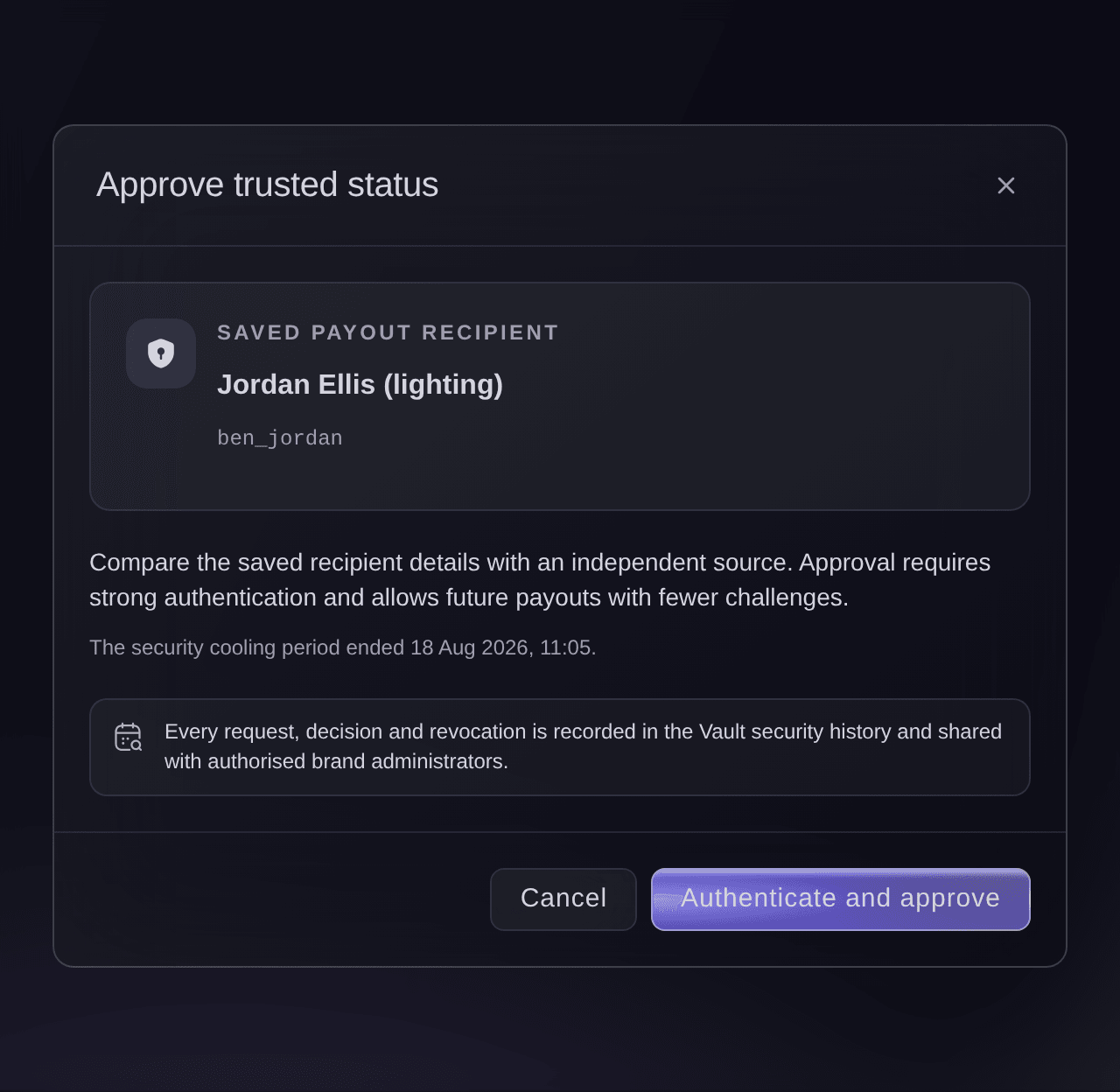
Recipients, Approve trusted status. -
Compare the details and approve
Compare the saved details with a source you trust, then select Authenticate and approve and complete the security check.
Note: If the supplier's bank details were edited after the request, approval stops with
The recipient details changed after trust was requested. Review the new details and create a new request.
-
Check the supplier shows as Trusted
Back on Recipients, check that the Security column shows Trusted for the supplier.

Try these steps on your own event
Create a free account, build your event and follow the steps above in your own dashboard. It takes a few minutes and you do not need to book a sales call.
No setup fees. No required monthly ticketing fee. No credit card required.
Or have it done for you
Asking for, approving and removing trusted status are done by owners or admins themselves in the dashboard, because each one changes how payments to a supplier are checked. Fai can open Recipients in Vault for you.
In your dashboard, with Fai
Open the Vault recipients for <BRAND NAME>
Let Fai do it for you
Fai works inside your Ticket Fairy dashboard. Create your account, open Fai and paste the prompt above.
No setup fees. No required monthly ticketing fee. No credit card required.
Reject a trust request
-
Select Reject trust request
Open the menu at the end of the supplier's row and select Reject trust request.
Note: Any owner or admin can reject a request while it's in its cooling period or awaiting approval, including whoever made it.
-
Enter why and reject
In Rejection reason, enter what couldn't be checked, in at least 10 characters, then select Reject request.
Note: The supplier goes back to Standard authentication, and anyone can ask for trusted status again later.
Rejecting a request is done by an owner or admin in the dashboard. Fai can open Recipients in Vault for you.
In your dashboard, with Fai
Open the Vault recipients for <BRAND NAME>
Remove trusted status
-
Select Revoke trusted status
Open the menu at the end of the trusted supplier's row and select Revoke trusted status.
-
Enter why and revoke
In Revocation reason, enter why you're removing it, in at least 10 characters, then select Authenticate and revoke and complete the security check.
Note: Payments to the supplier use the normal security checks again once Vault confirms the change.
Removing trusted status is done by an owner or admin in the dashboard, with a security check. Fai can open Recipients in Vault for you.
In your dashboard, with Fai
Open the Vault recipients for <BRAND NAME>
Questions you might have
- What happens if I change a trusted supplier's bank details?
- Saving the edit removes trusted status in the same change, so payments to the new account go back to the normal security checks straight away. Ask for trusted status again if you still pay them every event.
- Why can't I approve my own request?
- Trusted status needs two different people, so whoever asks for it can't approve it. Ask another owner or admin on the brand to approve it once the cooling period ends.
- Why does a recipient show Review required?
- The recipient carries a trust setting that has no matching approval in Vault, so payments to them are blocked. Open the row menu and select Remove legacy trust, then ask for trusted status again the usual way.
- Does a trusted supplier skip every security check?
- No. Payments to a trusted supplier ask for fewer checks, and Vault can still ask you to confirm it's you when it needs to.
- Can I make a new supplier trusted as I add them?
- No. Every new recipient starts on standard authentication. Save them first, then ask for trusted status from the Recipients page.
- Can Fai approve trusted status for me?
- No. Trusted status changes how payments to a supplier are checked, so two owners or admins do it themselves in the dashboard. Ask Fai to open Recipients and she takes you there.
Still have a question?
Book a demo and we will answer it on a call, on your kind of event. Or create your account and see it for yourself.
No setup fees. No required monthly ticketing fee. No credit card required.
Related guides
Do this on your own event
Create your account, build your event and follow the steps in your own dashboard. You do not need to book a sales call.