
Email, SMS и маркетинг
Take enquiries and RSVPs on your event website
Venues taking private hire bookings, festivals answering trader and access questions and hosts collecting RSVPs all need the same thing: the right details from each person, in one inbox. A form on your event website asks your own questions and keeps every reply with your website.
Add a contact, private hire or RSVP form to your event website with the questions you need, get an email for each new reply, then read, sort and download the replies in one place.
- Для кого
- Collecting enquiries and RSVPs from your website
- Займёт
- 9 минут
Перед началом
- You are an owner or an admin of the brand, and you have a website in the dashboard, as in the guide to building a website for your events.
-
Add a form section to a page
Open the website in the editor, select the page under Pages, select Add a section, then choose Contact form or RSVP form.
Совет: Choose Newsletter sign-up instead to collect email addresses for one of your mailing lists.
-
Choose the questions
Select the form section on the page, then choose under Questions.
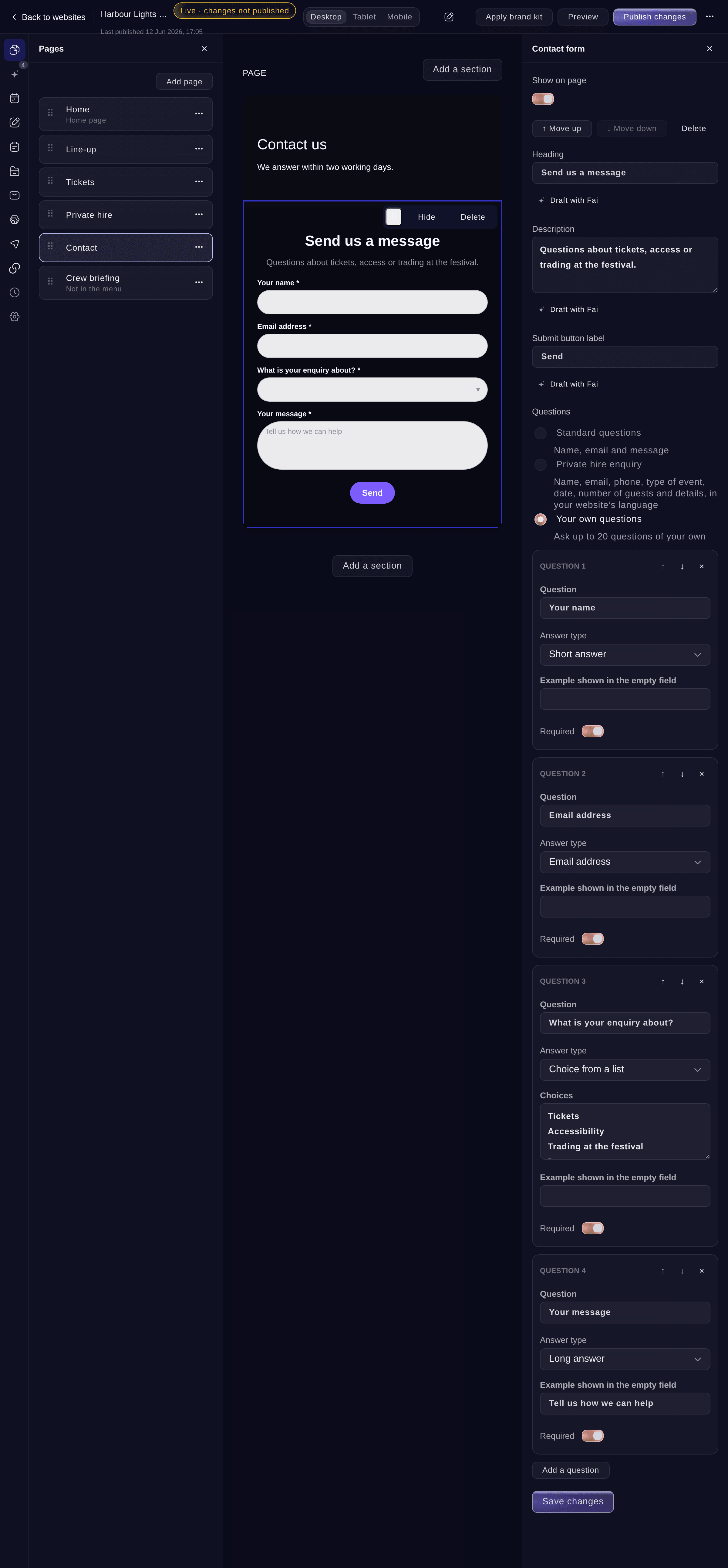
A form with your own questions. -
Add your own questions
If you chose Your own questions, select Add a question, enter the Question, then choose the Answer type.
Примечание: For Choice from a list, enter one choice per line under Choices, up to 50. Turn on Required for each answer people must give.
-
Save the form
Enter the form's heading and button words if you want, then select Save changes.
Примечание: An RSVP form with your own questions needs a required email question, so you can reach your guests. The form says so before you save.
-
Choose who gets the replies by email
Select Settings, enter an address under Send form replies to, then select Save changes.
Примечание: We email that address about each new contact or RSVP reply. With no address here, we email your brand's email address.
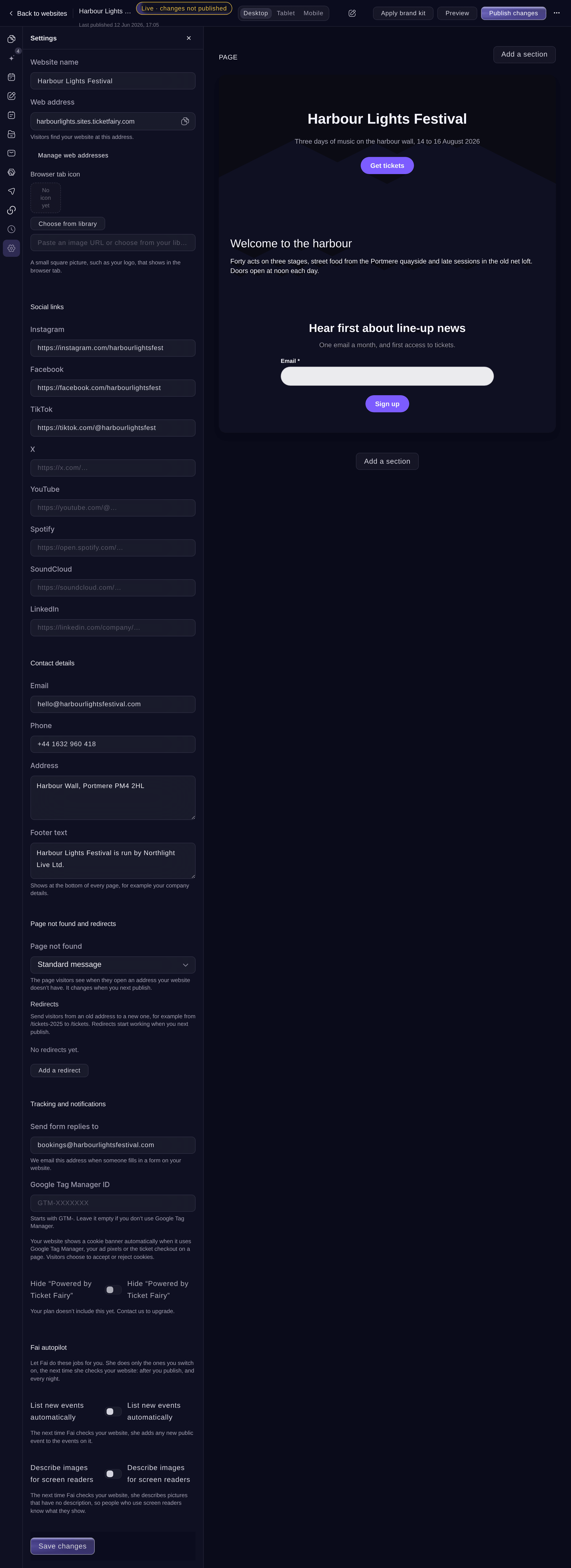
Settings. -
Publish the form
Select Publish changes at the top, then Publish changes. Visitors can fill in the form straight away.
-
Read the replies
Select Form replies. Each reply shows the answers under your own questions, newest first, and new replies are marked New.
Примечание: Choose New, Read, Archived or Spam at the top to see only those. Use Mark as read and Archive on a reply to sort it.
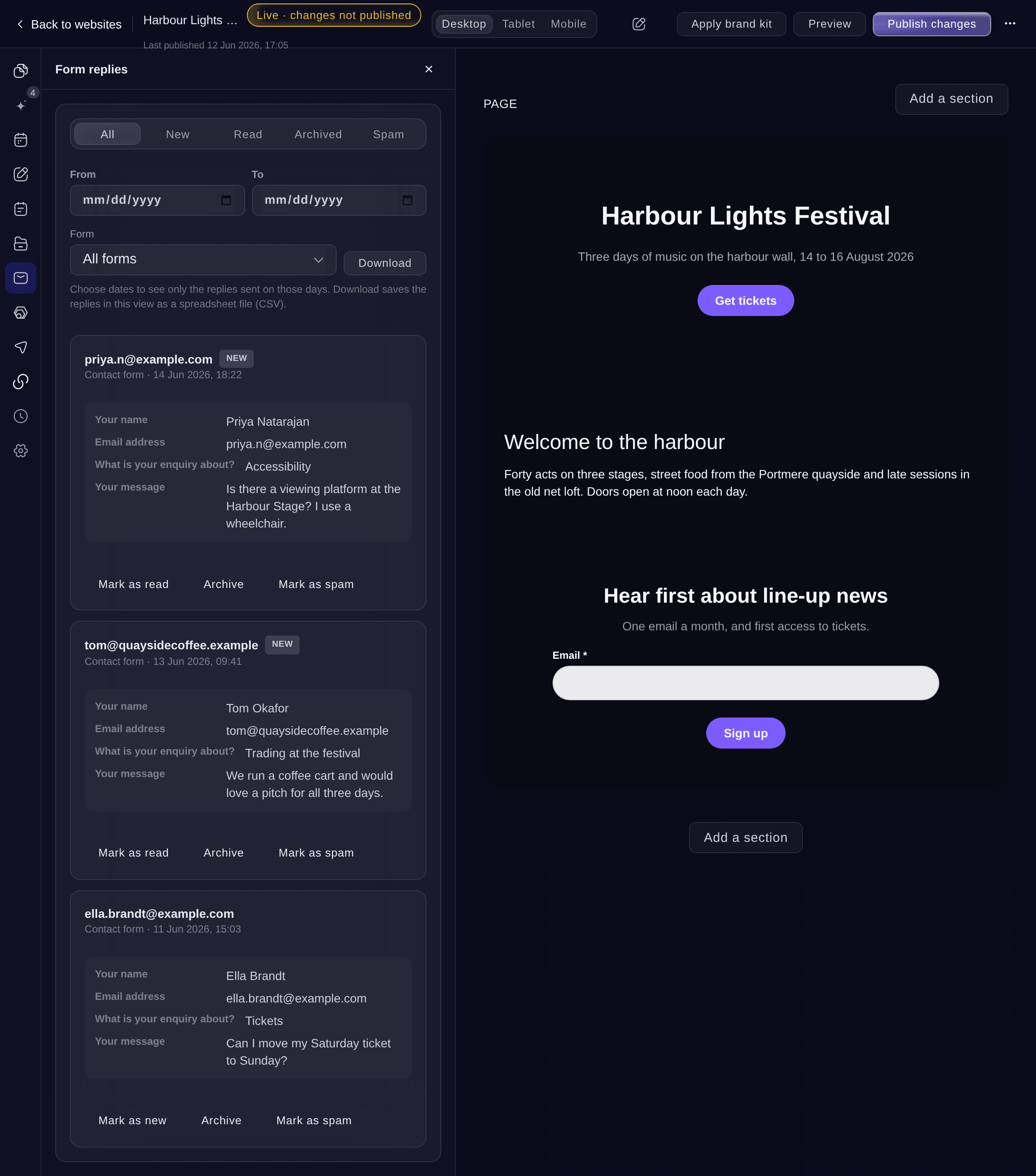
Form replies.


Попробуйте эти шаги на своём мероприятии
Создайте бесплатный аккаунт, настройте мероприятие и выполните шаги выше в своей панели управления. Это займёт несколько минут, и звонок с отделом продаж не нужен.
Без платы за подключение. Без обязательной ежемесячной платы. Банковская карта не нужна.
Или поручите это помощнику
Fai can add a contact or RSVP form with your own questions or the private hire questions, read the replies for the days you name and mark them read, archived or spam. She asks before each change. To download the replies as a file, use Download replies in the dashboard.
В вашей панели, с Fai
Add a private hire enquiry form to the Private hire page of my <WEBSITE NAME> website
Пусть Fai сделает это за вас
Fai работает внутри вашей панели Ticket Fairy. Создайте аккаунт, откройте Fai и вставьте запрос выше.
Без платы за подключение. Без обязательной ежемесячной платы. Банковская карта не нужна.
Download the replies
-
Choose the replies
In Form replies, choose the days under From and To, and a Form if you want one form only.
-
Download the file
Select Download. You get a spreadsheet file (CSV) of the replies in the view, with one column for each question.
Примечание: One download holds up to 20,000 replies. For more, choose a shorter range of days or a status.
Fai can read the replies for the days you name, but she cannot give you the file. Use Download in the dashboard for the spreadsheet.
Mark a reply as spam
-
Move it to Spam
Select Mark as spam on the reply. It moves under Spam, where Mark as new brings it back.
Fai marks a reply as spam after you confirm.
В вашей панели, с Fai
Mark the reply from <NAME> on my <WEBSITE NAME> website as spam
Вопросы, которые могут возникнуть
- What happens to old replies if I change the questions?
- Replies people already sent are kept with the answers they gave. Questions you keep stay linked to their earlier answers, and a new question starts empty.
- Why are some replies already under Spam?
- We check each reply as it arrives and put messages that look like spam under Spam, without emailing you about them. If one is real, select Mark as new.
- Where do newsletter sign-ups go?
- Sign-ups arrive in Form replies. Choose a list under Mailing list on the section to add people to that list as well.
- Can a form ask for a date or a number?
- Yes. The answer types are Short answer, Long answer, Email address, Phone number, Choice from a list, Tick box, Date and Number.
- Can a form go on a page that has a password?
- Yes. Only visitors who entered the page password can send it, so a crew or guest form stays private.
Остался вопрос?
Запишитесь на демо, и мы ответим на него на звонке применительно к вашему типу мероприятия. Или создайте аккаунт и посмотрите сами.
Без платы за подключение. Без обязательной ежемесячной платы. Банковская карта не нужна.
Похожие руководства
Сделайте это на своём мероприятии
Создайте аккаунт, соберите мероприятие и выполните шаги в своей панели управления. Звонок в отдел продаж не нужен.